Main View
Strictly pertaining to the new MAIN VIEW
interface, the AUTOSWITCH TIME function
allows to set the switching time up to 60
seconds before the MAIN VIEW switches from
other environments. For example, after you
choose a style or an instrument, the display
switch automatically to the MAIN VIEW after the
AUTOSWITCH TIME set by this parameter.
Setting the AUTOSWITCH TIME
▀
Press the MENU button on the front panel to open 1.
the MENU screen.
Press the F4 button corresponding to KEYBOARD 2.
CONTROL.
Press the F10 button corresponding to UTILITY. 3.
Press the USER 5 button (NEXT PAGE). 4.
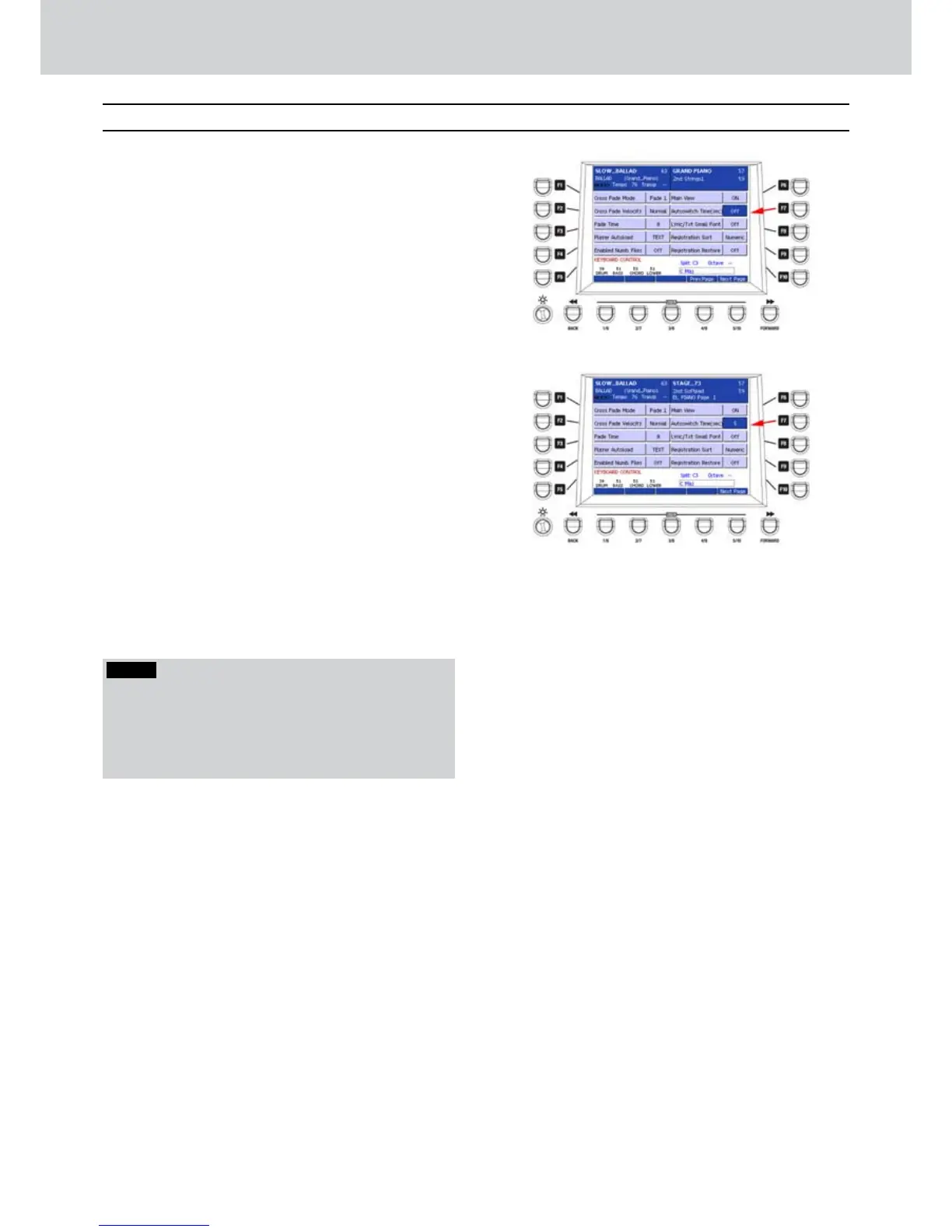
Press the F7 button to select AUTOSWITCH TIME 5.
(sec) as shown in Figure 40.
Now you can uIf the DATA/VALUE wheel or 6.
the CURSOR Ó Á buttons to set the value in
seconds from 1 to 60 seconds as shown in Figure
41.
Please set a time value between 3 and 5 seconds 7.
(even if you can set a higher value).
Press the EXIT button to go to the previous 8.
window of the MENU.
Press the MENU button to exit the MENU 9.
environment.
Autoswitch Time
Figure 40
Figure 41
NOTE
If you set the AUTOSWITCH TIME (sec) to OFF, the
AUTOSWITCH function will be switched off. In this
case, if you want to return to the MAIN VIEW from
other screens, you must press manually the EXIT button
on the front panel.



 To Next Page