By pressing the RAM INS / SUPERSOLO button
in the VOICE section you can access the
screen where to select the SUPERSOLO voices,
described on page 15.
Creating and editing an INS block
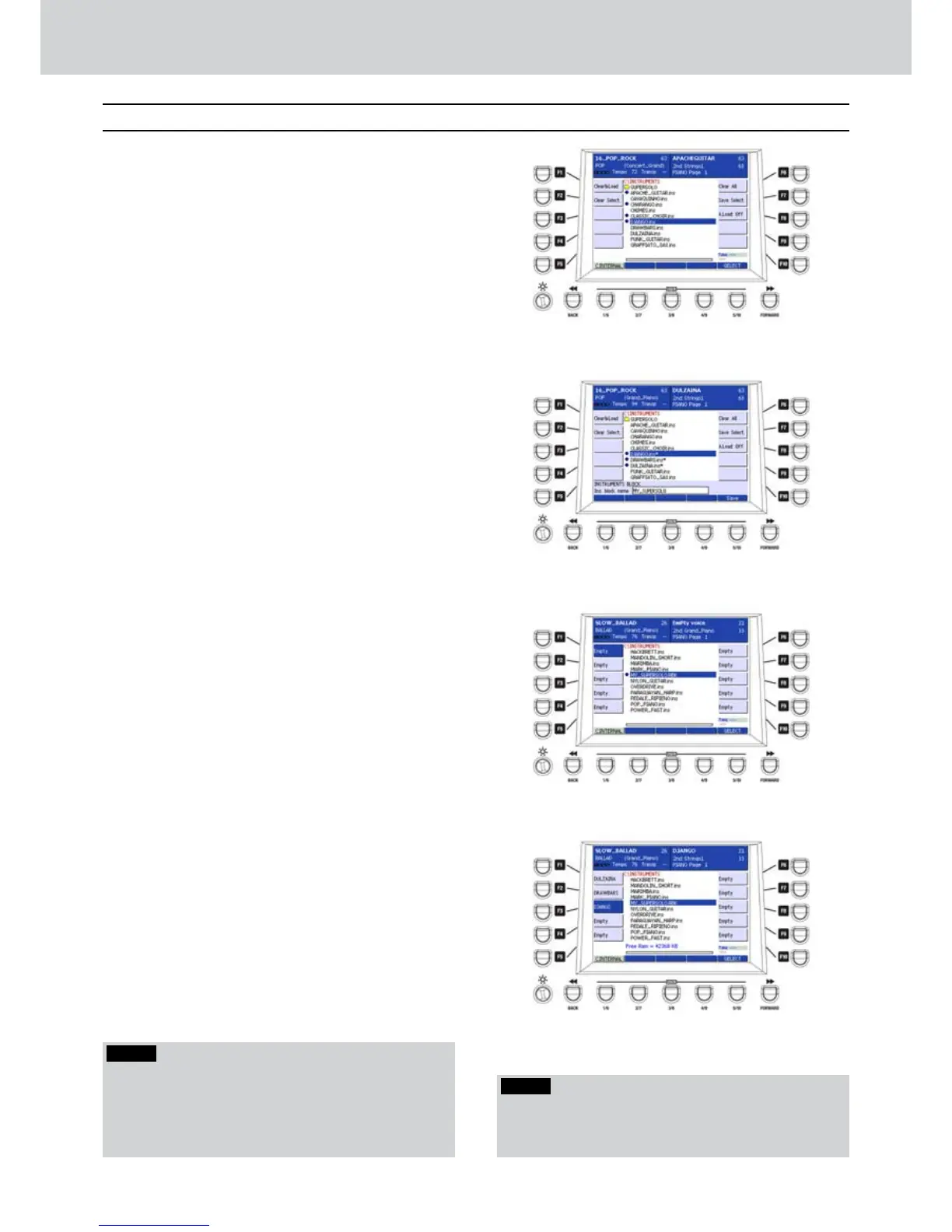
By pressing the EDIT button you can access
the edit screen of the RAM INS / SUPERSOLO
voices (
Figure 198)
. By using the F1-F10 buttons
you can execute the following functions:
F1 - CLEAR&LOAD: clears the current
•
memory and loads the selected INS voice(s).
F2 - CLEAR SELECT.: clears the memory
•
only for the currently selected INS voice(s).
F6 - CLEAR ALL: clears the memory of all
•
the INS voices.
F7 - SAVE SELECT.: stores the currently
•
selected voices in one file. Give a name by
using the keyboard and press the USER 5
button (SAVE) to store the INS block.
In the example, the file is “MY_SUPERSOLO”.
F8 - AUTO LOAD OFF: enables/disables the
•
automatic loading into memory of an INS
block. To choose the autoload function of an
RBK file, just move to the RBK file and switch
the Auto Load parameter from OFF to ON.
Loading an INS block
After storing the INS block, it will be on the internal
disc.
Press the RAM INS / SUPERSOLO button from 1.
the front panel.
Scroll the files by using the CURSOR2.
§ ¶
buttons
or the DATA/VALUE wheel and localize
the file “MY_SUPERSOLO .RBK” previously
stored on disc (Figure 200).
Press ENTER on the front panel to load the INS
3.
block and all its instruments at one time (Figure
201).
RAM Ins / Supersolo
Figure 198
Figure 199
Figure 200
Figure 201
NOTE
When you can access to RAM INS section, you can find
the folder called SUPERSOLO, containing high quality,
exclusive for AUDYA, orchestral voices .
RAM Ins / Supersolo
NOTE
While loading the INS voices, if there is not enough
room in memory, a warning message will appear
inviting to free one or more memory locations of INS
voices, by using the F2 button (CLEAR SELECT) or the F6
button (CLEAR ALL).



 To Next Page