Avoiding the MIDI file recording mixed to the
source
When you make a MIDI SYNC RECORDING by
selecting a Main or Keyboard source, also the MIDI
file playing will be recorded into the audio file.
To avoid this, you can follow two procedures:
Manual procedure
Select MENU > Out Assign > Out1&2 and set 1.
MIDI1 to 1&2 stereo.
While recording, the keyboard will be output to 2.
MAIN OUT and will be recorded. The MIDI will
be present on 1 and 2 outputs without being
recorded.
Automatic procedure
Select MENU > Keyboard Control > Utility and 3.
set the Headph to out3&4 item to ON.
Now, making the recording, the MIDI will be 4.
output automatically to the headphones and will
not be recorded on the audio track.
Remember that when the Headph to out3&4 item 5.
is set to ON, also WAV, MP3 will be present on
the headphones... that is all the sources set to out
3&4. You can control the output volume by the
PFL slider.
Overdubbing a WAV file
Press the MENU button and the F8 button (AUDIO 1.
RECORDING) to enter the audio recording
environment.
Press the F6 button (WAVE RECORDING) and 2.
the RECORD button. Give a name to the file
by inputting the characters directly from the
keyboard.
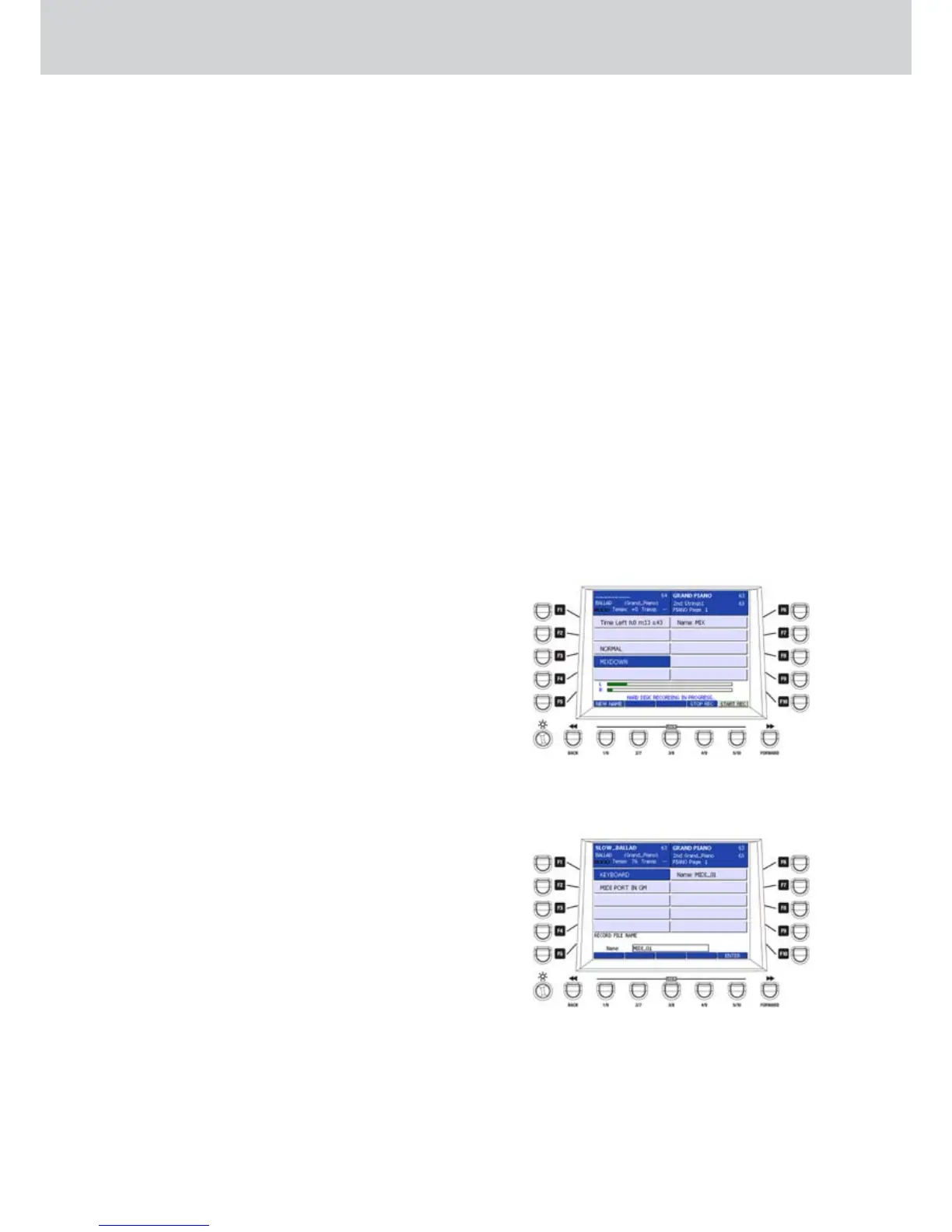
Press the F4 button (MIXDOWN) to set the 3.
overdubbing mode (Figure 281).
Press the USER 5 button (START REC) to start 4.
recording and the STOP button to stop.
Repeat MIXDOWN procedure by adding new 5.
audio material from the keyboard and/or from the
microphone, as you like.
MIDI RECORDING
▀
Press the F9 button (MIDI RECORDING) in the •
MENU screen. The recording MIDI page will open.
By using the F1-F10 buttons you can set the
following MIDI recording modes:
F1- keyboard: sets the recording mode from the
keyboard.
F2 - MIDI PORT IN GM: sets the MIDI data
recording mode from the MIDI IN port.
Recording a MIDI file using the keyboard
Press the MENU button and the F9 button 6.
(MIDI RECORDING) to enter the MIDI recording
environment.
You will be prompted to give a name to the file. 7.
Digit the name for the MIDI file, directly from the
keyboard (Figure 282). In the example, the file is
“MIDI_01”.
Figure 281
Figure 282



 To Next Page