MIDI SYNC RECORDING (file audio recording
synchronized with a MIDI file)
Press the MENU button and the F8 button (AUDIO 1.
RECORDING) to open the audio recording
environment.
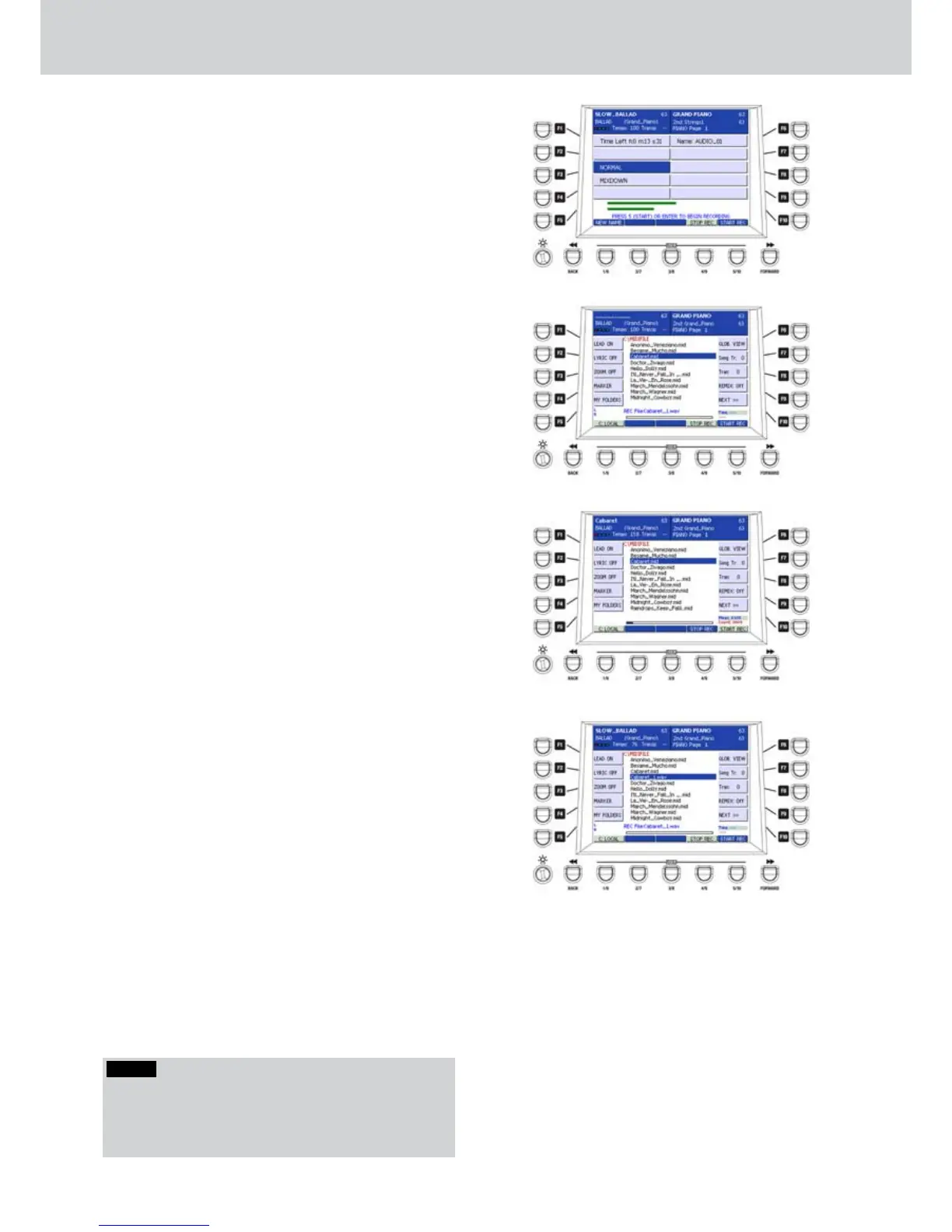
Press the F2 button (MIDI SYNC RECORDING) 2.
to show the list of MIDI files within the MIDIFILE
folder on the disk (Figure 277).
Select a MIDI file from the list. In the example, the 3.
file is “Cabaret.MID”.
Press the ENTER button to start simultaneously 4.
the audio recording of the MIDI file (Figure 278).
Play the keyboard and/or sing on your 5.
microphone connected to the MICRO 1 connector
(enable the MICRO button in the VOICETRON
section).
Press the USER 4 button (STOP REC) to stop 6.
recording. If you stop recording before the MIDI
file ends, press the START/STOP button on the
panel.
A wave format file with the same name of the MIDI 7.
file plus a progressive numbering and the WAV
extension will be created. In the example, the file
is “Cabaret_1.wav”. You will find it in the MIDIFILE
folder (Figure 279).
Also, you can overdub using the same MIDI file 8.
and the newly created audio file. Repeat the
procedure from step 3 to step 6.
After overdubbing, you will find your audio 9.
files with progressive numbering, that means
“Cabaret_2.wav”, “Cabaret_3.wav” and so on
(Figure 280).
Once the MIDI sync is created and played back
(remember that only two tracks will play in
numeric order, e.g. _1 and _2 or _2 and _3, if _1 is
not present), by pressing the SAVE button a pop-
up with two options appears:
F1 - Save Sync Param: it allows to save the
information of the sync into the MIDI file so the
next time you play the file it’s not necessary to
reload them. You cannot change the audio file
after you saved the sync information because you
will loose the synchronization.
F2 - Merge Audio Track: it combines the current
two tracks playing in one audio track. This option
appears only if you have 2 WAV tracks playing.
Figure 277
Figure 278
Figure 279
Figure 280
NOTE
Once the files are “merged”, a single audio file will be
created, by using the lower number of the two files,
and two .bak files (backup files of the two original wav
files).



 To Next Page