AUDIO RECORDING
▀
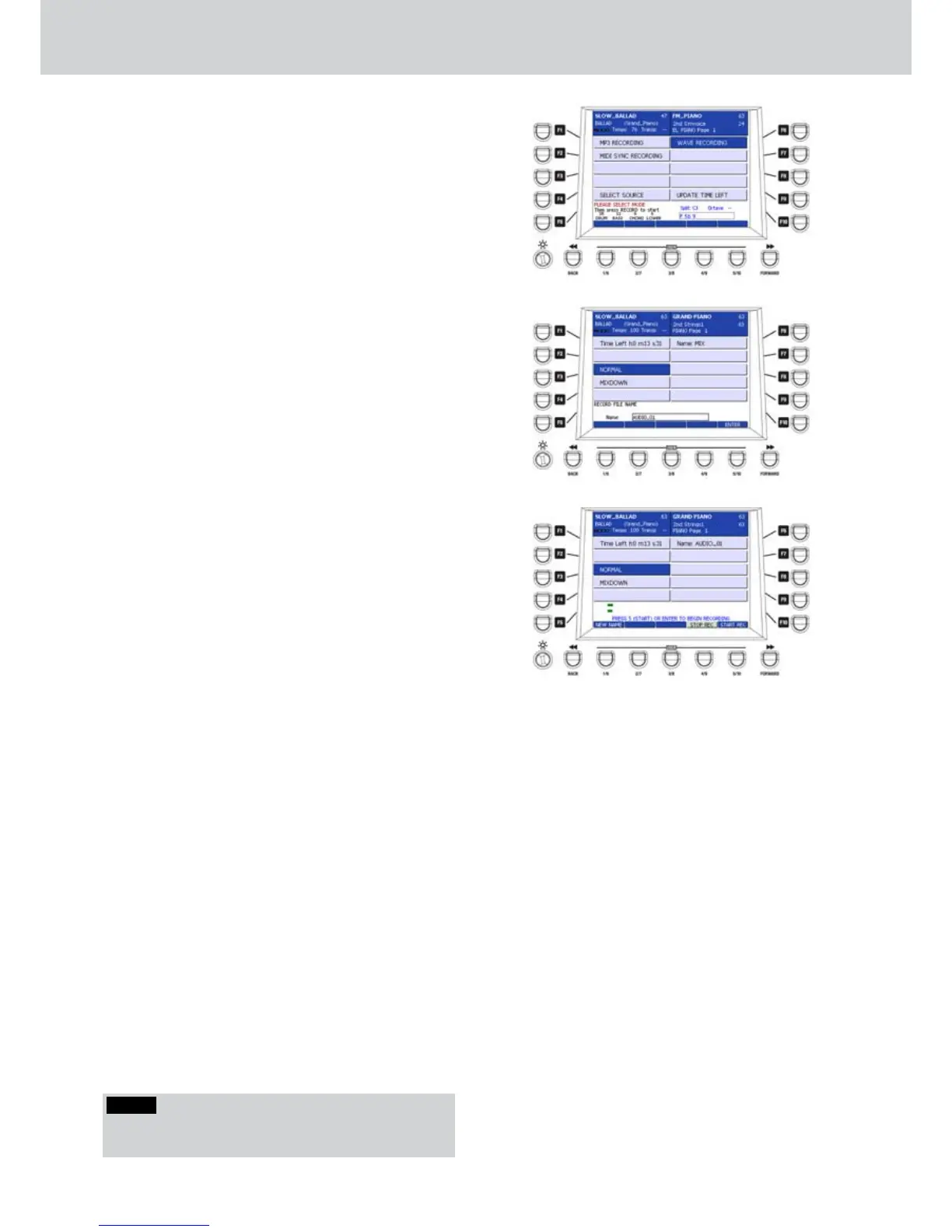
From the main page of the MENU, press the F8 •
button to open the AUDIO RECORDING page
dedicated to audio recording (Figure 274).
By using the F1-F10 buttons you can set the
following parameters:
F1- MP3 RECORDING: MP3 file recording.
F2- MIDI SYNC RECORDING: audio file recording
synchronized with a MIDI file.
F5- SELECT SOURCE: selection of the
recording source, that is SPDIF, MP3-1, WAVE,
MICROPHONE/VOICETRON
F6- WAVE RECORDING: WAV file recording.
F-10 UPDATE TIME LEFT: calculates the available
recording room on the disc.
Recording a WAV file
Press the MENU button and the F8 button (AUDIO 1.
RECORDING) to enter the audio recording
environment.
Press the F6 button (WAVE RECORDING) to 2.
choose WAV file recording mode.
Press the RECORD button.3.
You will be prompted to give a name to the file. 4.
Digit the name for the audio file directly from the
keyboard (Figure 275). In the example, the file is
“AUDIO_01”.
Press the USER 5 button (ENTER).5.
Press the F3 button (NORMAL) to set the normal 6.
recording or the F4 button (MIXDOWN) to make
overdubbing (see details later).
Play the keyboard and/or sing on your 7.
microphone connected to the MICRO 1 connector
(enable the MICRO button in the VOICETRON
section). Be sure that the input level is not too
high by checking the stereo VU-Meter (Figure
276).
Press the USER 5 button (START REC) or the 8.
ENTER button to start recording. It’s also possible
to press the MENU button to exit, but keeping
ready to record. The REC button remains lit. You
can then start the recording at any time by simply
pressing the REC button, which will start blinking.
Press the USER 4 button (STOP REC) to stop 9.
recording.
A file in the WAVE folder of the disk will be 10.
created.
Press the START button or the USER 5 button 11.
(START) to start playback of the recorded file. To
browse and select any recorded audio WAV file,
press the WAVE button in the Player section.
Recording an MP3 file
Press the MENU button and the F8 button (AUDIO 1.
RECORDING) to enter the audio recording
environment.
Press the F1 button (MP3 RECORDING) to 2.
choose MP3 recording.
Follow the same procedure for WAV file recording.3.
The recorded MP3 file will be created in the MP3 4.
folder of the disk. To browse and listen to the
recorded MP3 file, press the MP3 button in the
Player section.
NOTE
The recording volume is set by the WAVE slider on the
PLAYER section.
Figure 274
Figure 275
Figure 276



 To Next Page