96
AUTOMATION AND CONTROL SYSTEM FOR UNITS EVO-T; EVO-T COMPACT
OPERATION AND MAINTENANCE MANUAL
15.1.5 Operation
Table no. 31 Keys description
Select
- key highlighting
- enter menu
- enter the text menu (hold down for 3 seconds on the main
screen)
Next Prev - navigation through the main screen
- go to the item above in the menu
+
- increase the value of the parameter in edit mode
- go to the item below in the menu
- - decrease the value of the parameter in edit mode
Edit - start editing the parameter
Back
- exit menu
- (hold down for 3 seconds) move to the alarm list
Conrm - parameter value conrmation
Cancel - cancel editing the parameter
Conf.3s - conrm the alarm (hold down for 3 seconds on the alarm list)
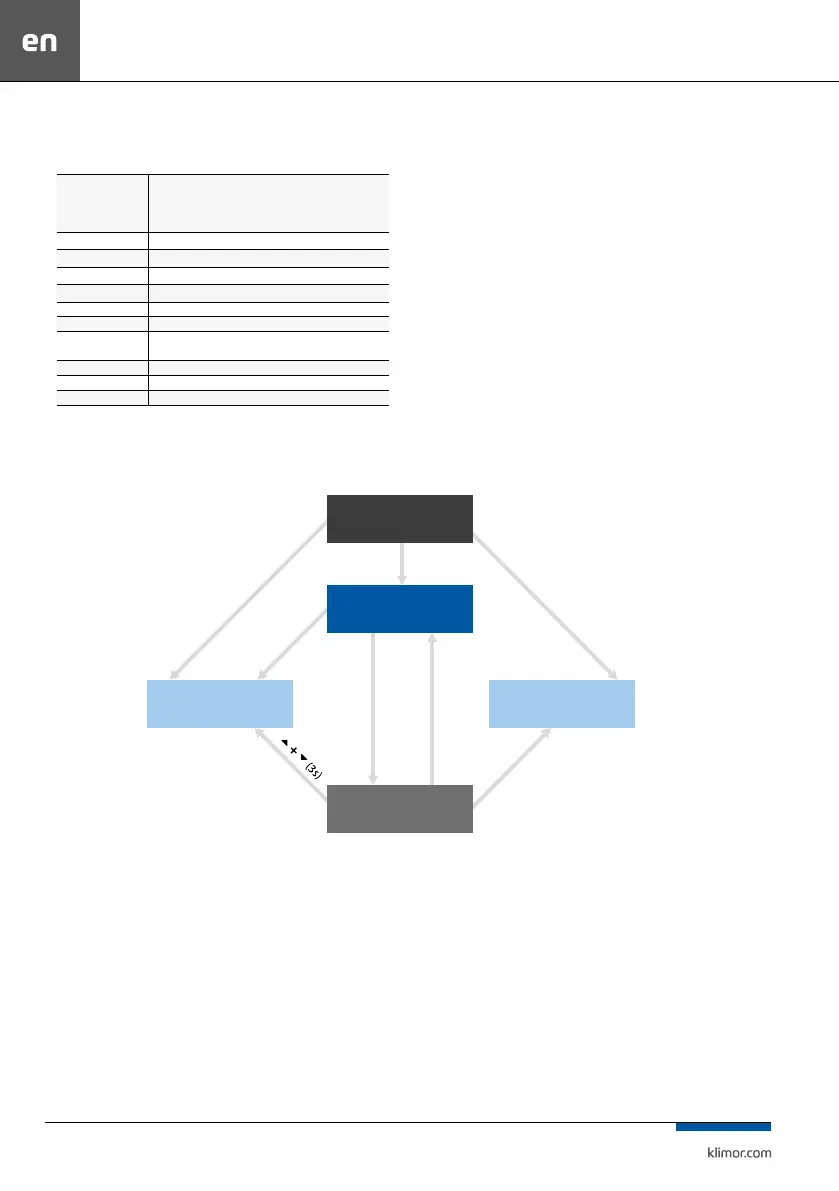
15.1.6 HMI screens
Fig. 39
TITLE
SCREEM
Main HMI
pages
HMI
menu
Settings
menu
Alarms
menu
two left keys (3s)
prev + next (3s)
right key (3s)
select
select
black
back (3s)
15.1.7 HMI Menu
Main HMI pages appear depending on a controller type
and its application. These are default screens appearing as
rst ones once the HMI is turned on. At any time after press
-
ing or key the system enters automatically the editing
mode of a default page parameter (e.g. requested temper
-
ature). The changed parameter value will be conrmed
after 3 seconds or after pressing OK key. Then the system
moves to the next possible editable parameter. In order
to cancel a parameter value change, press C key within 3
seconds, before the parameter is automatically conrmed.


 To Next Page