97
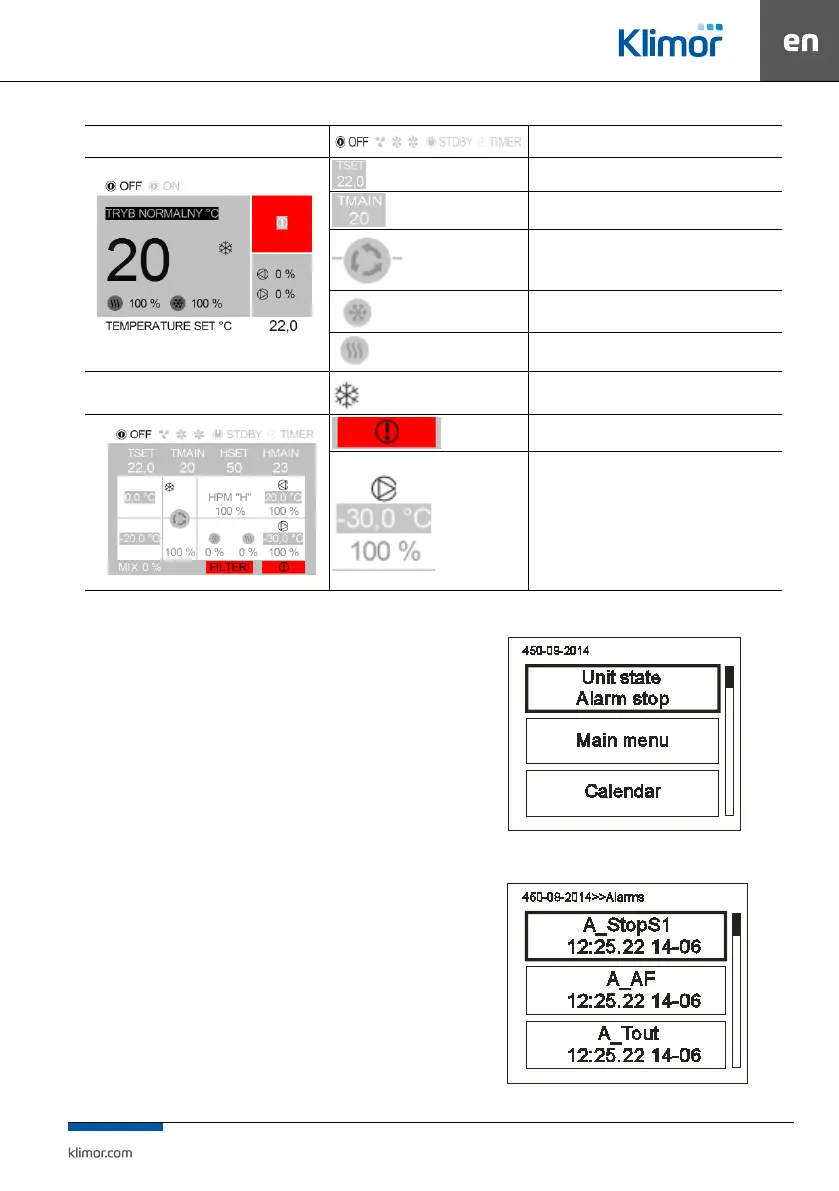
”Simple” screen
Operating mode setting: "Stop", "Speed 1",
Speed 2", "Speed 3", "Standby". "Timer"
Preset temperature setting
Temperature reading from the master
sensor
Recovery icon
Cooler icon
Heater icon
"Graphic" screen
Active frosting of heat recovery
Active collective alarm
Control level of air supply fan [%]
Fig. 40 Keys description
15.1.8 HMI control
You can switch from the main page screen to the HMI
menu by pressing and holding the OK key for 3 seconds.
If the controller to which the HMI is connected does not
contain the main pages, the HMI menu is displayed by
default after switching on the device.
The HMI menu contains all parameters made available
by the controller for viewing and editing by the user.
The menu contains two types of elements: node and
parameter. Nodes are entry points into the menu. Pa
-
rameters contain values that can be read and some of
them can also be modied. To enter the menu or to edit
a parameter, press OK. Pressing the C key will exit the
menu or cancel the edition of the parameter. Alarm sta
-
tus is indicated by red background colour of HMI menu.
To check the alarm status, go to the Alarm menu.
15.1.9 Alarms menu
You can access the alarm menu from the main page
screen or from the HMI menu by pressing and holding
down C for 3 seconds. If an alarm occurs, its name and
date and time are listed. A conrmed alarm is additio
-
nally symbolized by an asterisk „*” next to the date and
time of occurrence. At the end of the list there is a node
called „Alarms history”. Alarms history presents a chro
-
nological list of the last occurrences of each alarm.
Fig. 41
Fig. 42


 To Next Page