3.9 Operating the Storage Device
3-65
6
66
6
Press the ENTER key. Processing appears and formatting of the memory card
starts.
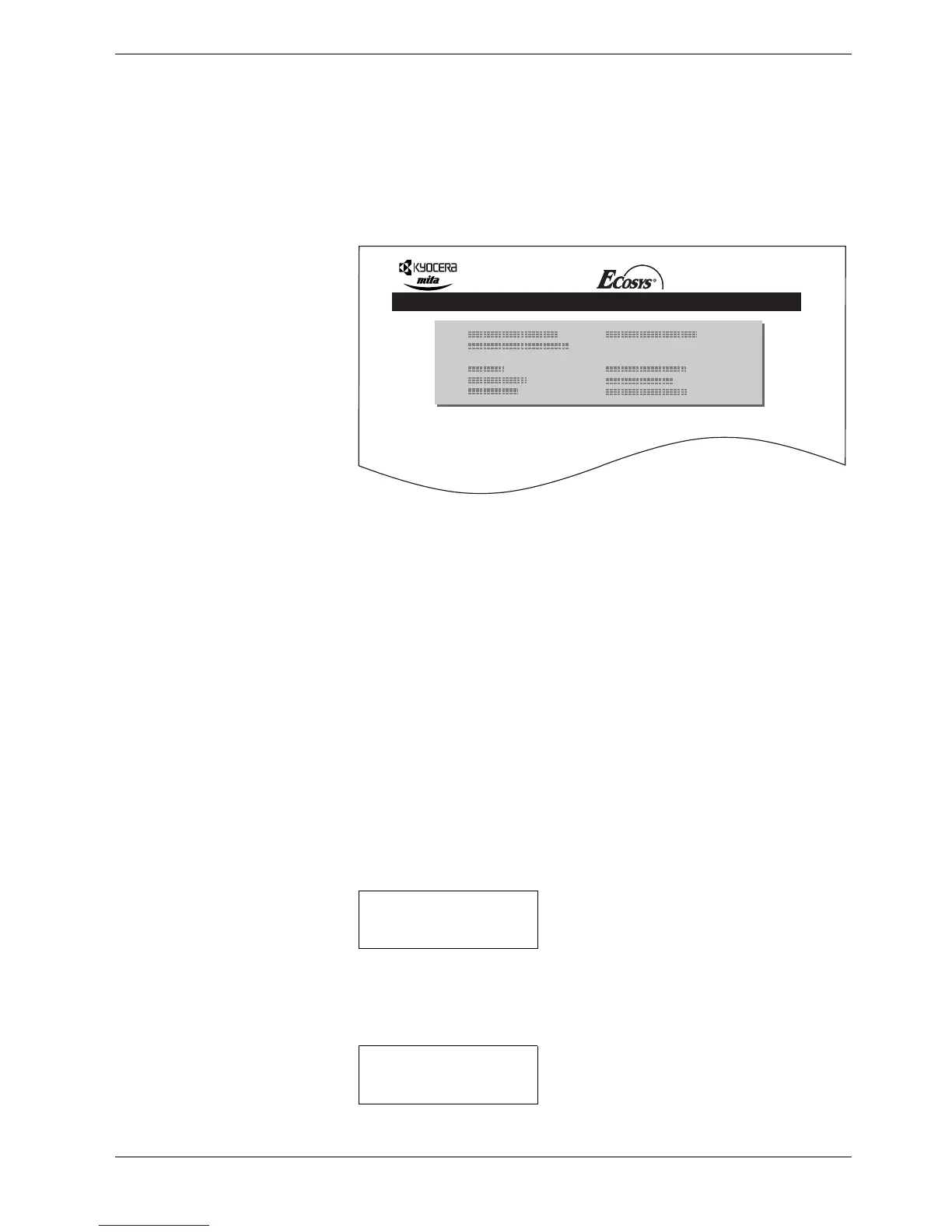
When the formatting is successfully completed, the printer automatically prints out a
format information page, which allows you to check the memory card for proper
formatting.
Figure 3-11
Format information page includes the following items:
When the memory card format information is printed, the display returns to Ready.
Printing a List of Data Names (Partitions)
The printer prints a list of all data names (referred to as partitions) stored in a memory card
for reference. (Printing a list is also available for a font card.)
To print a list of data names for the memory card, proceed as follows.
1
11
1
Press the MENU key.
2
22
2
Press the U or V key repeatedly until Memory Card > appears.
3
33
3
Press the Z key.
4
44
4
Press the U or V key repeatedly until >List of Partitions appears.
Capacity: The total size of the memory card.
Used Space: The size the printer uses for its system.
Free Space: The size remaining in the memory card for storing data.
FORMAT INFORMATION
FS-C8008N Page Printer
Memory Card >
>List of
Partitions


 To Next Page