3.6 Making Default Settings
3-47
Selecting Regular or Dark Courier/Letter Gothic
Courier or Letter Gothic font thickness can be selected as Regular or Dark. In the
procedure below, it is assumed that Courier is selected. The procedure is the same for Letter
Gothic.
1
11
1
Press the MENU key.
2
22
2
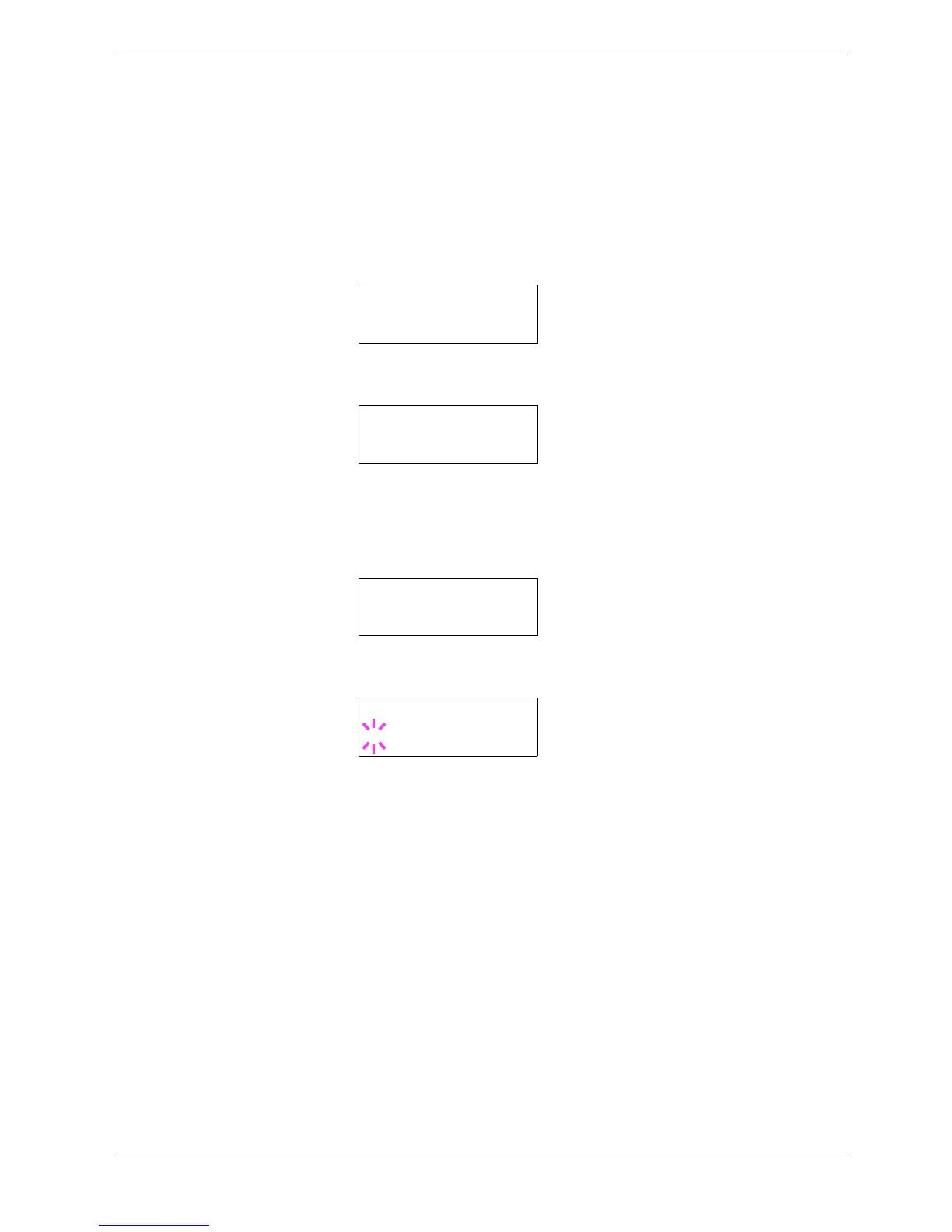
Press the U or V key repeatedly until Font > appears.
3
33
3
Press the Z key. Press the U or V key until >Font Select > appears.
4
44
4
Make sure that Internal is displayed and press the Z key.
5
55
5
Press the U or V key repeatedly until >>Courier appears. If you are selecting the
thickness of the Letter Gothic font, choose >> Letter Gothic here instead.
6
66
6
Press the ENTER key. A blinking question mark (?) appears.
7
77
7
Select Regular or Dark using the U or V key.
8
88
8
Press the ENTER key.
9
99
9
Press the MENU key. The display returns to Ready.
Font >
>Font Select >
Internal
>>Courier
Regular
>>Courier
? Regular


 To Next Page