3.6 Making Default Settings
3-48
Changing the Default Font Size
You can change the size of the default font. If you selected a proportional font, the character
size can also be changed.
1
11
1
Press the MENU key.
2
22
2
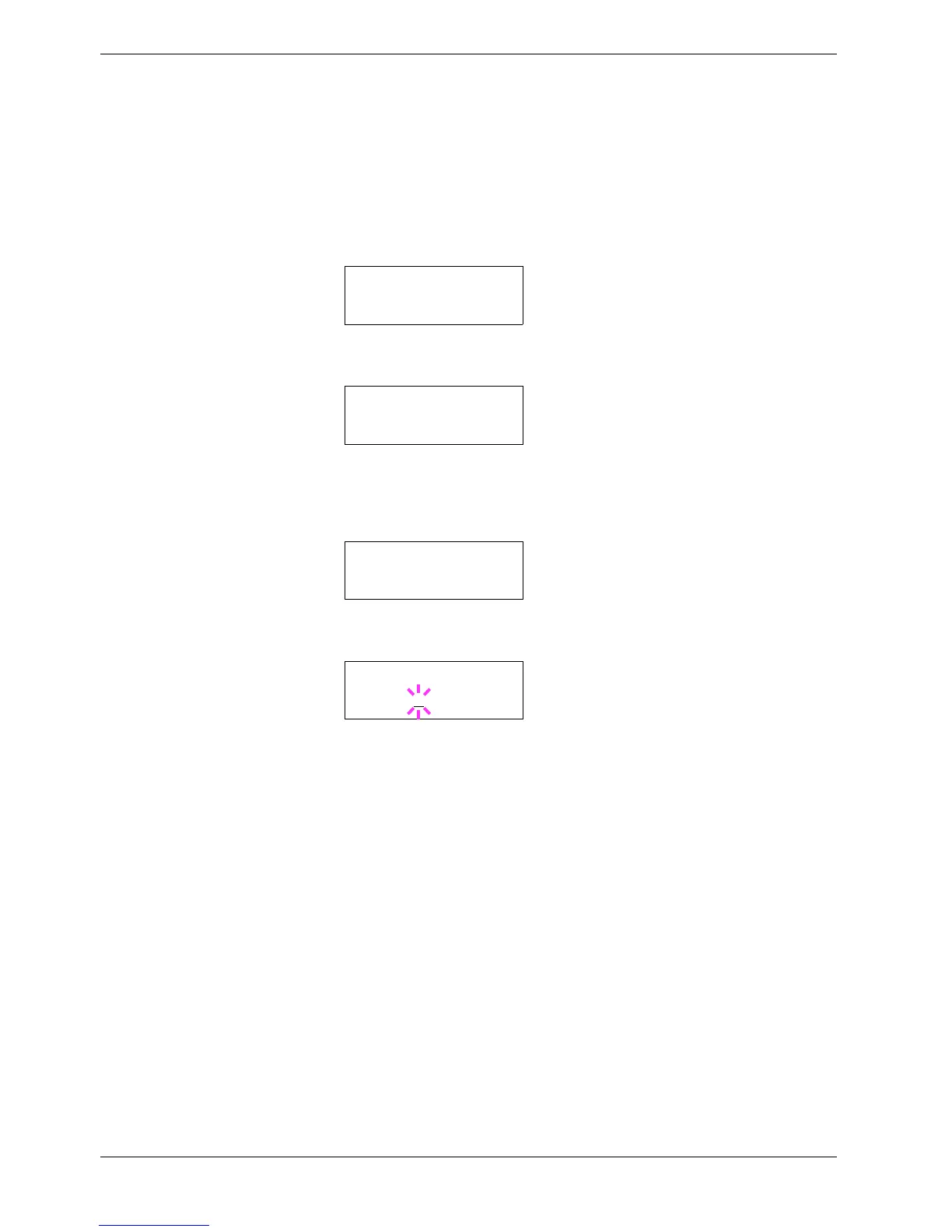
Press the U or V key repeatedly until Font > appears.
3
33
3
Press the Z key. Press the U or V key until >Font Select > appears.
4
44
4
Make sure that Internal is displayed and press the Z key.
5
55
5
Press the U or V key repeatedly until >>Size appears.
6
66
6
Press the ENTER key. A blinking cursor (_) appears.
7
77
7
Press the U or V key to increase or decrease the value at the blinking cursor. The
font size can be set between 4 and 999.75 points, in 0.25-point increments. Use the
Z or Y key to move the cursor right and left.
8
88
8
When the desired size is displayed, press the ENTER key.
9
99
9
Press the MENU key. The display returns to Ready.
Font >
>Font Select >
Internal
>>Size
012.00 point(s)
>>Size
012.00
point(s)


 To Next Page