d2, 2big, and 5big Network 2 User Manual 91
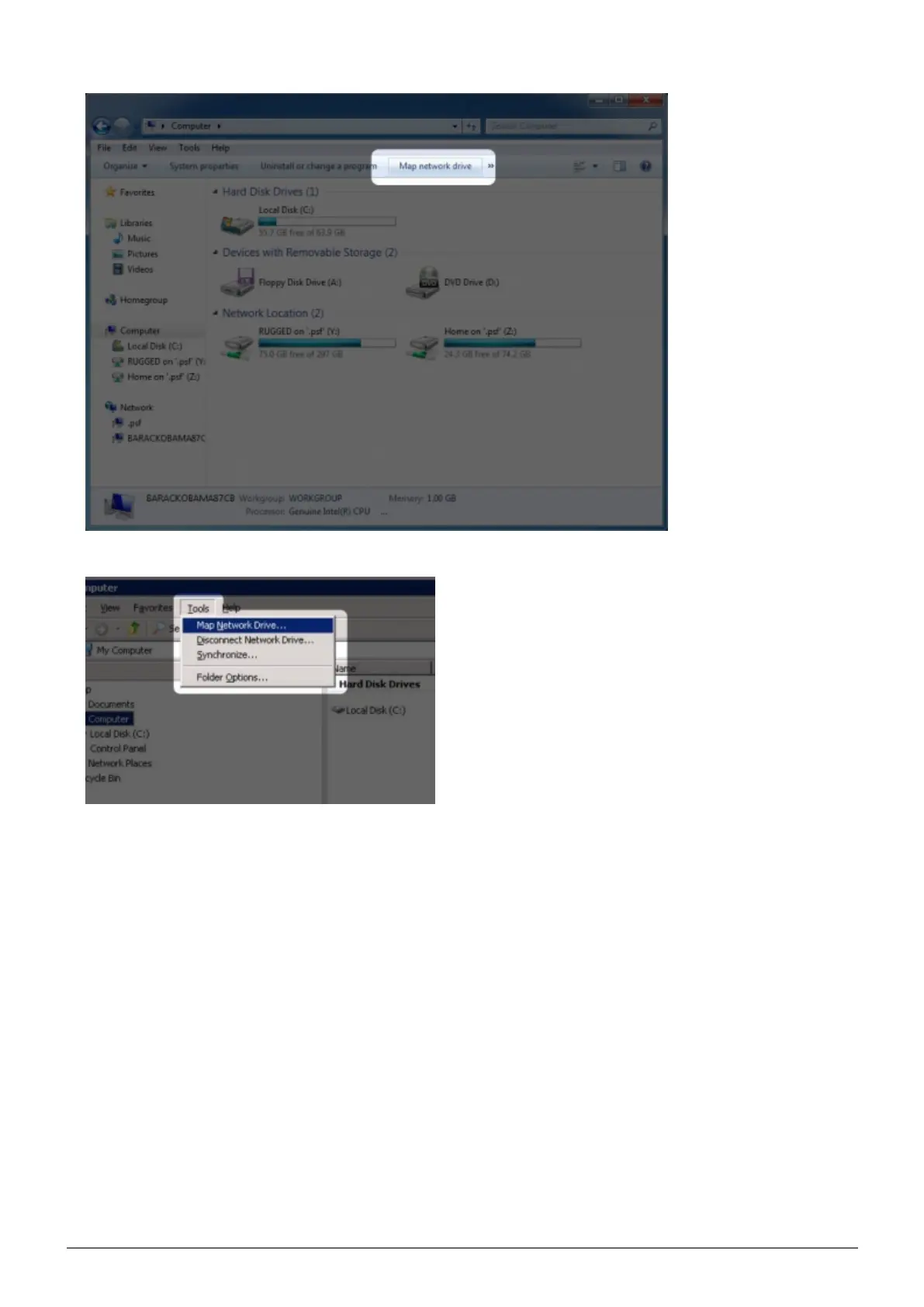
Browse to and select the share you wish to auto mount.2.
Windows will offer the option to mount the share each time you log on to the computer.3.
Repeat steps 1-3 for other shares.4.
Mac Users
Open a new Finder window. On the left of the window, navigate to Shared > [machine name] > [share]. If1.
prompted, type in your username and password and click Connect.
Repeat step 1 for each share.2.
To mount the share automatically each time you log on to you computer:3.
From the Apple icon in the menu bar, select System Preferences > Accounts > Login Items.1.
Click on the ”+” sign to add a new item to the list and browse for the share. Please note that the shares2.
must be mounted in order to add them to the list.













 To Next Page