- Locate Ethernet port at upper left corner
- Plug in the cable to Ethernet port
- Plug in the other end to your router
- Close and lock the controller door
- Power up the controller
Once you are connected to the Internet, the iPonic 624 controller will
automatically link up to the iPonic Cloud server at https://iponic.link4cloud.com
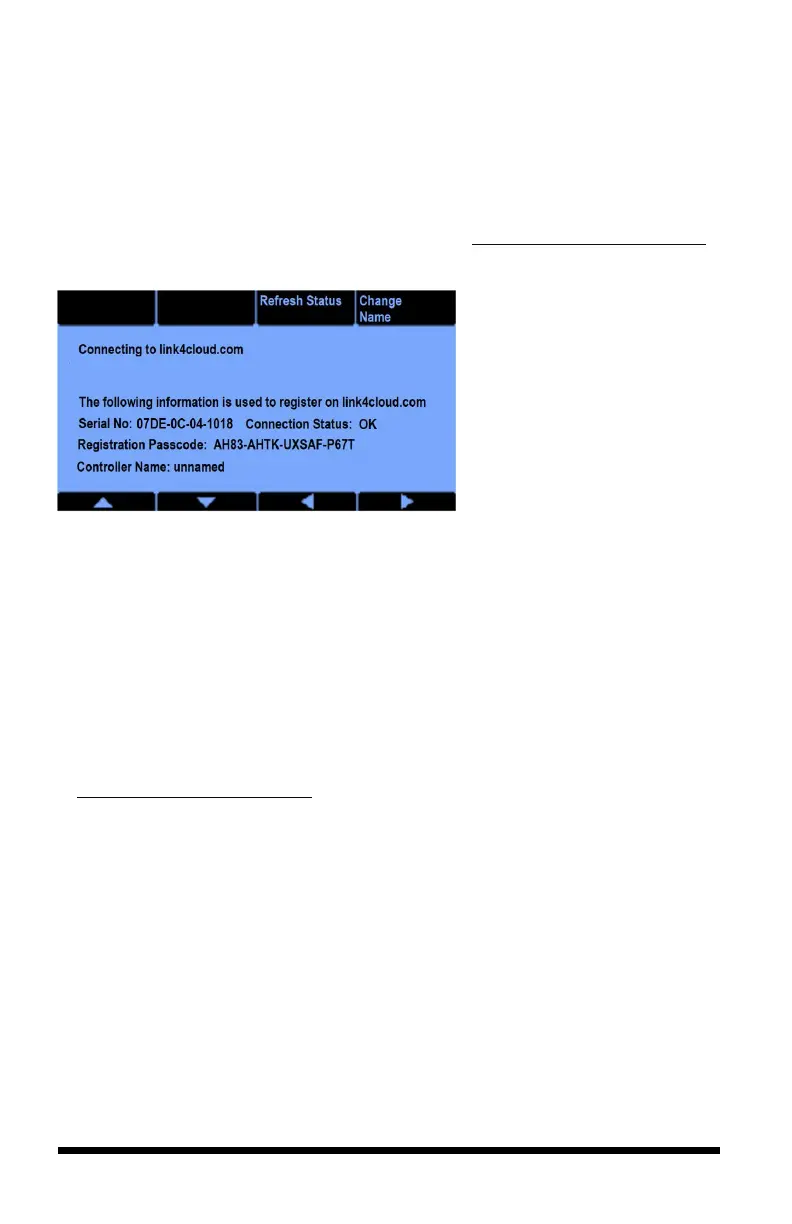
and the Server Setup screen connection status will display “Check Account.”
Once you add your iPonic 624
controller onto the iPonic
Cloud**, the connection
status will display OK.
**Use the instructions below
to access the iPonic 624
controller’s Serial Number and
Registration Passcode to add
your controller onto the iPonic
Cloud.
- From the Main Menu, Press Soft Button No. 3 or use the Navigation
Menu to highlight System Setup
- Press Soft Button No. 7 or use Navigation Menu to highlight
Communication Setup
- Press Soft Button No. 2 or use Navigation Menu to highlight Server
Setup
- View your Serial Number and Registration Passcode
Go to the browser on your computer or mobile phone and visit the iPonic Cloud
at https://iponic.link4cloud.com. If you have not done so already, create an
account.
Remote Access


 To Next Page