Firmware Update
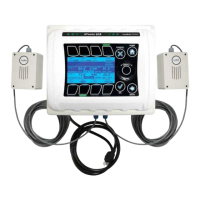
To update the firmware on your iPonic 624 controller, please follow the
instructions below:
- From the Home screen of your Link4’s iPonic Cloud account, click on
the Support tab and select Firmware Download
- On Firmware Download screen click on Latest iPonic Firmware
- Create a New Folder on your desktop and name it PRG
- Retrieve iPonic Firmware UPDATE and move it to your PRG folder
- Move the PRG folder to an empty USB drive
- Safely remove your USB drive from your computer
- Insert your USB drive into your iPonic 624 controller
- Turn the Navigation Menu to launch the Main Menu
- Press Soft Button No. 3 or use the Navigation Menu to select System
Setup option
- Press OK to confirm selection and proceed to the System Setup Menu
- Press Soft Button No. 5 or use the Navigation Menu to select
Advanced option
- Press OK to confirm selection and proceed to Room Select
- Use the Soft Buttons or Navigation Menu to select Shared
- In the Advanced Setup menu, press Soft Button No. 4 for Bootload
- You will be asked to begin Bootload


 To Next Page