- Use the Navigation Menu to answer Yes
- Press OK to confirm your settings
- You will be asked if you want to Reprogram
- Use Navigation Menu to answer Yes
- Press OK to confirm your settings
- You will be asked if you want to Configure from the USB drive
- Use Navigation Menu to answer Yes
- Press OK to confirm your settings
- A status message will appear, and the iPonic 624 controller will restart
WARNING: The iPonic 624 controller is equipped with a USB port (use the slot
on top). For your safety, please shut down and unplug your iPonic 624 controller
before inserting the USB drive. You can use the USB drive to import schedules,
install programs and upgrade your firmware. Please refer to this User Manual for
more information.
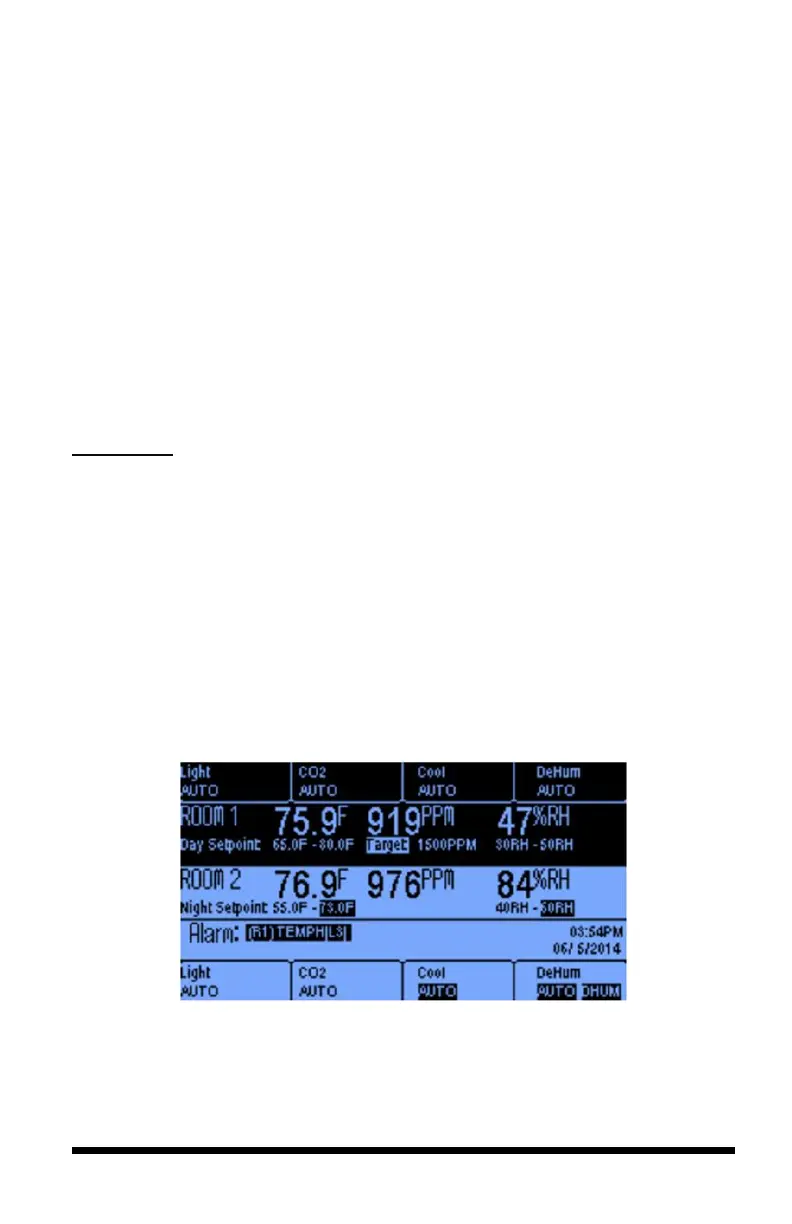
Main Status Screens
The iPonic 624 controller has three Main status screens. The default status screen
is divided between two rooms. The top section displays the current status for
Room 1, and the bottom section displays the current status for Room 2.
Split screen view featuring two rooms
If you press the Home button, the whole screen will contain detailed information
for Room 1. Pressing the Home button, a second time will give you the detailed
information for Room 2. The two screens are shown on the next page.


 To Next Page