Rev #2 Version 3.00 August 2020
Page 23 of 80
5.2.2 Ins. (D): D will Delete the Selected Point Text Edit Control
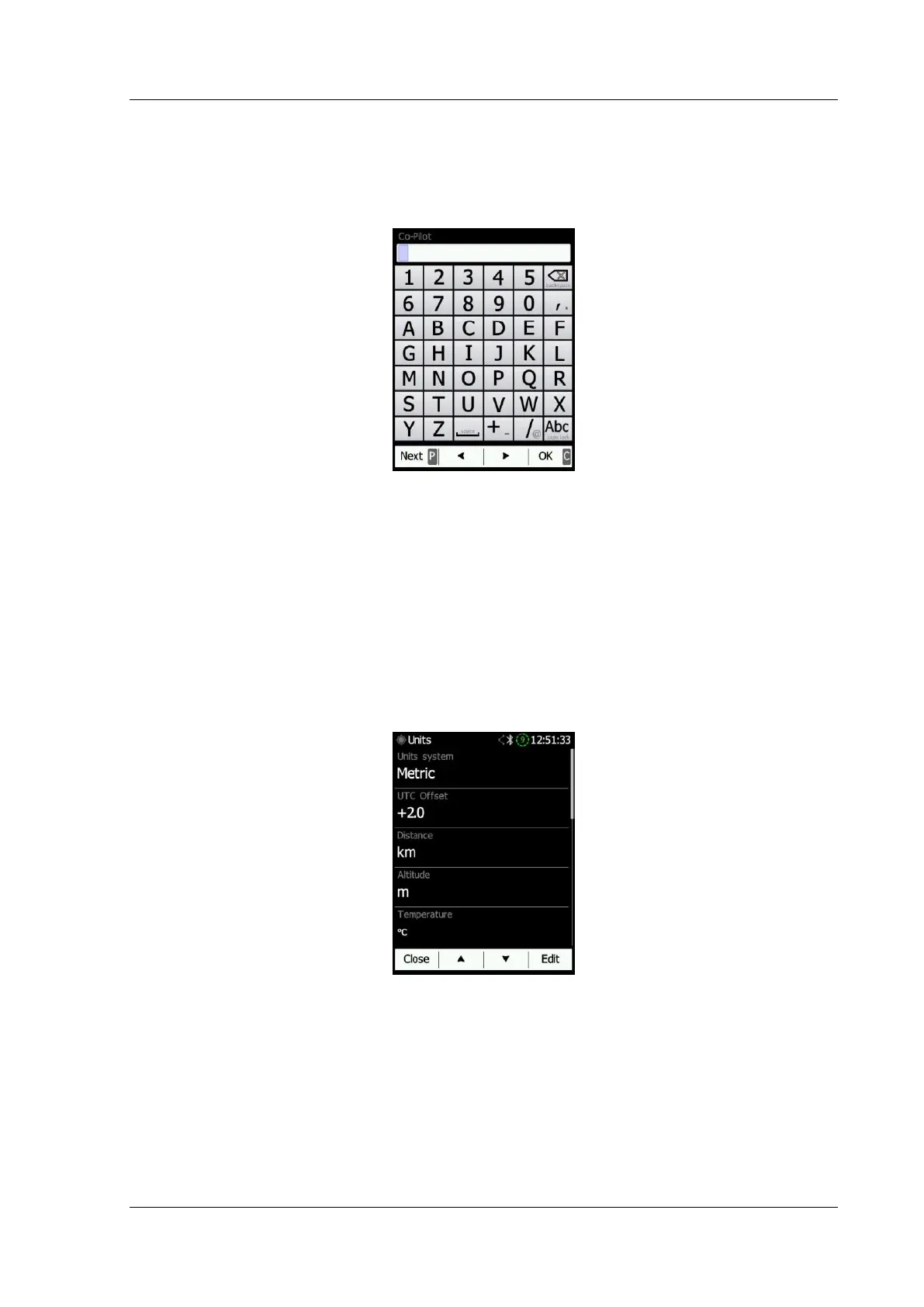
Use the Text Editor to input an alphanumeric sequence; the picture below shows typical
options when editing text. Use the keyboard on the touch screen or the up/down button to
change the value at the current cursor position.
Pushing the next button will move the cursor to the right. A longer push on next(P), will
move cursor left. At the last character position pushing the button will confirm the edited
value; a long press Ok.(C) will cancel editing and exit that control. If a longer push is
available, part of the button label will be shown red. For example, on the above a longer
push on the left button next(P) has a back function. A longer push on the right button has
a Cancel function.
5.2.3 Selection Control
Use selection boxes, also known as combo boxes, to select a value from a list of pre-defined
values. Use the up/down buttons to select the appropriate value.
5.2.4 Line Width Selection
Use line width boxes to select a line width from a list of predefined values. Use the up/down
buttons to select the appropriate width.


 To Next Page