Rev #2 Version 3.00 August 2020
Page 33 of 80
6.2.1 Wind Symbol
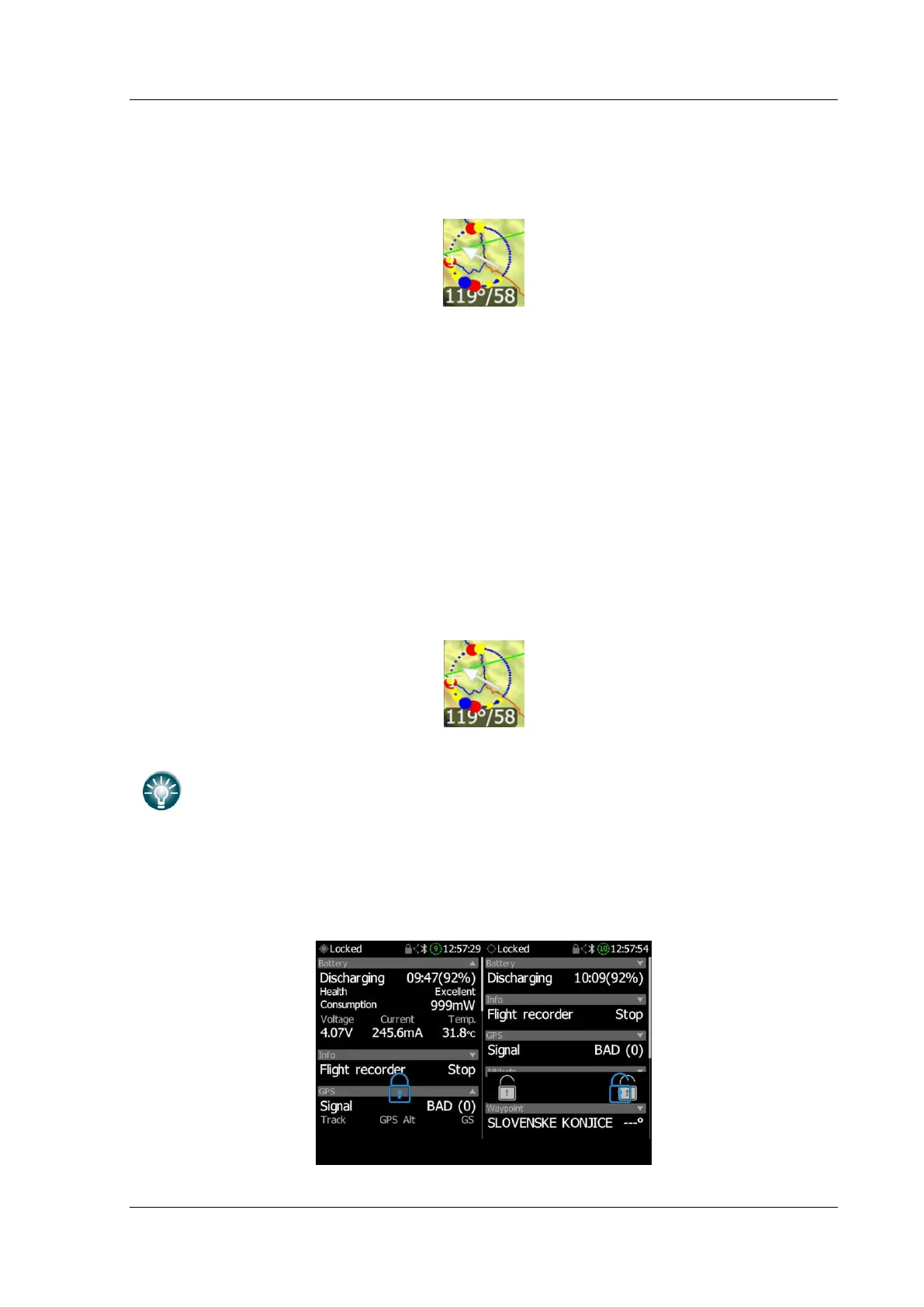
The wind symbol shows the wind direction. As shown below the first number shows the
wind direction which is also indicated by an arrow. The second number represents the wind
speed.
By clicking on the wind arrow it is possible to change the wind calculation from automatic to
manual wind setting.
6.2.2 Thermal Assistant
Around the wind symbol a thermal assistant can be shown during circling. Enable or disable
this feature in Settings>Graphic>ThermalAssist. The thermal assistant continuously
analyses the thermal whilst circling. The sizes of the dots indicate the strength of the
thermal. Big dots mean stronger lift at that point. On the left or right side of the circle a
small airplane symbol is shown. This airplane indicates your position. Dots are coloured
based on the MacCready setting. Red colour means values above MacCready, blue values
below MacCready and yellow dots represents lift about the same strength as the MacCready
setting.
This colour scheme gives us hints about a thermal at glance. If most of dots are red, we
should consider increasing the MacCready value; if most of dots are blue, we should consider
decreasing the MacCready setting.
6.3 The Locked Screen
You can lock the screen at any time by clicking on the power button. To unlock the screen,
slide your finger over the lock icon left or right as displayed on the screen.


 To Next Page