Rev #2 Version 3.00 August 2020
Page 31 of 80
6 Working with the NANO
4
6.1 Tree Structure
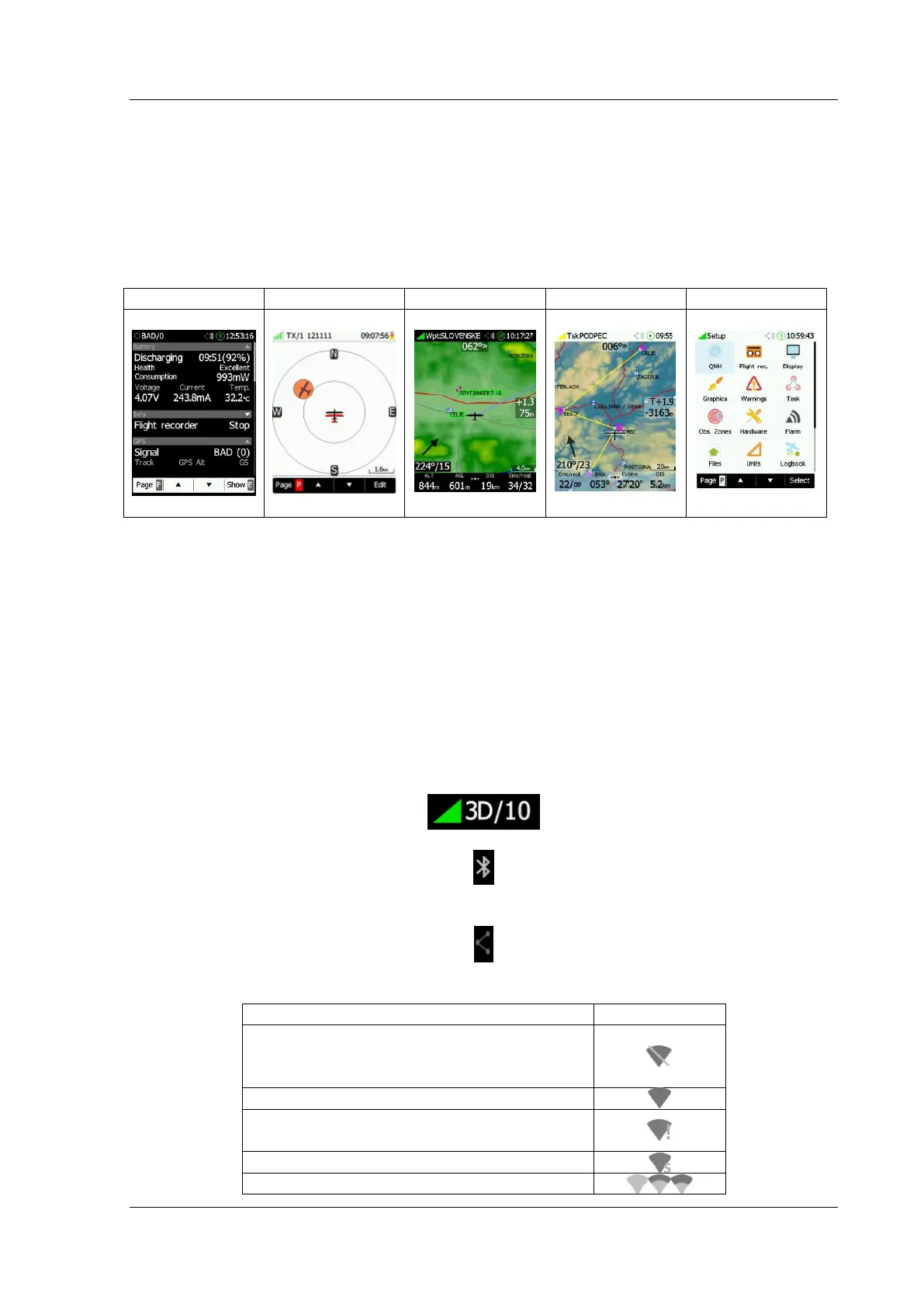
The NANO
4
has 5 modes: Info, FLARM (if FLARM is connected), Waypoint, Task and Setup
mode.
6.2 Main Navigation Screen Description
The main navigation screen consists of a map, terrain with coloured airspace, waypoints with
names or task (depending on which page you are looking at), a vario tape (optional) on the
left, wind symbol, final glide indicator, a status bar on the top and navbox bar at the bottom.
The vario tape and vario dynamics can be configured in the Setup-Hardware-Vario menu or
by clicking on the final glide symbol – on the vario icon. If you don’t want to see the vario
tape you can switch it off.
The status line indicates the status of the GPS and indicates the chosen waypoint that you
are navigating to, the status of the Bluetooth device, serial interface, Wi-Fi module, the
battery level and time.
The GPS status indicates the number of received GPS satellites. A green signal indicates a
good GPS signal, Red means a bad GPS signal.
If the Bluetooth receiver is powered on the Bluetooth icon will be displayed.
If the serial interface via micro USB connector is active the icon for serial communication
will be displayed.
The Wi-Fi icon indicates the Wi-Fi status.
Initialisation of Wi-Fi Module. If this
requires more than 10 seconds there is
most likely an error on the Wi-Fi.


 To Next Page