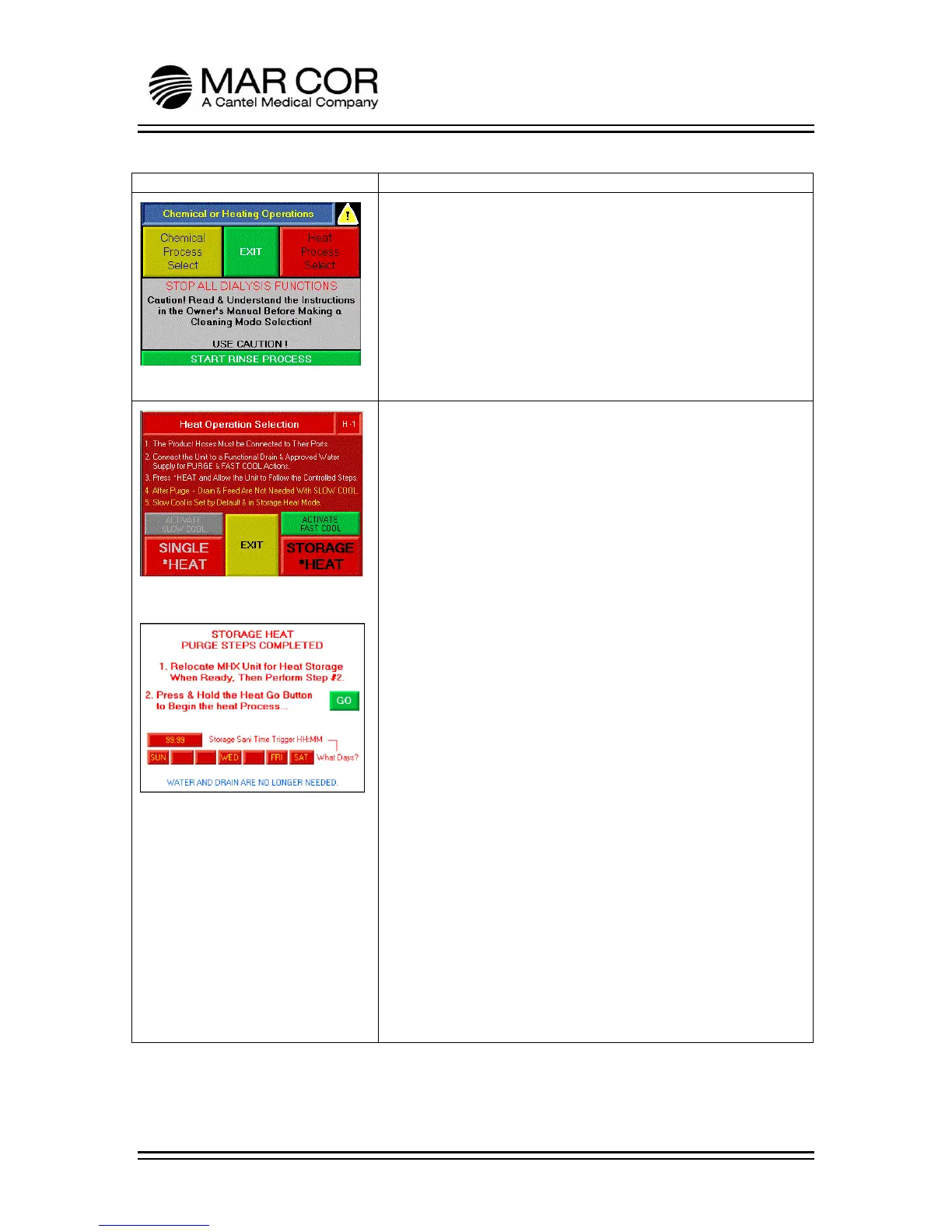
CHEMICAL OR HEATING OPERATIONS SELECTION SCREEN
The operator can only enter the chemical/heating process screens
from the Main Screen. The operator must hold the banner at the
top of the Main Screen for 2 seconds to enter this screen.
The operator can press the CHEMICAL PROCESS SELECT, EXIT,
HEAT PROCESS SELECT or START RINSE PROCESS. If the operator
presses EXIT, the screen returns to the Main Screen.
The START RINSE PROCESS can be used to place the RO into a
rinsing process allowing the RO to rinse.
HEAT SCREEN 1
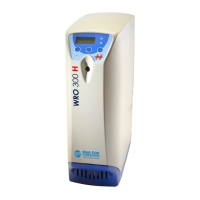
Figure 1 is reached when the HEAT PROCESS SELECT button is
pressed and held from the previous screen. The operator can
now pick the cooling method used (Slow Cool is selected as
default).
Slow Cool: Allows the RO to cool by convection without the need
for water and drain to be connected after the heat purge is
completed.
Fast Cool: Utilizes small amounts of feed water to cool the RO.
Water and drain must remain connected to the RO. Cannot be
used with Storage Heat function.
Once the cooling method is picked, the operator may now pick
their heat process.
SINGLE HEAT: When this button is pressed, the RO will
immediately perform a single hot water disinfection. Figure 2 is
not displayed during a single heat process.
STORAGE HEAT: When this button is pressed, the RO will
immediately perform a heat purge and then display Figure 2. The
RO can now be turned off and disconnected from power and
moved. Once in new location, reconnect to electrical power and
turn the RO on (Figure 2 will again be displayed). Once GO is
pressed, the RO will immediately start a heat disinfection and will
disinfect again on the specific days at the specific time selected
from the scheduling screen (a visible day indicates that the RO will
disinfect on that day).
NOTE: Cooling method selected will be indicated with a grayed
out button. Example if the ACTIVATE SLOW COOL button is
grayed out, the slow cool cooling method is active.


 To Next Page