MAXDATA PLATINUM Server Board User’s Manual
56
Starting the SSU
SSU consists of a collection of task oriented modules plugged into a common framework
called the Application Framework (AF). The Application Framework provides a launching point
for individual tasks and a location for setting customization information. For full functionality,
the SSU requires the availability of the AF.INI, AF.HLP, plus any .ADN files and their associated
.HLP and .INI files.
1. Turn on your video monitor and your system.
2. There are two ways to start the SSU:
a. After creating set of three SSU diskettes from the CD: Insert the first SSU diskette
in drive A, and press the reset button or <Ctrl+Alt+Del> to reboot your server from
the diskette.
b. Directly from the SCB2 Server Software Kit CD-ROM: Insert the CD into your CD-
ROM drive and press the reset button or <Ctrl-Alt-Del> to reboot. When prompted
to do so, press <F2> to enter BIOS Setup. From the Boot Menu, select the Boot
Device Priority option and then select CD-ROM as your primary boot device. Save
those settings and exit BIOS Setup. The server will boot from the CD-ROM and
display a menu of options. Follow the instructions in the menu to start the SSU.
3. When the SSU title appears on the screen, press <Enter> to continue.
4. The mouse driver loads if it is available; press <Enter> to continue.
5. This message appears:
Please wait while the Application Framework loads....
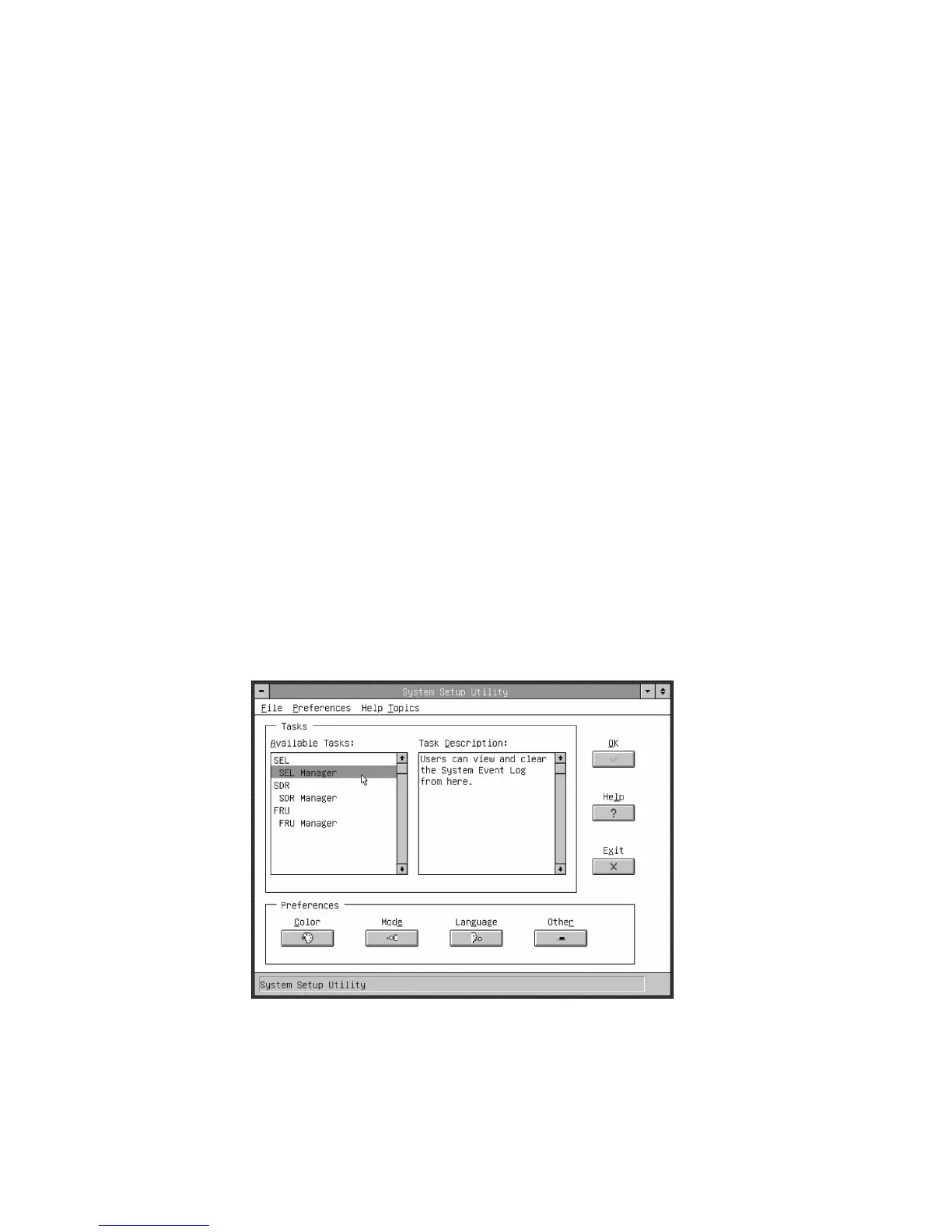
6. When the main window of the SSU appears, you can customize your interface before
continuing. (See Figure 24.)
Figure 24. System Setup Utility Main Window



 To Next Page