4-26 Workstation 5 Field Service Guide
Remove and Replace the Workstation 5 FRUs
The Integrated LCD Customer Display
The Integrated LCD Customer Display
This procedure describes how to remove and replace the Integrated LCD
Customer Display.
1. Remove the AC power cable from the unit.
2. Place a towel or soft cloth on your work surface to protect the LCD and
touchscreen, then place the workstation face down on this surface.
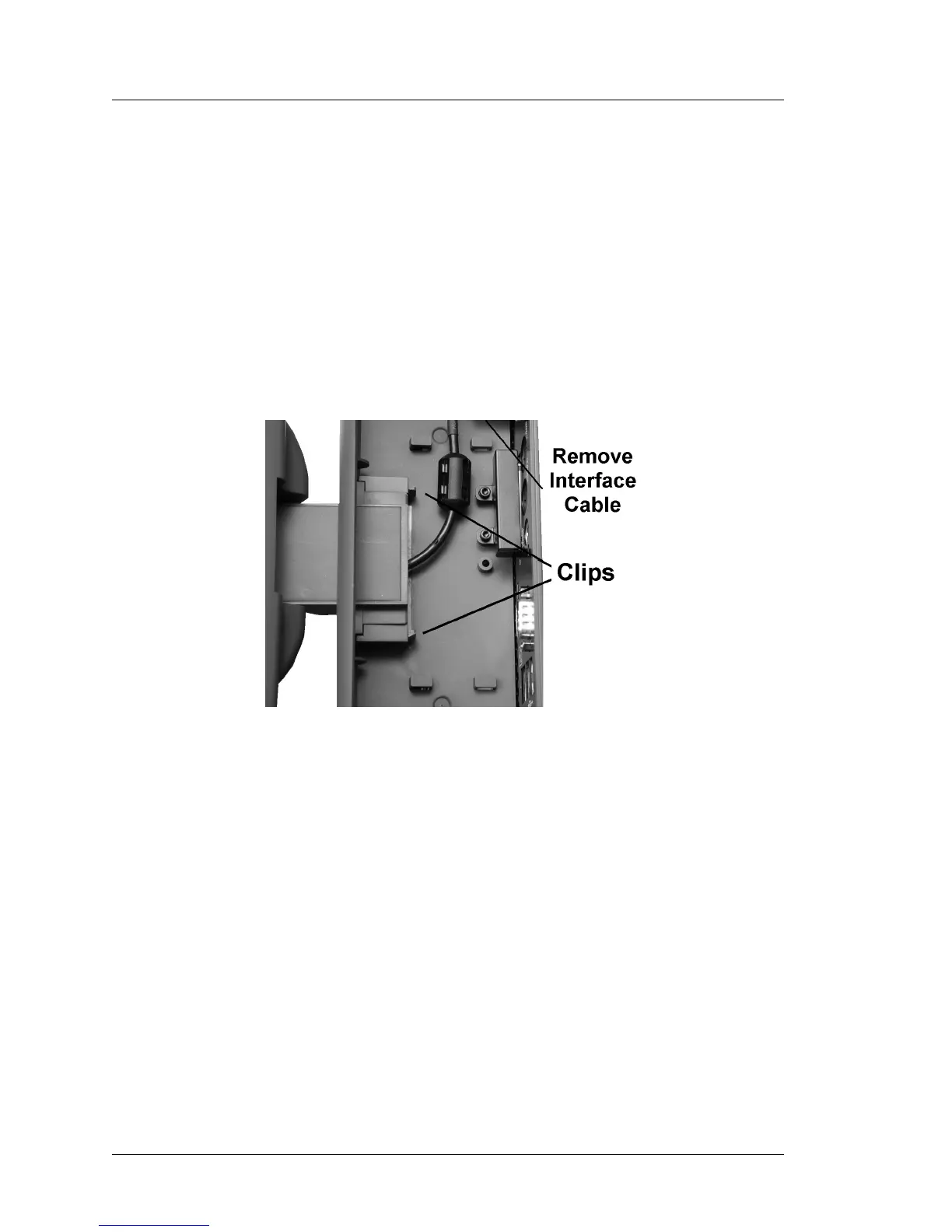
3. Remove the LCD Customer Display Interface Cable from the IO Panel
Connector.
4. Depress the clips on each side of the Customer Display Bracket and pull
the display assembly from the base.
Figure 4-30: Removing the LCD Customer Display
5. To install the LCD Customer display, feed the interface cable through the
cut-out then slide the display bracket until the side clips lock into place.
Connect the interface cable to the IO Panel Connector.


 To Next Page