Milestone Srl MA213-003 – DMA-80 EVO – User Manual
107
2) Importing a CSV formatted data into Excell
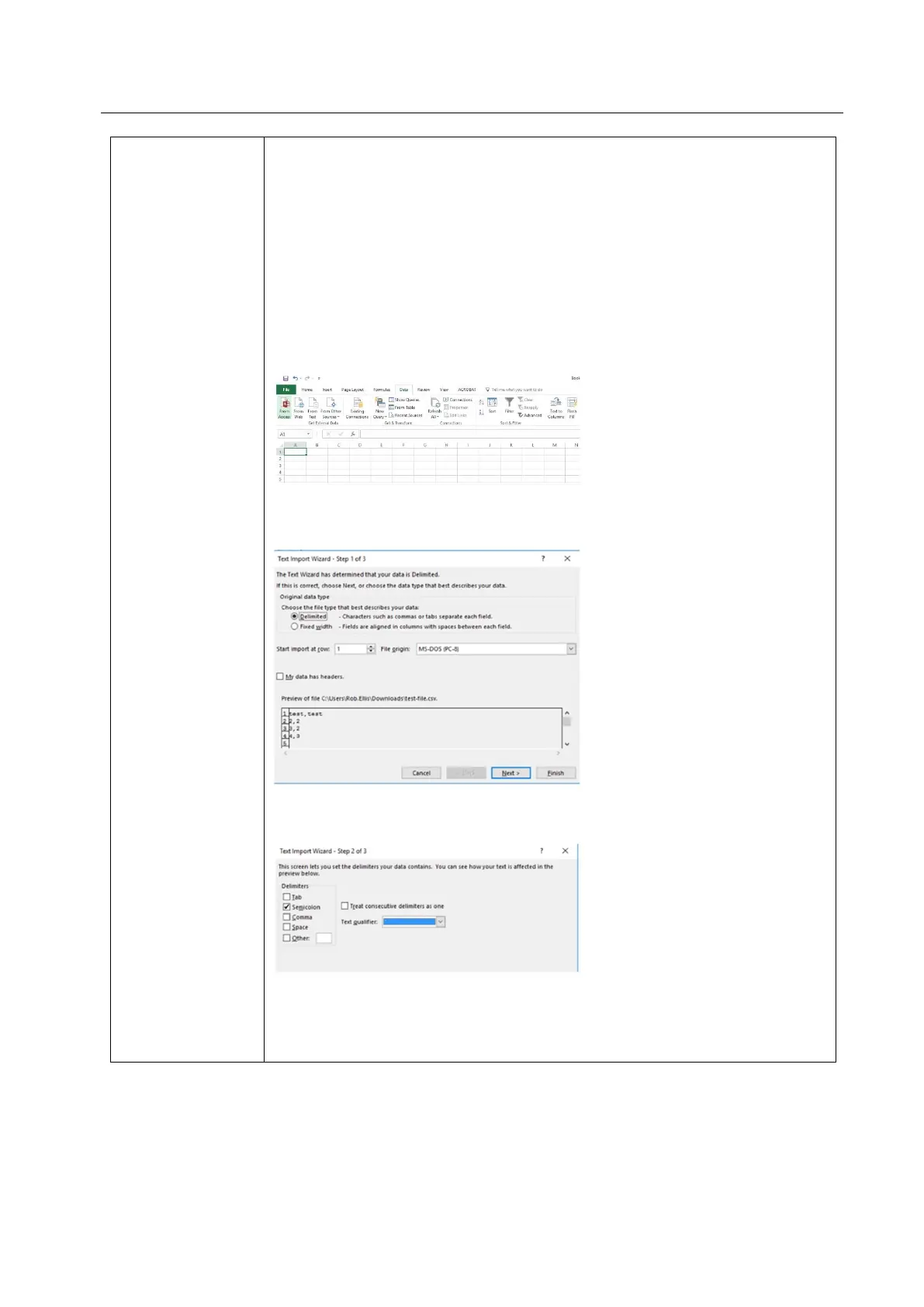
Sometimes, it can be happen that the original CSV file provided by Milestone
meets some errors or it is formatted wrong when it is opened with Excel.
The below procedure allows to adjust the file in the correct format.
1. Download and save the CSV Milestone file to your chosen location
2. Start Excel
3. Select Data on the ribbon and then “From Text”. (If the menu options are
greyed out, this could be because you do not have a workbook open).
4. Browse for the *.csv file you need to import and click “import”.
5. In the Test import wizard, ensure the “Delimited” option is selected. Click Next
6. In the delimiters section, tick “Semicolon”. The text qualifier box should show
the double quote symbol. Click Next.
7. Mark every column as “General”. The first column only will initially be
highlighted. Move the horizontal cursor as far as it will go to the right; then,
holding the shift key down, click the very last column heading. You should now
have every column highlighted. Click the “General” data format. Click Finish.


 To Next Page