73/126
www.mobotix.com • sales@mobotix.com
. This default is usually fine and nothing needs
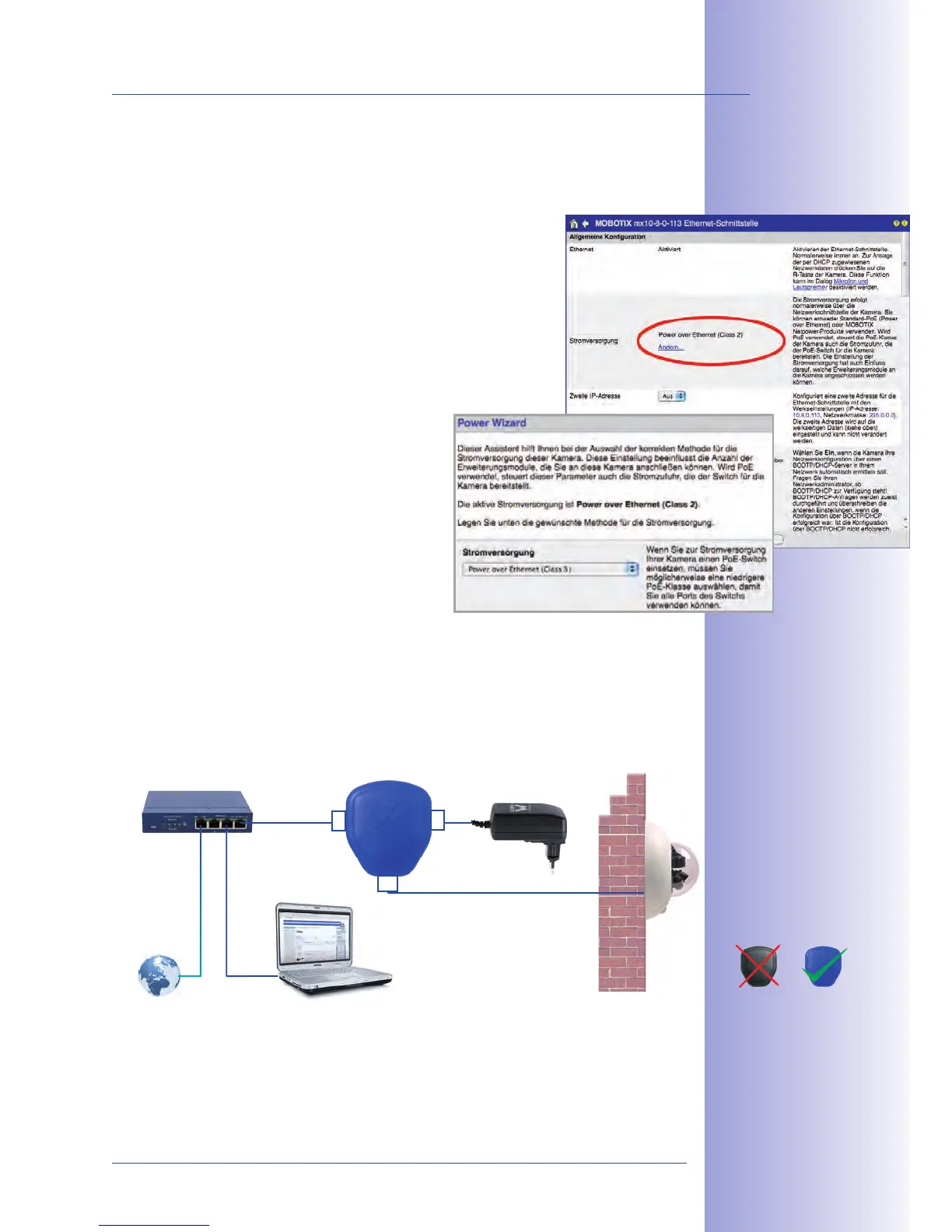
to be changed. However, the PoE power class must be changed in the browser if the
higher power class 3 is required for your application:
Select
1.
(for experts).
Under Power Supply, click on
2. .
A
3. will appear to guide you through the PoE
configuration steps.
The camera will then need to be restarted via a hard reboot:
4.
Disconnect the camera from the power supply. Then reconnect
it, for example, by disconnecting and then
reconnecting the Ethernet cable at the PoE
switch.
2.7.3
Connect the factory pre-installed cable of the 1.
camera to the Camera connector of the PoE
adapter.
Connect the
2.
LAN/Power connector of the PoE
adapter to the Ethernet connector of the switch/router or the Ethernet socket.
Plug the RJ45 connector of the power supply unit into the
3. PC/Power connector of
the PoE adapter.
Variable PoE: multiple
cameras can be operated
simultaneously from
the same switch
For the D14D, you
should use the new blue
MX-NPA-PoE-Set –
previous MOBOTIX
network power
accessories such as the
NPA Set, Power Box,
and Power Rack
(MX-NPA-Set,
MX-NPR-4 and
MX-NPR8/20) are
not suitable for use
with the D14D
The IP addresses in
the diagram are shown
only as an example


 To Next Page