84/126
www.mobotix.com • sales@mobotix.com
3.2.3
Installation
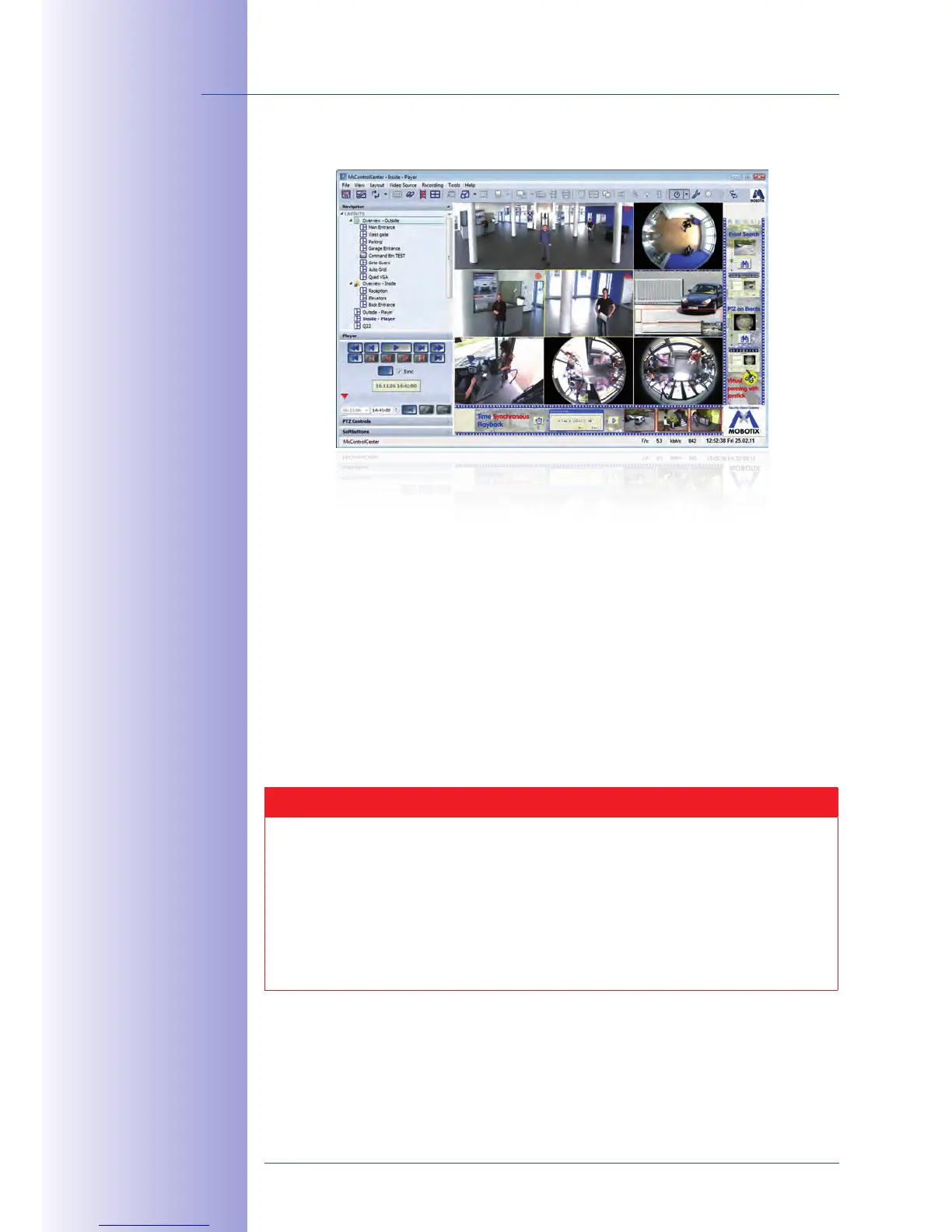
If you want to install the current version of the software, you can download the current Windows
installer from the MOBOTIX website as an MSI file, which you can install manually. The latest
versions are available at www.mobotix.com in the
MxControlCenter.
If you have downloaded the latest Windows installer, double-click the
MSI file to initiate
the installation process.
The installer copies the selected files to the computer (older versions will be removed
automatically) and then creates the designated shortcuts during the installation process
(Desktop, Start Menu, etc.).
Caution
MxControlCenter will automatically attempt to find all MOBOTIX cameras in the
physically connected network (that is, even a MOBOTIX camera with a factory IP
address of 10.x.x.x ). Make sure that the firewall settings on your computer are
low enough so that MxControlCenter is not blocked. If any MOBOTIX cameras are
found, MxControlCenter can reconfigure them so that they are available
in the current subnet of the computer. If you do not have permission to modify these
settings on your computer, contact your system administrator for assistance.
Download
MxControlCenter
for free from
www.mobotix.com


 To Next Page