Chapter 2 – Getting Started
Multi-Tech Systems, Inc. MultiModem® iSMS User Guide for Administrators 21
Signal Strength
Signal Strength Command
To View Strength
For the SF 400/800 models without signal LEDs, signal strength can be determined by using the
following AT command: AT+CSQ. This command is the default setting on the Network Setup > Cellular
Modem screen. This works for the SF 100 as well.
AT Command Response Example
+CSQ: xx (For xx, see the values chart below)
Signal Strength Reference Table
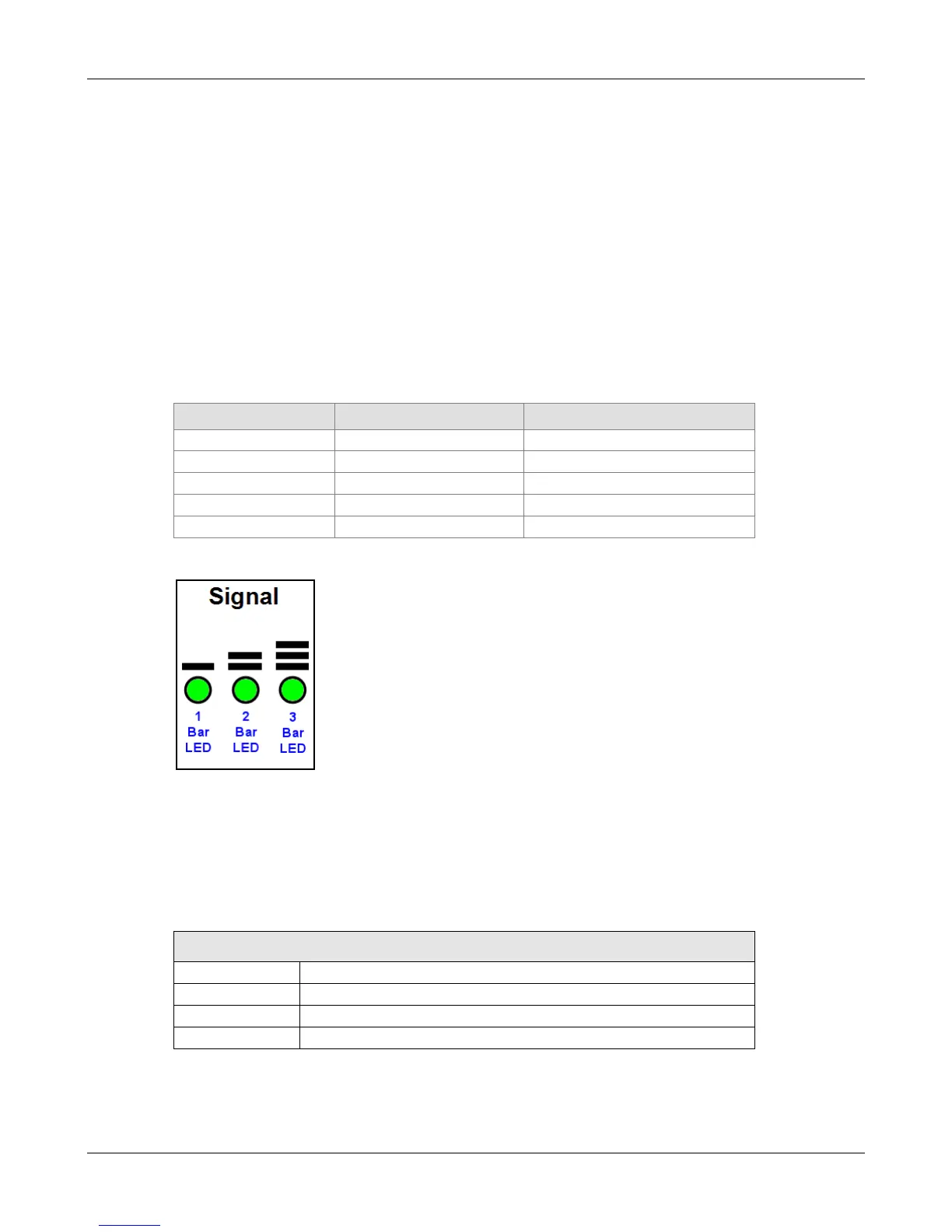
The following table lists the meaning of the xx values in the signal strength response and explains how
they correspond to the number of LEDs lit for signal strength.
AT+CSQ Values Signal Strength SF 100 Signal LED Bars
0 to 6 Very weak signal No LEDs lit
1 Bar and 2 Bar LEDs are lit
24 to 31 Strongest signal 1 Bar, 2 Bar, 3 Bar LEDs are lit
99 Signal not detectable No LEDs lit
SF 100 Signal Strength LEDs
Using AT Commands to Check Network Registration and
Roaming Status
Use this command to verify that the cellular modem has been registered on a wireless network.
1. In the command window, type AT+CREG?
2. The modem will respond in one of the following ways:
Network Registration Verification
Value Network Registration Status
+CREG: 0,0 The modem is not registered on any network
+CREG: 0,1 The modem is registered on the home network
+CREG: 0,5 The modem is registered on a network and it is roaming
Note: If the modem indicates that it is not registered, verify the signal strength to determine if the
problem is the strength of the received signal.
Downloaded from Elcodis.com electronic components distributor



 To Next Page