Multi-Tech Systems, Inc. MultiModem® iSMS User Guide for Administrators 69
Chapter 5 – The Non-Administrative User
Interface
Introduction
This chapter covers the Web Interface available to non-administrative users. Non-administrative users have
access to the Send SMS menu and an Outbox tied to their account. Users browse to the address of the
MultiModem iSMS, login using the name and password created by the administrator and can then send
messages from the SMS Services > Send SMS screen.
Note: Users are identified and setup by the Administrator on the SMS > Send SMS Users screen.
Web Interface Available to Non-Administrative
Users
The only screens available to users are the following SMS Services screens:
• Send SMS
• Outbox
How Non-Administrative Users Login
Note: Be sure that the MultiModem iSMS is cabled and that the power is connected as shown in Chapter 2.
1. Open a Web browser on the PC.
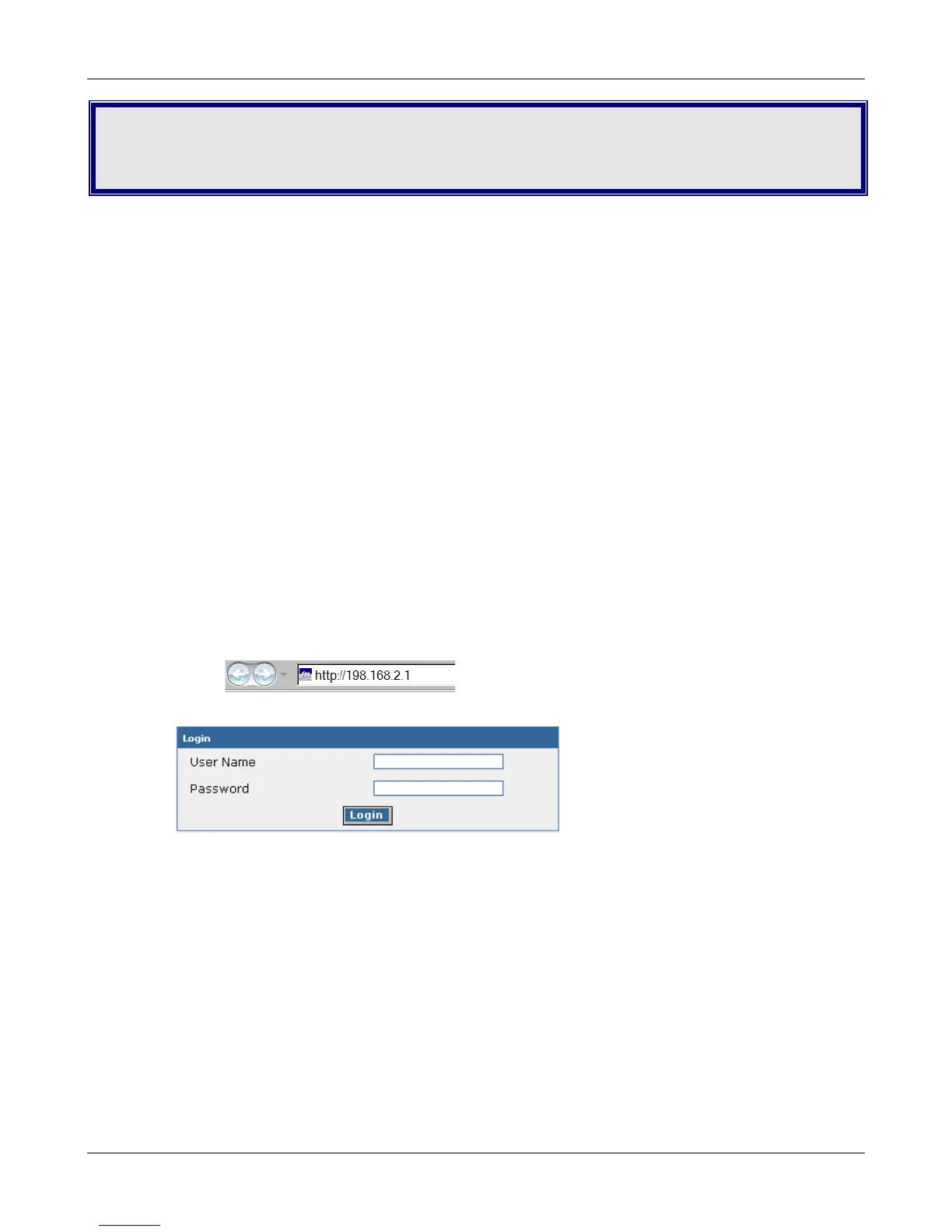
2. Type in the address of the MultiModem iSMS (resolvable name or IP address):
http://192.168.2.1
3. The Login screen for the MultiModem iSMS displays.
• Users must type their names the way the administrator entered them on the SMS Services >
Send SMS Users screen.
• Users must type the passwords created for them by the administrator on the SMS Services >
Send SMS Users.
• Click Login.
• The SMS Services > Send SMS screen displays.
Downloaded from Elcodis.com electronic components distributor



 To Next Page