Chapter 4 – Using the Web Interface
Multi-Tech Systems, Inc. MultiModem® iSMS User Guide for Administrators 59
Triggers > Pre-Configured SMS
Triggers > Pre-Configured SMS
Use this screen to compose and save pre-configured messages.
Pre-Configured SMS
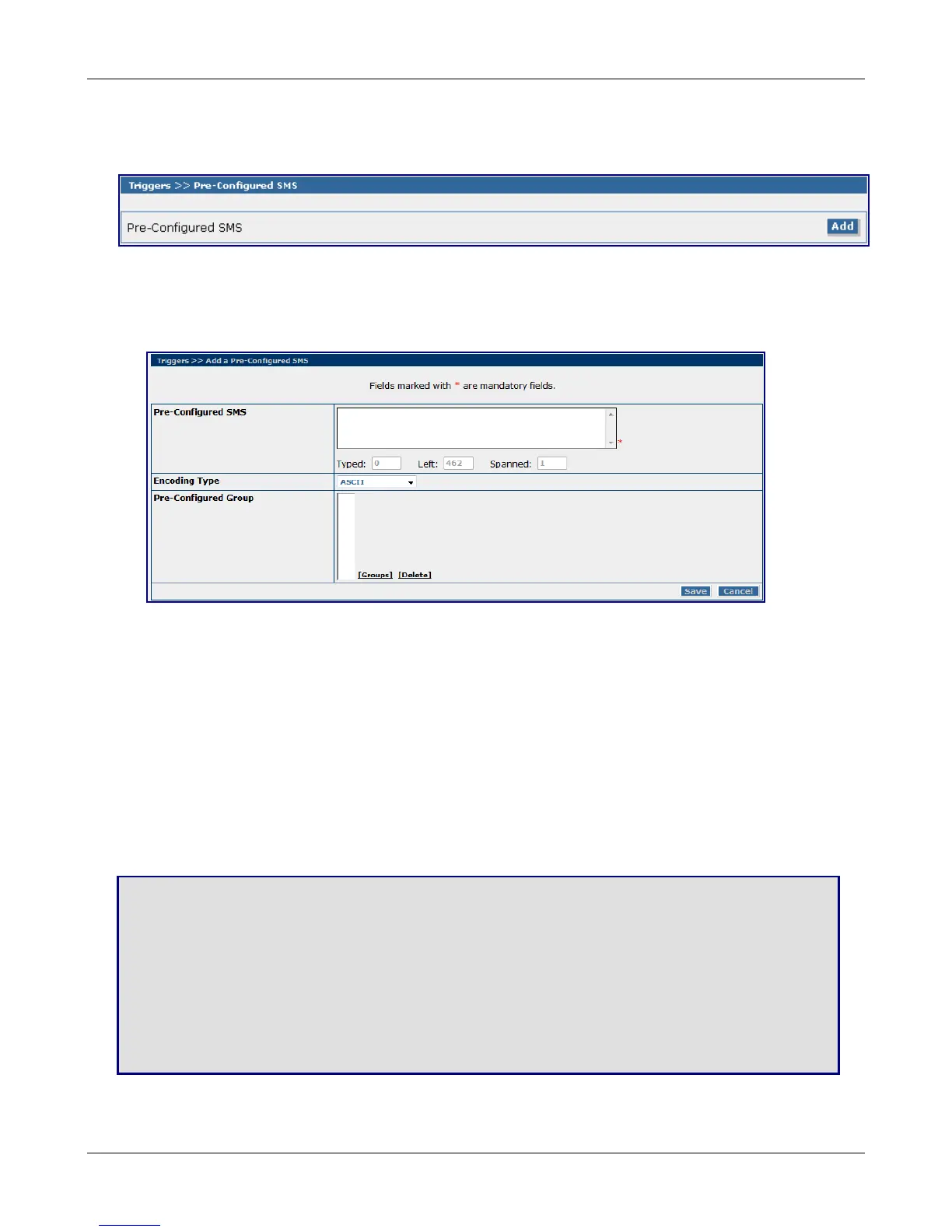
Click the Add button to open the Add a Pre-Configured SMS screen.
Add a Pre-Configured SMS
Note that fields marked with an asterisk are required.
Pre-Configured SMS
Enter the text for your Pre-Configured SMS Message.
Encoding Type
Select the encoding type to be used from ASCII, Extended ASCII or Unicode. Default is ASCII.
Pre-Configured Group
Select the groups to receive this pre-configured message. Click Groups and select the desired groups. If
you change your mind about a group, highlight the group and click Delete to remove it from the list.
Note that a message can contain only 160 characters including spaces and punctuation.
Save or Cancel
Click the Save button, or if you change your mind and do not want the information saved, click Cancel.
Save & Restart
IMPORTANT Note About Saving System Settings
When you have completed entering your MultiModem iSMS settings and you are not going to enter any more
configuration data, you must go to the Save & Restart menu and perform a Save to Flash. Saving to the Flash
Memory saves the new settings in the flash prom and prevents the settings from getting lost at the next power
up.
Save
Click the Save button to save your system settings to the flash memory.
Restart is Optional
This is optional. You do not have to restart the MultiModem iSMS after saving to the flash memory.
Downloaded from Elcodis.com electronic components distributor



 To Next Page