Chapter 1 – Safety Information and Product Description
Multi-Tech Systems, Inc. MultiModem® iSMS User Guide for Administrators 7
MultiModem iSMS Documentation
User Guides
All product documentation is available on your product CD and also the Multi-Tech website:
http://www.multitech.com/man.go
AT Commands
AT commands used to configure this product are published in a separate reference guide and included on the
MultiModem iSMS CD as well as being posted on the Multi-Tech web site. See the GPRS AT Commands
Reference Guide at either location.
Front and Back Panels
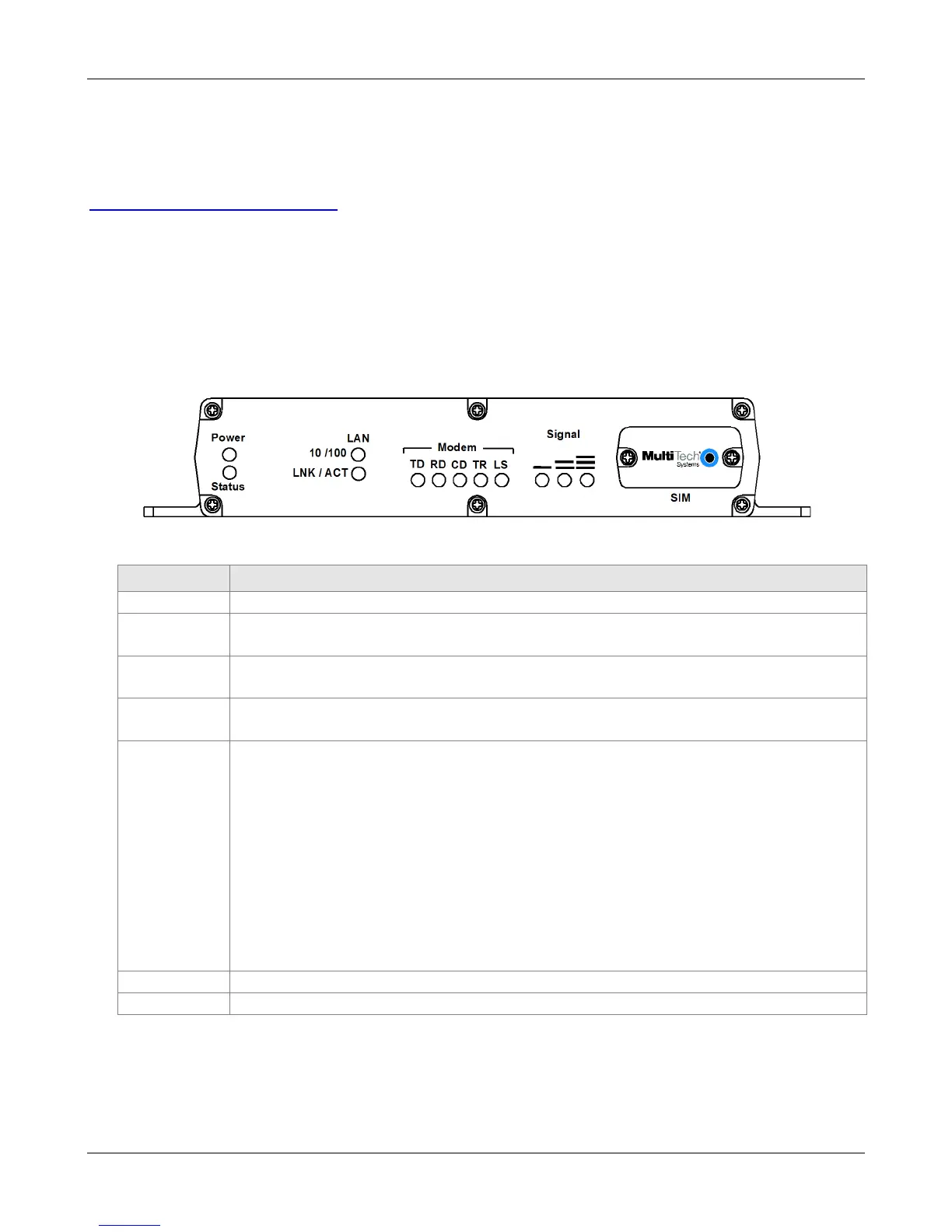
SF 100 Front Panel
SF 100 Front Panel LEDs
LEDs Description
Power Lights when power is being supplied to the MultiModem iSMS.
Status When functioning normally, the LED blinks. The LED is a solid light when the unit is
booting up, saving the configuration, restarting, or updating the firmware.
LAN
10/100
Lights when a successful connection to the 100BaseT LAN is established. Off when
connected at 10BaseT.
LNK / ACT
Lights when the LAN port has a valid Ethernet connection.
Blinks when it is receiving or transmitting data.
Modem TD TRANSMIT DATA. This LED blinks when the modem is transmitting data to your
wireless carrier.
RD RECEIVE DATA. This LED blinks when the modem is receiving data from your
wireless carrier.
CD CARRIER DETECT. This LED lights when the modem detects a valid carrier signal
from a wireless carrier.
TR (DATA) TERMINAL READY. This LED lights when the modem is trying to establish a
wireless connection.
LS LINK STATUS. This LED flashes once every 3 seconds when network registration is
successful. This LED is on constant if the network registration is invalid, if a
network signal is not detected or if a SIM card is not installed in the modem.
Signal Indicates the wireless signal strength. See the Signal Strength section in this chapter.
SIM Location of the SIM card.
Downloaded from Elcodis.com electronic components distributor



 To Next Page