Chapter 4 – Using the Web Interface
Multi-Tech Systems, Inc. MultiModem® iSMS User Guide for Administrators 52
SMS Services > Load Balancing
SMS Services > Load Balancing
This feature provides a single interface to your Send SMS application when multiple units are needed
for increased throughput. When multiple iSMS units are available on a network, they can be set up to
work together to share the outgoing message load. This is achieved by designating one unit to be the
Master and subsequent units (up to 4) to be Slaves. Your Send SMS application does not need to make
any changes when Load Balancing is enabled. The send SMS application will still use either of our send
APIs (HTTP or TCP) to submit SMS messages for sending.
When the amount of "pending" messages within the Master reaches a system threshold, the Slave
units are polled by the Master for availability, and if so available, pending messages will be distributed
dynamically to the slave(s). Once initiated, the Master unit will utilize the slaves until the send queue is
reduced sufficiently below the threshold. Your Send SMS Application can not specify which slave unit a
particular message will be sent through.
The number of pending messages needed to surpass the threshold is a variable based on the length of
each message (character count per message) and the MultiModem iSMS model number. The threshold
is increased as the model number increases.
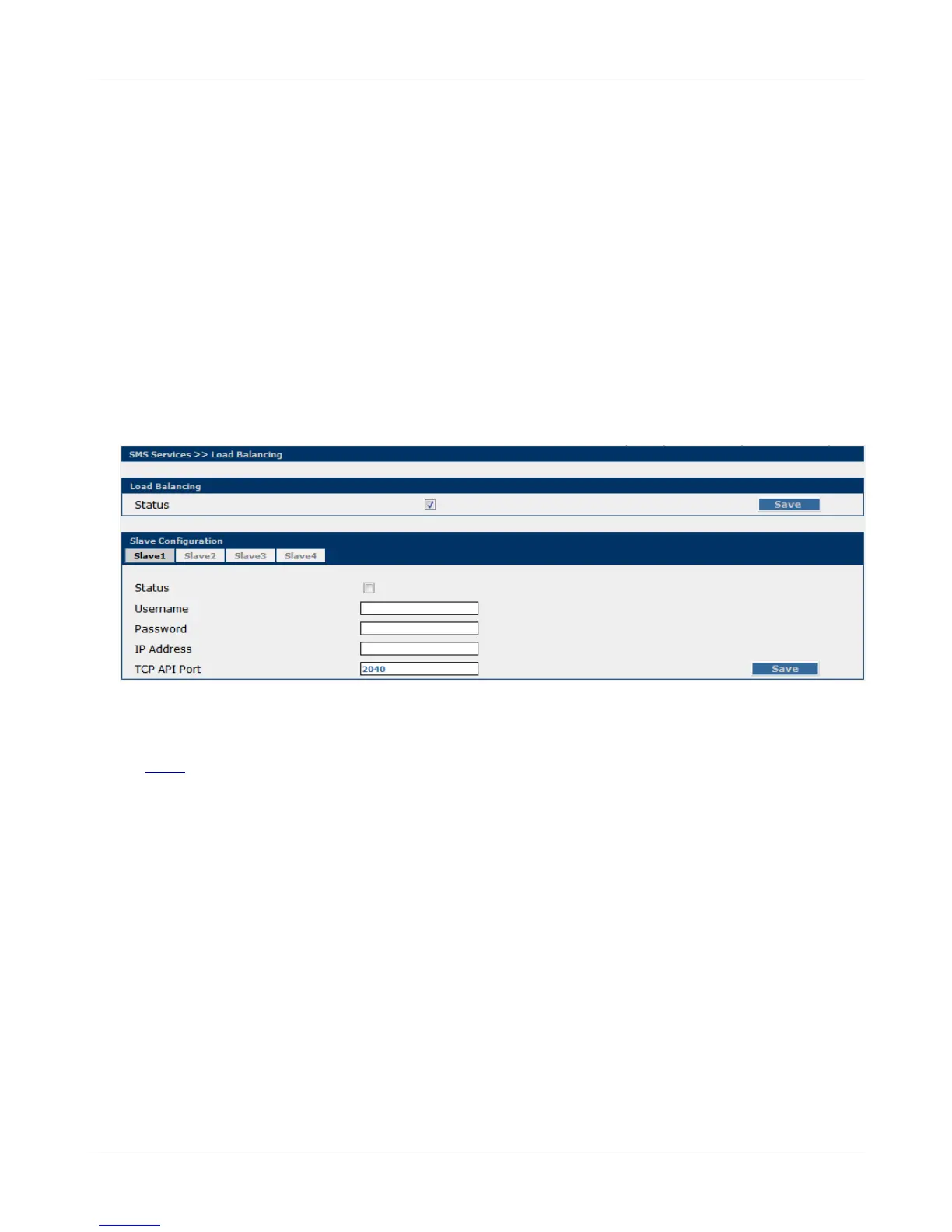
Load Balancing
Status
Check the Status box on every unit that is participating in Load Balancing and click Save.
Note:
When using Load Balancing, each Slave unit must have the TCP API Status enabled. The Master
unit communicates to the slaves via TCP API access.
Slave Configuration
Slave Configuration information is only to be defined in the Master unit.
Slave#
The slave# tabs are used to identify which units are slave units and login information.
Status
This box is checked only on the Master unit. This should be left unchecked for all Slave units.
Username
Enter the valid administrator username needed to access the Slave unit.
Password
Enter the valid administrator password needed to access the Slave unit.
IP Address
Enter the IP Address of the Slave unit.
TCP API Port
Enter the open port that will be used to access the Slave unit.
Downloaded from Elcodis.com electronic components distributor



 To Next Page