Chapter 3 – iSMS Basics and Setup Wizard
Multi-Tech Systems, Inc. MultiModem® iSMS User Guide for Administrators 26
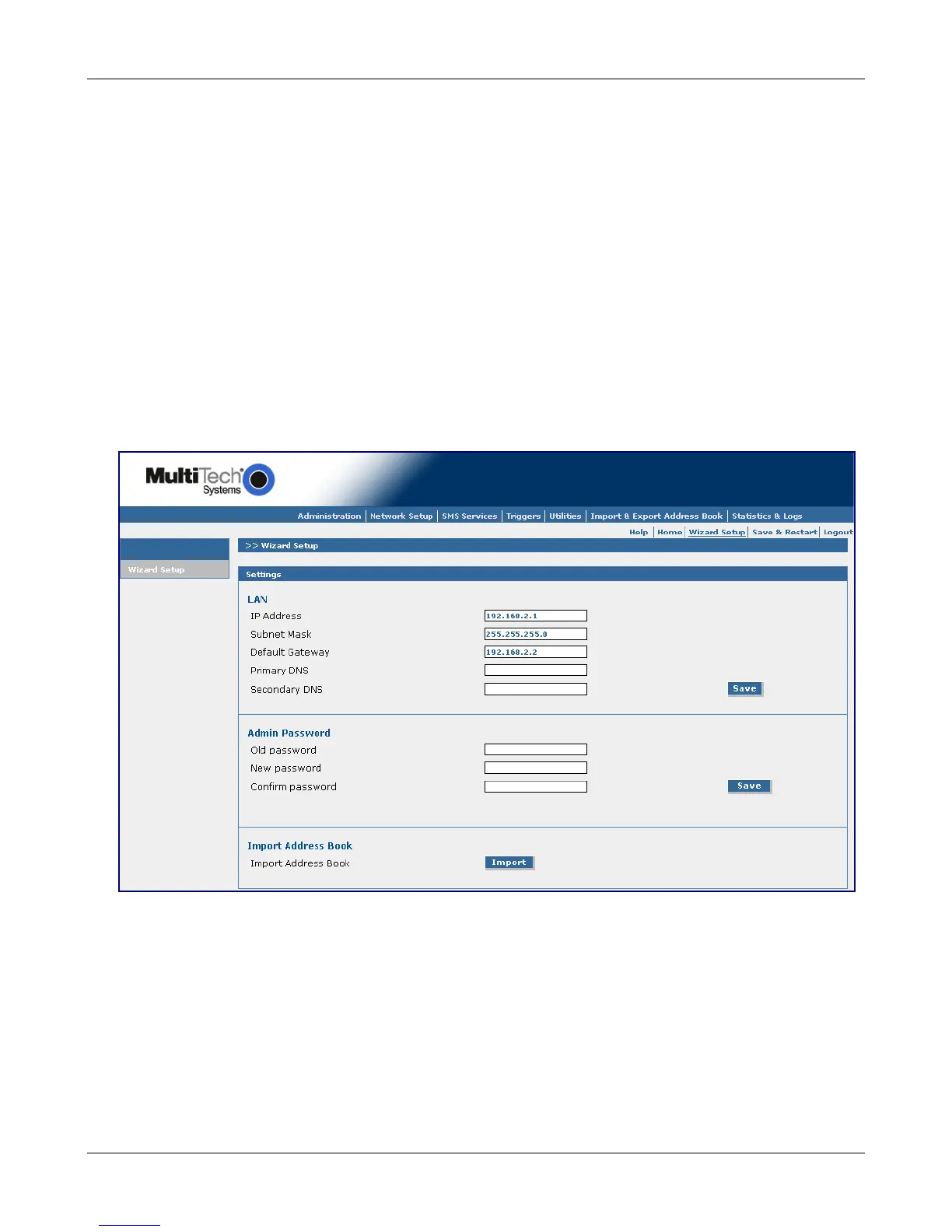
Configuring the MultiModem iSMS Using the Wizard Setup
Using the MultiModem iSMS Wizard Setup
Use the Wizard Setup for Quick Configuration
The Wizard Setup menu provides a convenient menu focused on the minimal setup requirements for a
Users (web browser) based Send SMS environment. The Wizard Setup can be opened by clicking the words
Wizard Setup located under the menu bar. The information entered here will default to other screens that
require this information.
Note: For new units (units defaulted to factory settings), Received SMS is handled by our Receive API
Polling feature. Additional features and functions can be set up using the complete Web
Management interface.
Open the Wizard Setup Screen
After you have logged in, open the Wizard Setup screen by clicking on the words "Wizard Setup" located
under the Menu Bar.
Settings – Enter the following network information to be used by your MultiModem iSMS. Currently
saved LAN settings are displayed.
IP Address – Enter the new IP address the MultiModem iSMS needs to use.
Subnet Mask – Enter the subnet mask value to be used.
Default Gateway – Enter the IP address of your network's internet router / gateway.
Primary DNS – Enter the IP address of your network’s primary DNS server.
Secondary DNS – Enter a secondary DNS IP Address (if any).
Save – Click the Save button.
Downloaded from Elcodis.com electronic components distributor



 To Next Page