Chapter 3 – iSMS Basics and Setup Wizard
Multi-Tech Systems, Inc. MultiModem® iSMS User Guide for Administrators 27
Configuring the MultiModem iSMS Using the Wizard Setup
Admin Password – You should change the password immediately after initial installation and also
change it regularly thereafter for security purposes.
Old Password – Enter the existing password (factory default is admin).
New Password – Enter new password of your choice.
Confirmation – Confirm your new password by re-entering it into this field.
Note: Please take the necessary steps to remember and keep a copy of the new admin password
for future reference.
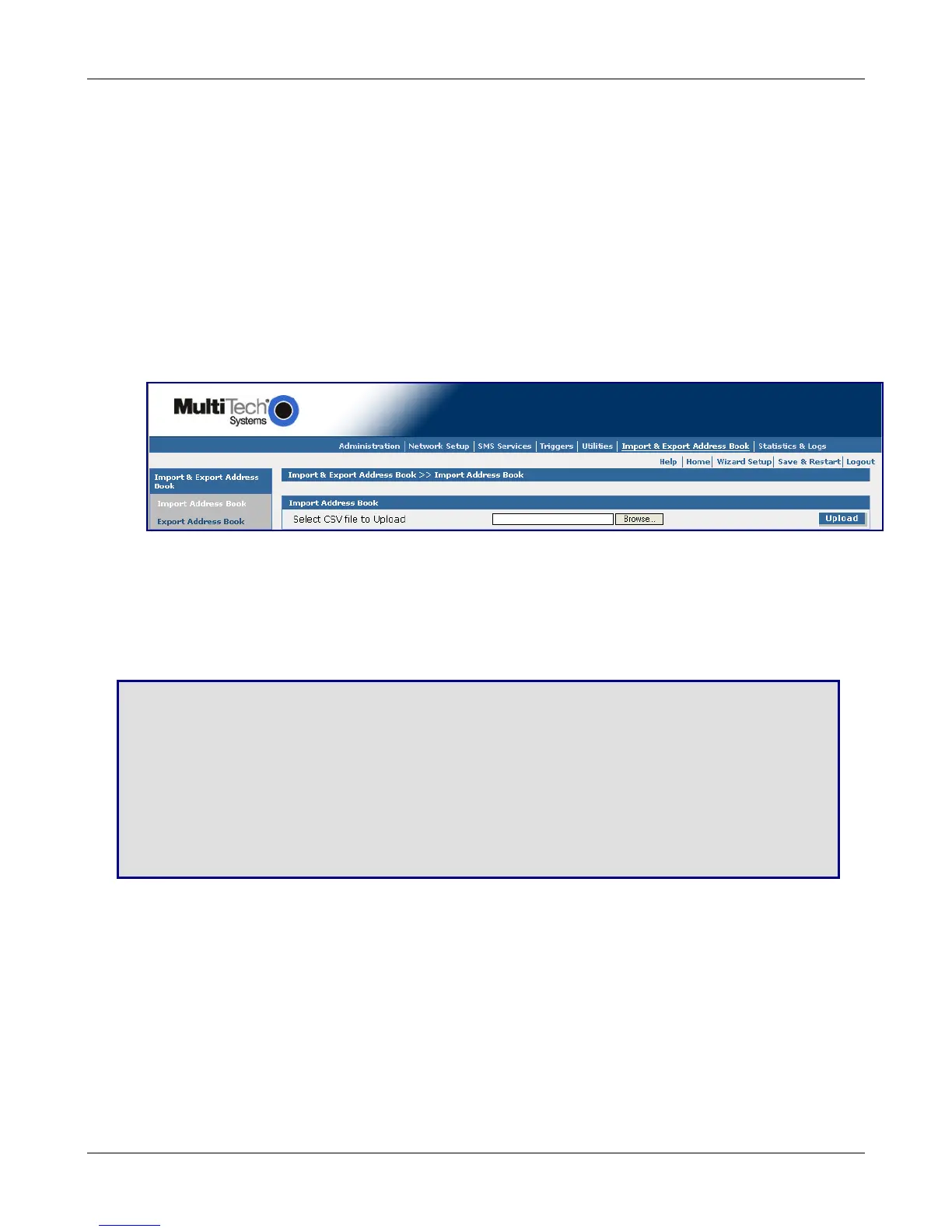
Import Address Book – Click the Import button. The Import Address Book screen displays.
Use this screen to upload a database of mobile endpoint contacts. Each contact entry in the CSV
(comma separated values) formatted file is to have 4 values in this order: firstname, lastname,
description, phonenumber.
Import Address Book
Select CSV file to Upload
Browse for the address file you want to use, and then click the Upload button once it is found.
Save & Restart
IMPORTANT Note About Saving System Settings
When you have completed entering your MultiModem iSMS settings and you are not going to enter any more
configuration data, you must go to the Save & Restart menu and perform a Save to Flash. Saving to the Flash
Memory saves the new settings in the flash prom and prevents the settings from getting lost at the next power
up.
Save
Click the Save button to save your system settings to the flash memory.
Restart is Optional
This is optional. You do not have to restart the MultiModem iSMS after saving to the flash memory.
Downloaded from Elcodis.com electronic components distributor



 To Next Page