Multi-Tech Systems, Inc. MultiModem® iSMS User Guide for Administrators 71
Chapter 6 – SMS Examples
Ensure the SIM Card Is Installed Correctly &
Activated
This example will verify that the SIM is installed correctly and that it is activated.
1. Power up the MultiModem iSMS. Wait until the Status LED and the LS LED are blinking before
continuing. Make sure all setup procedures and connections have been made. See Chapter 2.
2. Open the Web browser, enter the IP address, and login to the MultiModem iSMS. See Chapter 3.
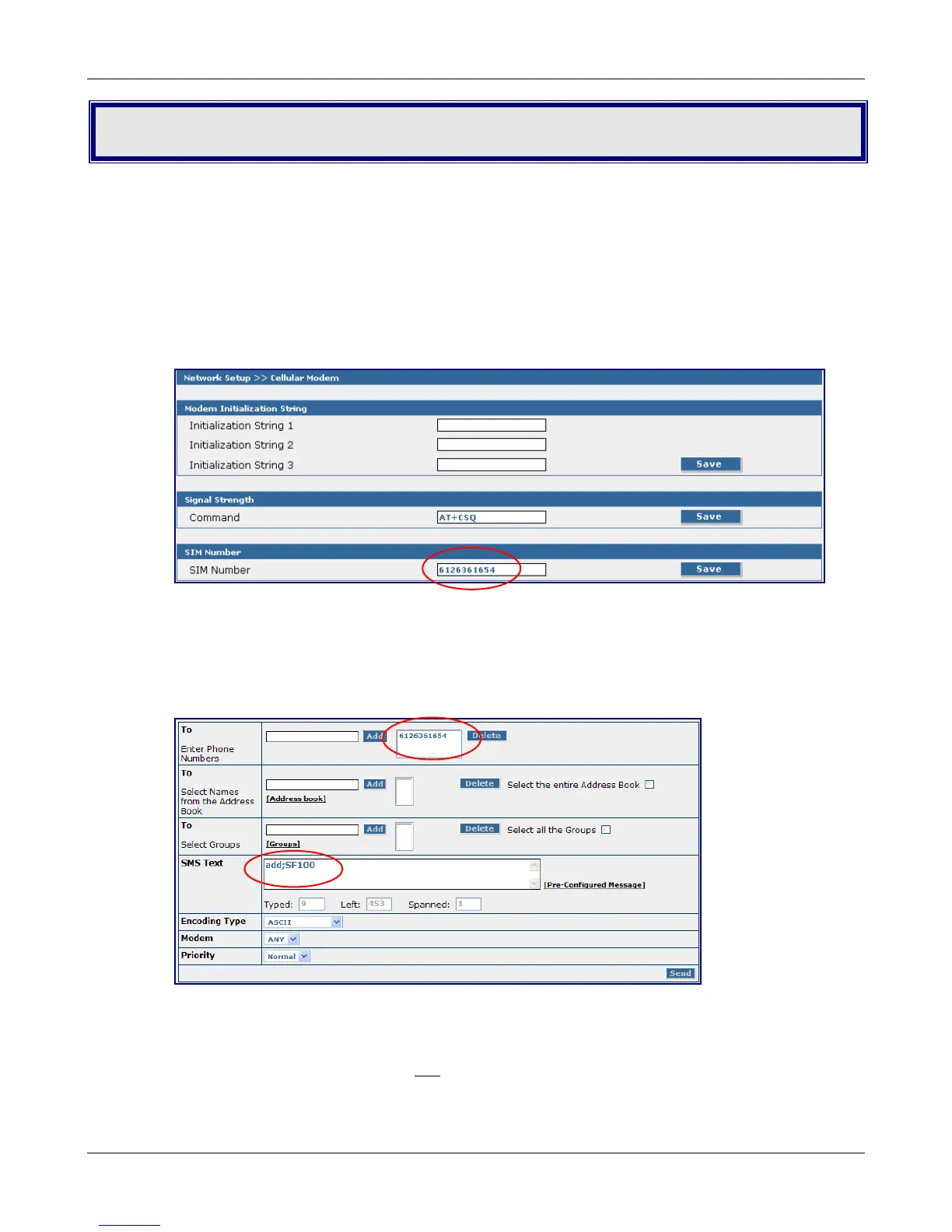
3. Go to the Network Setup > Cellular Modem screen.
• Enter the phone number of your SIM card. Example: 6126361654.
• Click the Save button.
• Click Save & Restart under the Menu Bar. Select Save. Note: You do not have to restart the
MultiModem iSMS.
4. Send a text message to yourself. Do this on the SMS Services > Send SMS screen.
• To – Enter Phone Numbers – Enter the SIM phone and click Add. The phone number displays
in the box to the right.
• SMS Text – Enter an SMS Text message. The format add;SF 100 is a trigger message word that
tells the MultiModem iSMS to add
the phone number and name to the address book. Notice
the use of the semicolon in this message.
• Click Send. The following message displays: Your request is being processed.
• Click OK.
Downloaded from Elcodis.com electronic components distributor



 To Next Page