Chapter 4 – Using the Web Interface
Multi-Tech Systems, Inc. MultiModem® iSMS User Guide for Administrators 54
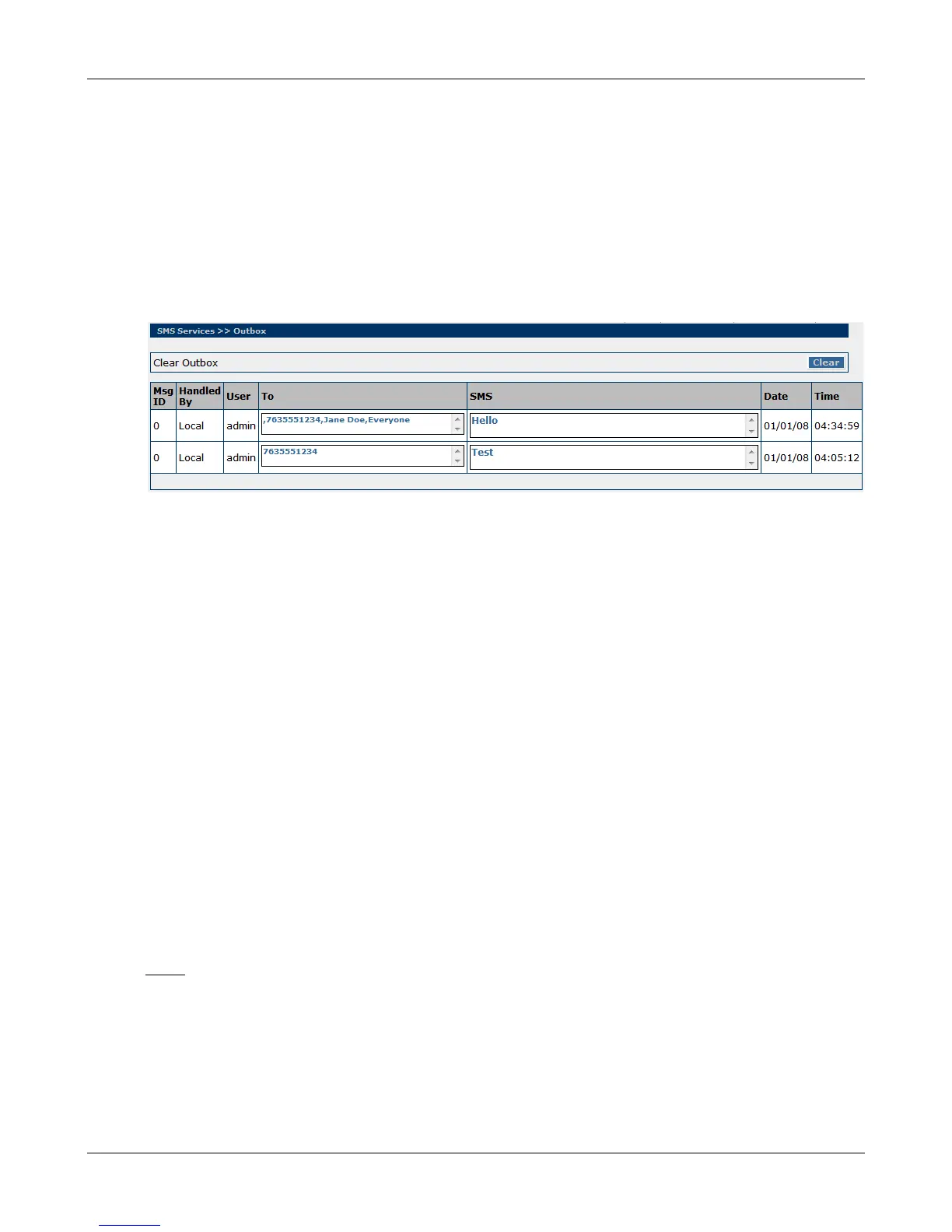
SMS Services > Outbox
SMS Services > Outbox
The Outbox is for the unit as a whole. This screen chronologically lists sent messages and includes
Message ID, Sending unit, who submitted the message, receiver's number, the message sent, and the
timestamp.
To determine which specific modem port the SMS was transmitted on, note the exact time and date of
the message and then review the Sent SMS Log found in the Trace Logs menu.
SF100 Note: SF100 models require a "Save to Flash" be performed for the Inbox and Outbox records to
be retained upon system restart. SF400 and SF800 models do not have this requirement.
Clear Outbox
Click the Clear button to delete all the outbox entries.
Msg ID
The message ID (Msg ID) is non-zero if the message has been sent using SEND API. A Msg ID of zero
means it was submitted via the Web Management Send SMS menu.
Handled By
This will display which MultiModem iSMS unit was used to send the SMS. If the unit who’s Outbox you
are viewing is the unit that sent the SMS to the cellular network, it will display "Local" (regardless of
Load Balancing configuration). If this Outbox is that of the Load Balancing Master and the message was
distributed to a Slave unit, it will display "Slave#" (where # is 1 thru 4).
User
This column will display the user name of the account that sent the message.
To
This column will show the number(s) or group(s) that this message was sent to.
SMS
This will display the text sent in the message.
Date
This will show the day the message was sent.
Time
This will display at what time the message was sent.
Note: In order for messages in the Outbox to have a valid date/time stamp, be sure to set up one of
the following options:
• SNTP Client must be enabled and the Ethernet connection must be live to the Internet.
-or-
• Enter the iSMS cellular phone number on the Network Setup > Cellular Modem screen.
Downloaded from Elcodis.com electronic components distributor



 To Next Page