14
Setting up your Quad Cortex
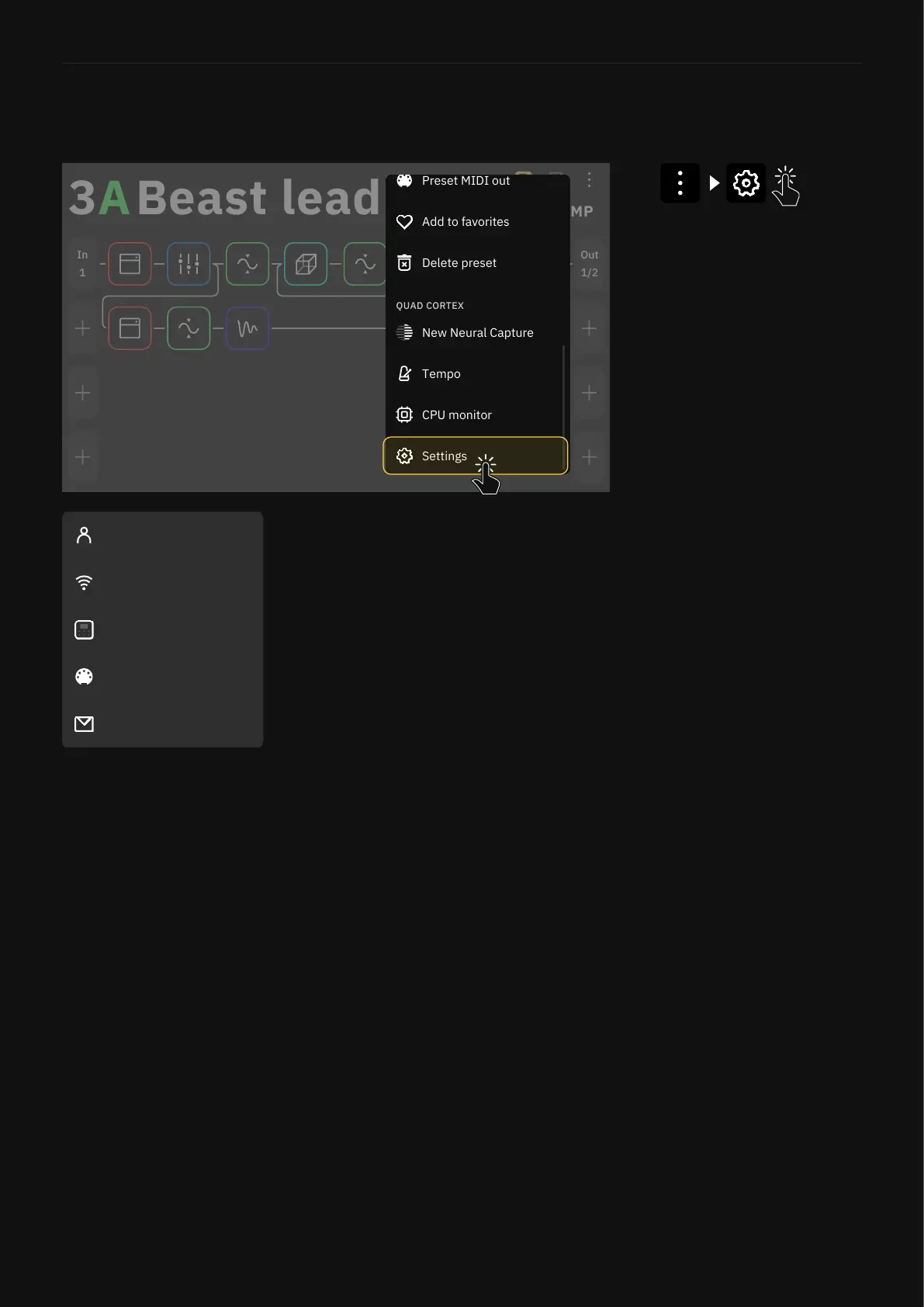
You can nd the settings in the Main Menu.
Device Options:
• Device updates: Here you can update your Quad Cortex to the latest version of CorOS. The
installation requires restarting Quad Cortex to complete.
• Disk Space: Available storage space.
• Diagnostics: DSP diagnostics and usage statistics.
• Power button sensitivity: Congures the amount of pressure needed to trigger the power
button (off, low, medium, and high).
• Brightness: Use the top-right footswitches to set the desired brightness level for the screen
and LED lights. Touchscreen controls are also allowed.
• About: Version information.
• Restart: Use this feature to restart Quad Cortex. Any unsaved changes will be lost.
• Restart Wi-Fi settings: Erases all stored Wi-Fi networks.
• Factory Reset: Use this feature to erase everything on Quad Cortex and reset to factory
settings.
MIDI settings: Enable or disable MIDI channels, MIDI Thru, or sending MIDI over USB.
Contact Us: Send diagnostic information if you encounter an issue.
Settings Menu
My Account: Here you can link your
Quad Cortex with your Neural DSP
account. You must be logged into your
Neural DSP account to sync your library,
and share or download items from
other users.
Wi-Fi: Connect to Wi-Fi in order to
access Cortex Cloud and share content.
Quad Cortex operates on the 2.4GHz
band.
My Account
Contact Us
MIDI Settings
Device Options
Wi-Fi
1/2
Out
1
In
STOMP
B
Add to favorites
Delete preset
Settings
CPU monitor


 To Next Page