27
Presets
Delete, Edit, Cut, Copy
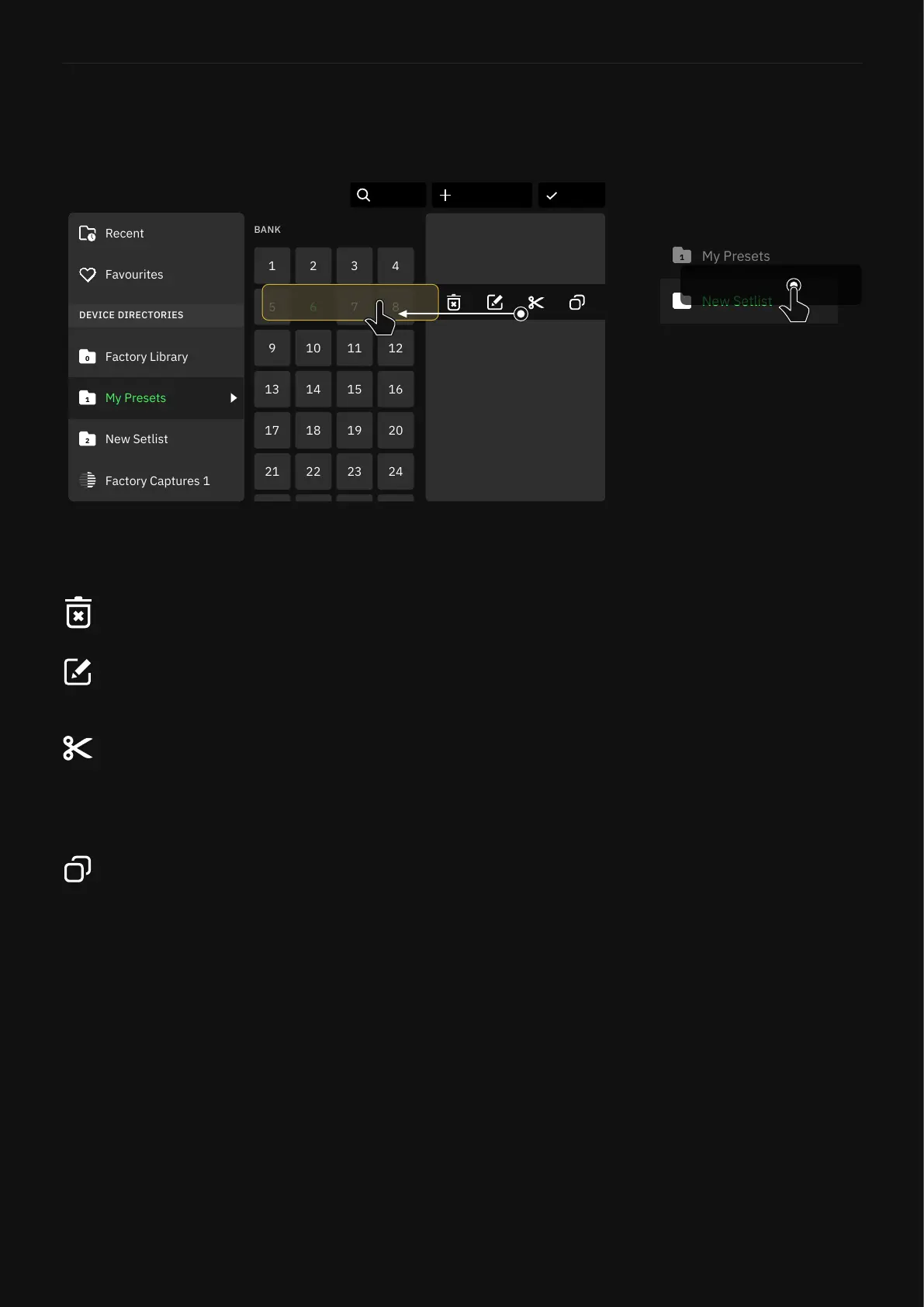
Open the Directory and tap a bank to reveal its Presets.
Swipe to the left on the Preset you want to interact with. This
action will reveal four icons:
DoneDirectory
Recent
Factory Library
0
DEVICE DIRECTORIES
My Presets
1
New Setlist
2
Factory Captures 1
Favourites
1 2 3 4
5 6 7 8
9 10 11 12
13 14 15 16
17 18 19 20
21 22 23 24
6A Whatup
6B Preset 2
6C Best Machine Riff
6G Trashpanda
6H Heavy Slow Low
6D Echo Laser
6E Doesn't Fuzz
6F Animals as Presidents
New SetlistSearch
6C Best Machine Riff
Delete: Tap it to delete the Preset.
Edit: Modify the Preset’s name and tags.
Cut: This action will cut the Preset and send it to the clipboard.
Tap another bank block or Preset slot to move the Preset to the
selected location.
Copy: This action will copy the Preset and send it to the
clipboard. Tap another bank block or Preset slot to paste a
new instance of the Preset in the selected location. The new
Preset’s name will be modied with a number appended to
the end.
You can also copy Presets by
dragging-and-dropping them to
another bank or Preset slot.
New Setlist
2
6C Best Machine Riff


 To Next Page