99
Cortex Cloud
DoneDirectory
Condenser 184
Dynamic 421
Dymamic 57
Dynamic 906
Download
Download
Download
Download
Presets
Neural Captures
Impulse Responses
Impulse Responses
CLOUD DIRECTORIES
STARRED AND SHARED WITH ME
Presets
Neural Captures
Shared with me
RefreshDownload all Search
Importing Impulse Responses
Uploading a Preset or a Neural Capture to
Cortex Cloud
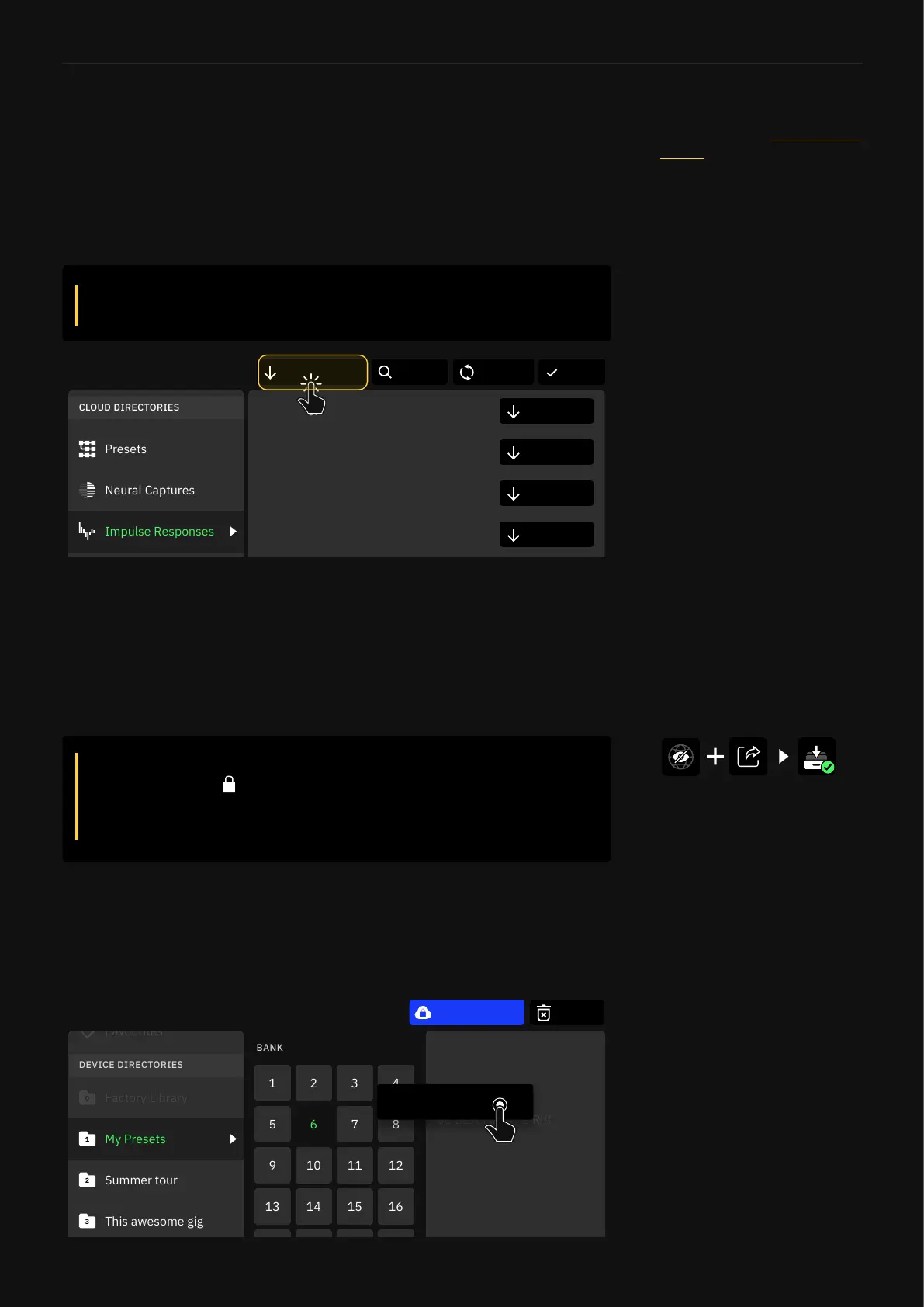
1. On your Quad Cortex, open the Directory and navigate to the
Impulse Responses folder beneath Cloud Directories.
2. Tap the Store button on the IRs you’d like to use, or tap the
Download all button at the top to download all available IRs to
your Quad Cortex.
Open the Directory and navigate to the le you want to upload to
Cortex Cloud. Drag-and-drop it to the top of the screen, where the
Copy to Cloud zone will show. Your le will instantly upload to
Cortex Cloud and be available on your account.
3. IRs will be downloaded to the Impulse Responses folder
beneath Device Directories and will ll any available slots. You
can rearrange them by dragging-and-dropping.
For more details how to use
imporeted Impulse Responses,
check the section Using External
IR les.
DeleteDirectory
6A Whatup
6B Preset 2
6G Trashpanda
6H Heavy Slow Low
6D Echo Laser
6E Doesn't Fuzz
6F Animals as Presidents
1 2 3 4
5 6 7 8
9 10 11 12
13 14 15 16
17 18 19 20
21 22 23 24
25 26 27 28
Copy to Cloud
Summer tour
2
This awesome gig
3
Best Machine Riff
When you upload a Preset or Neural Capture to Cortex Cloud, its
privacy status is Private by default.
To change it so that it is available to the public, edit it on the
Cortex Cloud website or via Cortex Mobile.
It is possible to share private
Presets with friends.
Downloading all IRs at once will overwrite all IR les with
the same name.


 To Next Page