86
Computer Integration
Preset Grid #2
Out
Multi
1
In
PRESET
A
Quad Cortex will receive the signal coming from the track. All the
device blocks placed in the row will affect the signal.
Recording the re-amped signal in your DAW is also possible.
• Add another audio track and set its inputs as Inputs 3/4.
• Arm the track for recording.
You can connect any class-compliant USB audio device or MIDI
controller to an iPhone® or iPad®. As those peripherals, Quad
Cortex can be used as an audio interface using the Apple®
Lightning to USB-3 Camera Adapter.
This feature allows using Quad Cortex with audio apps like
GarageBand® for recording purporses, or simply using Quad Cortex
as the main audio device for different apps.
Check the following steps to send back the recorded DI to Quad
Cortex:
• Select the dry audio track output as Output 5.
• Choose USB 5 as an input block in The Grid.
• Press PLAY in your DAW.
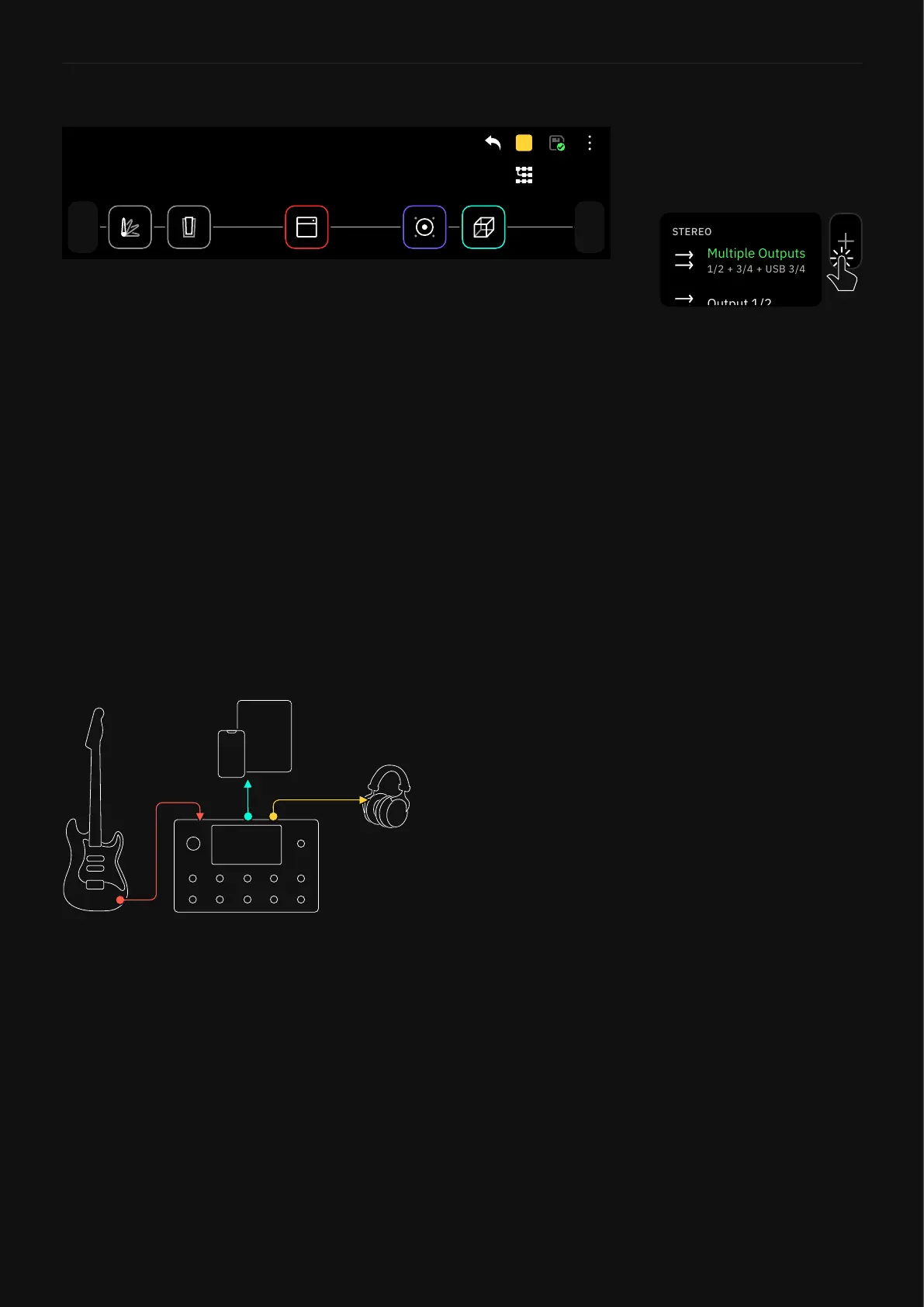
Connecting Quad Cortex to an iPhone® or iPad®
Tap any output block in The Grid
then select “Multiple Outputs”
to enable this feature.
The Multi-Out block routes your
signal through XLR Outs 1/2
as well as TRS Outs 3/4, and
USB. It’s the default setting for
all Factory Presets and newly
created Presets.


 To Next Page