Page | 27
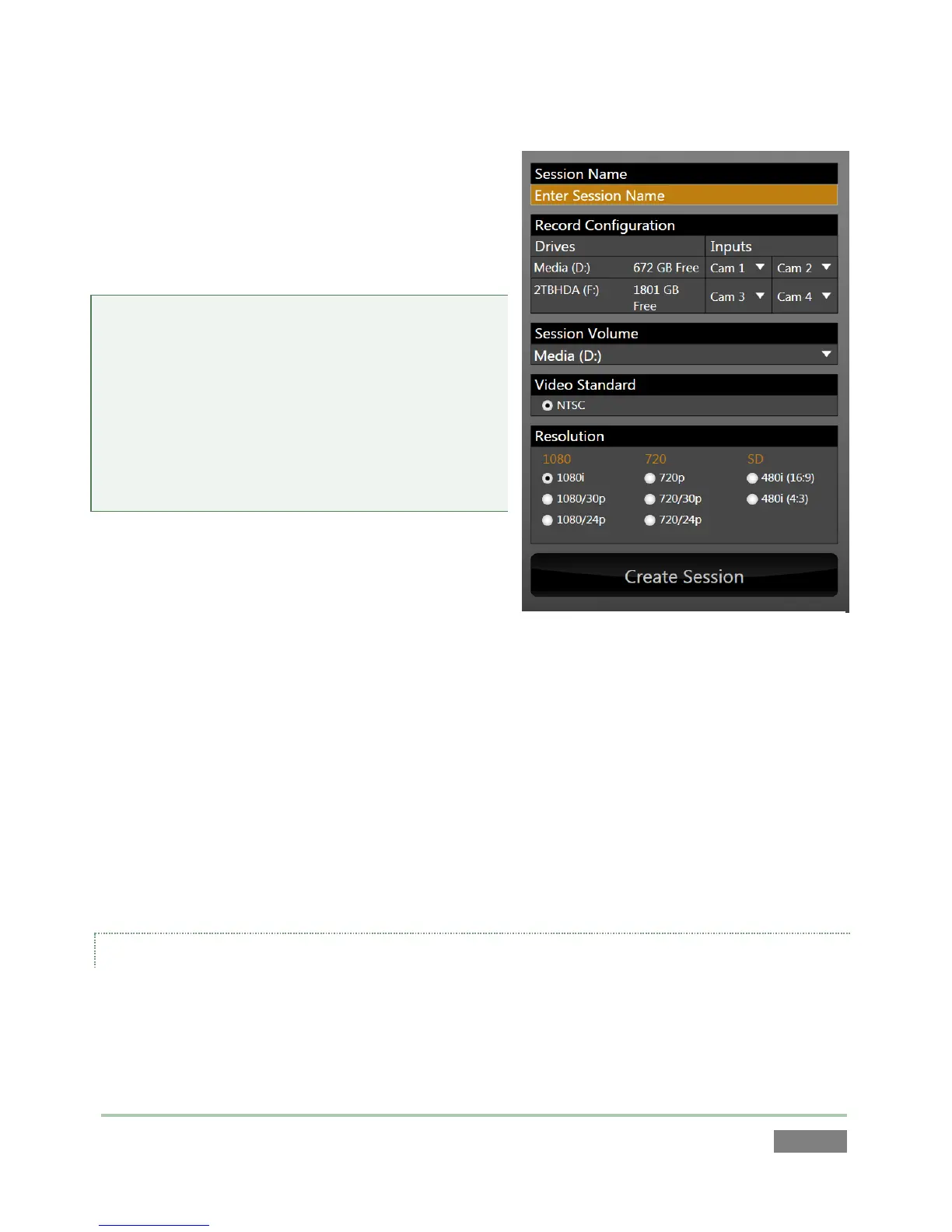
A link labeled Enter Session Name is shown at the
top of the right-hand pane when New is selected on
the icon ring. Click in this area to modify the name
using the keyboard if you like. (The default name is
the current date.)
Note: 3Play™ supports a variety of optional session
configurations for live production. You can choose
either HD (High Definition) or SD (Standard
Definition) operating modes. SD options include
both 4:3 and 16:9 (widescreen) image aspects.
Multi-standard models permit you to select from
three video standards according to your locale –
NSTC, NTSC-J (Japan) or PAL.
Continue with session creation by assigning drives to
cameras you intend to record.
Qualified storage volumes connected to 3Play™ or
mounted in its removable drive bay(s) are listed in
the Drives column of the Record Configuration
section (Figure 26). Use the drop-down menus under Inputs to assign sources to hard drive.
(Notice that the panel layout encourages you to record just two sources to a given drive.)
The hard drives assigned here can be thought of as comprising a ‘drive set’ for the session. The
Session Volume menu allows you to designate the primary member of the session drive set.
For multi-standard models only, set the Video Standard as appropriate for your locale. For the
moment, let’s choose 1080i for Resolution (even if the cameras you plan to connect are SD 4:3),
then click the Create Session link below.
THE SESSION PAGE
Clicking Create Session will display the Session page.


 To Next Page