EasyManua.ls Logo

NewTek 3Play - User Manual

NewTek 3Play
194 pages
Print Icon
To Next Page IconTo Next Page
Loading...

Table of Contents

Question and Answer IconNeed help?

Do you have a question about the NewTek 3Play and is the answer not in the manual?

Summary

2 INTRODUCTION

2.2 RECORDING, MARKING AND EVENTS

Explains the intrinsic recording capabilities and how to mark timed segments for replay.

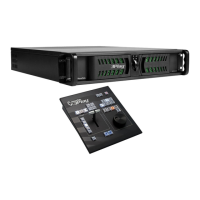
2.3 NEWTEK 3 PLAY CONTROL SURFACE

Describes the dedicated external control surface for primary operational control.

2.5 REPLAY DESKTOP

Explains that live production features are accessed from the Replay Desktop interface.

2.6.2 INPUT, OUTPUT & CAPTURE

Covers accessible connectors, industry-standard connections, and audio/video capabilities.

2.6.5 RECORDING

Details how replay output features depend on recorded data and the Record button.

2.6.6 THE CLIPS LIST

Explains how recorded data segments are bookmarked as events and appear in the Clips List.

2.6.7 THE PLAY LIST

Describes the Play List pane for creating and controlling sequences of clips.

3 SETTING UP

3.2 ACTIVATING & AUTHORIZING WINDOWS

Details the steps for activating and authorizing the Windows operating system on 3Play™.

3.4 INPUT CONNECTIONS

Covers connecting external audio and video sources to the appropriate inputs on 3Play's backplate.

3.4.1 CONNECT A;V SOURCES

Details connecting video sources via SDI, Component, Y/C, or Composite, and audio sources.

3.5 OUTPUT CONNECTIONS

Discusses audio and video output connectors and relevant settings for displaying streams.

3.5.1 A;V OUTPUT

Explains flexible options for displaying live and recorded video streams via multiple outputs.

3.5.3 CONNECTING DEVICES

Guides connecting downstream video devices to the VIDEO OUT connectors.

3.7 CONFIGURE VIDEO OUTPUT

Explains how to configure video output settings and monitoring on the Replay Desktop.

3.10 CONFIGURE VIDEO INPUT

Explains configuring video sources connected to the system.

3.11 CONFIGURE AUDIO

Details configuring audio input settings for captured video clips.

PART II (REFERENCE)

5.2.1 NEW (SESSION)

Guides creating a new session, designating video standard, format, and record configuration.

6 REPLAY DESKTOP OVERVIEW

Provides a top-level view of the Replay Desktop interface and its main components.

7 I;O CONFIGURATION

7.1 OUTPUT CONFIGURATION

Guides users through the Output Configuration panel with its tabbed panes for various settings.

7.1.1 OUTPUT A AND B

Details video format for Outputs A, B, and Aux, and analog output type options.

7.1.2 MULTIVIEW

Describes the Multiview connection and control group for secondary display monitors.

7.1.3 GENLOCK

Explains the Genlock feature for locking video output to a reference video signal.

7.2 INPUT CONFIGURATION

Covers input preview monitors and contextual tools for configuring specific sources.

7.2.1 CONNECTION TYPE

Explains how to select the appropriate connection type for cameras based on session format.

7.2.3 PROC AMP

Details Proc Amp settings for individual inputs, identical to output Proc Amps.

7.2.4 AUDIO SETTINGS

Details configuring audio input settings for captured video clips.

7.2.5 TIMECODE CONFIGURATION

Explains how to supply timecode from internal clock or external LTC sources.

8 CONTROL SURFACE

8.3 RECORD

Details the Record button's function to toggle audio/video data capture to mounted storage.

8.4 OUTPUT MODES (A, B, A+B)

Explains how A and B buttons control the corresponding Output Mode, with A+B for linked operations.

8.5 CONTROL MODES

Details how Control Modes (Clips, Play List, Live) determine the source displayed and module interacted with.

8.5.1 CLIPS MODE

Describes operations directed to the Clips List when this mode is active.

8.5.2 PLAY LIST MODE

Describes operations directed to the Play List module when this mode is active.

8.5.3 LIVE

Explains controlling live sources from system inputs and passing them to outputs.

8.7 TRANSPORT

Details VCR-style controls for navigating and playing back media.

8.8 PLAY SPEED (T-BAR SECTION)

Controls playback speed using presets or the T-Bar.

8.9 IN;OUT (MARKING)

Details the core function of marking events using IN and OUT buttons.

8.9.1 IN

Adds a new event row to the Clips List, setting the In Point and enabling recording.

8.9.2 OUT

Completes an event by setting the Out Point and establishing the Duration.

ONE BUTTON MARKING

Allows creating events by pressing OUT, automatically setting In/Out points.

8.10.4 ADD TO PLAY LIST

Inserts selected clips from the Clips List to the current Play List page.

9 DESKTOP MONITORS

9.2 OUTPUT A AND B

Discusses the two independent output sections, Output A and Output B, and their importance.

10 RECORD AND MARKING

10.1 RECORD CONFIGURATION - NEW SESSION

Guides deciding which inputs to capture and on which hard drives data will be stored.

10.2 RECORDING AND THE DESKTOP

Explains how to distinguish between recorded and non-recorded sources on the Replay Desktop.

10.2.3 RECORD ON;OFF

Details the Record buttons on the Replay Desktop and control surface to toggle recording.

10.3 MARKING EVENTS

Covers event marking features provided by the Dashboard and control surface.

11 OUTPUT & CONTROL MODES

11.1 OUTPUT MODES

Explains the system's two independent playout devices, Output A and Output B.

11.2 CONTROL MODES

Details how Control Modes (Clips, Play List, Live) determine the source displayed and module interacted with.

11.2.1 CONTROL AND A+B MODE

Describes how A+B mode causes operations to occur in tandem for both outputs.

12 THE CLIPS LIST

12.2 CLIPS LIST TABLE FEATURES

Describes the spreadsheet-style table layout of the Clips List.

12.2.1 IN;OUT POINTS, DURATION (AND TRIMMING)

Explains how to modify timecode fields and trim clips.

12.3 CLIP TRANSPORT

Details moving through clips using Play, Stop, and Jog controls.

12.3.1 PLAY SPEED

Governs playback speed using T-Bar position, Speed Presets, and Dashboard equivalents.

13 THE PLAY LIST

13.2 THE PLAY LIST TABLE

Describes the Play List table layout, including columns for Clip ID, Memo, Audio, Speed, etc.

13.3 PLAY LIST PREPARATION

Covers adding clips, re-ordering, and using Cut, Copy, Paste for playlist preparation.

13.3.5 IN AND OUT POINTS (TRIMMING CLIPS)

Explains changing clip timing in the Play List using methods similar to the Clips List.

13.3.6 SPEED

Covers adjusting playback speed for clips, from 10% to 400%.

13.5 PLAYBACK

Initiates Play List playback by selecting a clip and pressing Play.

14 THE DASHBOARD

14.2 SPEED PRESETS

Details how Dashboard Speed Preset buttons mimic control surface counterparts for speed settings.

14.5 MARK IN;OUT

Corresponds to IN and OUT buttons on the control surface for marking events.

14.6 TRANSPORT BUTTONS

Mimics control surface transport functionality, including Jog and Shuttle buttons.

PART III (APPENDICES)

A.3 EVENTS AND RECORDING

Covers starting, ending, and marking events, with two primary methods.

A.3.1 START RECORDING?

Details methods to start recording using the control surface or Replay Desktop.

A.3.2 END RECORDING?

Explains how to stop recording using the control surface or Replay Desktop.

A.3.3 MARK AN EVENT?

Describes the One-Button and Two-Button methods for marking events.

A.4.2 IMPORT MEDIA FILES?

Details importing files into session folders for use in Clips List and Play List.

B KEYSTROKE SHORTCUTS

Summary

2 INTRODUCTION

2.2 RECORDING, MARKING AND EVENTS

Explains the intrinsic recording capabilities and how to mark timed segments for replay.

2.3 NEWTEK 3 PLAY CONTROL SURFACE

Describes the dedicated external control surface for primary operational control.

2.5 REPLAY DESKTOP

Explains that live production features are accessed from the Replay Desktop interface.

2.6.2 INPUT, OUTPUT & CAPTURE

Covers accessible connectors, industry-standard connections, and audio/video capabilities.

2.6.5 RECORDING

Details how replay output features depend on recorded data and the Record button.

2.6.6 THE CLIPS LIST

Explains how recorded data segments are bookmarked as events and appear in the Clips List.

2.6.7 THE PLAY LIST

Describes the Play List pane for creating and controlling sequences of clips.

3 SETTING UP

3.2 ACTIVATING & AUTHORIZING WINDOWS

Details the steps for activating and authorizing the Windows operating system on 3Play™.

3.4 INPUT CONNECTIONS

Covers connecting external audio and video sources to the appropriate inputs on 3Play's backplate.

3.4.1 CONNECT A;V SOURCES

Details connecting video sources via SDI, Component, Y/C, or Composite, and audio sources.

3.5 OUTPUT CONNECTIONS

Discusses audio and video output connectors and relevant settings for displaying streams.

3.5.1 A;V OUTPUT

Explains flexible options for displaying live and recorded video streams via multiple outputs.

3.5.3 CONNECTING DEVICES

Guides connecting downstream video devices to the VIDEO OUT connectors.

3.7 CONFIGURE VIDEO OUTPUT

Explains how to configure video output settings and monitoring on the Replay Desktop.

3.10 CONFIGURE VIDEO INPUT

Explains configuring video sources connected to the system.

3.11 CONFIGURE AUDIO

Details configuring audio input settings for captured video clips.

PART II (REFERENCE)

5.2.1 NEW (SESSION)

Guides creating a new session, designating video standard, format, and record configuration.

6 REPLAY DESKTOP OVERVIEW

Provides a top-level view of the Replay Desktop interface and its main components.

7 I;O CONFIGURATION

7.1 OUTPUT CONFIGURATION

Guides users through the Output Configuration panel with its tabbed panes for various settings.

7.1.1 OUTPUT A AND B

Details video format for Outputs A, B, and Aux, and analog output type options.

7.1.2 MULTIVIEW

Describes the Multiview connection and control group for secondary display monitors.

7.1.3 GENLOCK

Explains the Genlock feature for locking video output to a reference video signal.

7.2 INPUT CONFIGURATION

Covers input preview monitors and contextual tools for configuring specific sources.

7.2.1 CONNECTION TYPE

Explains how to select the appropriate connection type for cameras based on session format.

7.2.3 PROC AMP

Details Proc Amp settings for individual inputs, identical to output Proc Amps.

7.2.4 AUDIO SETTINGS

Details configuring audio input settings for captured video clips.

7.2.5 TIMECODE CONFIGURATION

Explains how to supply timecode from internal clock or external LTC sources.

8 CONTROL SURFACE

8.3 RECORD

Details the Record button's function to toggle audio/video data capture to mounted storage.

8.4 OUTPUT MODES (A, B, A+B)

Explains how A and B buttons control the corresponding Output Mode, with A+B for linked operations.

8.5 CONTROL MODES

Details how Control Modes (Clips, Play List, Live) determine the source displayed and module interacted with.

8.5.1 CLIPS MODE

Describes operations directed to the Clips List when this mode is active.

8.5.2 PLAY LIST MODE

Describes operations directed to the Play List module when this mode is active.

8.5.3 LIVE

Explains controlling live sources from system inputs and passing them to outputs.

8.7 TRANSPORT

Details VCR-style controls for navigating and playing back media.

8.8 PLAY SPEED (T-BAR SECTION)

Controls playback speed using presets or the T-Bar.

8.9 IN;OUT (MARKING)

Details the core function of marking events using IN and OUT buttons.

8.9.1 IN

Adds a new event row to the Clips List, setting the In Point and enabling recording.

8.9.2 OUT

Completes an event by setting the Out Point and establishing the Duration.

ONE BUTTON MARKING

Allows creating events by pressing OUT, automatically setting In/Out points.

8.10.4 ADD TO PLAY LIST

Inserts selected clips from the Clips List to the current Play List page.

9 DESKTOP MONITORS

9.2 OUTPUT A AND B

Discusses the two independent output sections, Output A and Output B, and their importance.

10 RECORD AND MARKING

10.1 RECORD CONFIGURATION - NEW SESSION

Guides deciding which inputs to capture and on which hard drives data will be stored.

10.2 RECORDING AND THE DESKTOP

Explains how to distinguish between recorded and non-recorded sources on the Replay Desktop.

10.2.3 RECORD ON;OFF

Details the Record buttons on the Replay Desktop and control surface to toggle recording.

10.3 MARKING EVENTS

Covers event marking features provided by the Dashboard and control surface.

11 OUTPUT & CONTROL MODES

11.1 OUTPUT MODES

Explains the system's two independent playout devices, Output A and Output B.

11.2 CONTROL MODES

Details how Control Modes (Clips, Play List, Live) determine the source displayed and module interacted with.

11.2.1 CONTROL AND A+B MODE

Describes how A+B mode causes operations to occur in tandem for both outputs.

12 THE CLIPS LIST

12.2 CLIPS LIST TABLE FEATURES

Describes the spreadsheet-style table layout of the Clips List.

12.2.1 IN;OUT POINTS, DURATION (AND TRIMMING)

Explains how to modify timecode fields and trim clips.

12.3 CLIP TRANSPORT

Details moving through clips using Play, Stop, and Jog controls.

12.3.1 PLAY SPEED

Governs playback speed using T-Bar position, Speed Presets, and Dashboard equivalents.

13 THE PLAY LIST

13.2 THE PLAY LIST TABLE

Describes the Play List table layout, including columns for Clip ID, Memo, Audio, Speed, etc.

13.3 PLAY LIST PREPARATION

Covers adding clips, re-ordering, and using Cut, Copy, Paste for playlist preparation.

13.3.5 IN AND OUT POINTS (TRIMMING CLIPS)

Explains changing clip timing in the Play List using methods similar to the Clips List.

13.3.6 SPEED

Covers adjusting playback speed for clips, from 10% to 400%.

13.5 PLAYBACK

Initiates Play List playback by selecting a clip and pressing Play.

14 THE DASHBOARD

14.2 SPEED PRESETS

Details how Dashboard Speed Preset buttons mimic control surface counterparts for speed settings.

14.5 MARK IN;OUT

Corresponds to IN and OUT buttons on the control surface for marking events.

14.6 TRANSPORT BUTTONS

Mimics control surface transport functionality, including Jog and Shuttle buttons.

PART III (APPENDICES)

A.3 EVENTS AND RECORDING

Covers starting, ending, and marking events, with two primary methods.

A.3.1 START RECORDING?

Details methods to start recording using the control surface or Replay Desktop.

A.3.2 END RECORDING?

Explains how to stop recording using the control surface or Replay Desktop.

A.3.3 MARK AN EVENT?

Describes the One-Button and Two-Button methods for marking events.

A.4.2 IMPORT MEDIA FILES?

Details importing files into session folders for use in Clips List and Play List.

B KEYSTROKE SHORTCUTS

NewTek 3Play Specifications

General IconGeneral
BrandNewTek
Model3Play
CategorySecurity Camera
LanguageEnglish

Related product manuals