Page | 42
21. Keep an eye on the In Point column for this incomplete event, and push IN again. Notice
that the In Point updates when you do this.
22. Complete the current event in the Clips List by pressing the OUT button on the control
surface.
Note that the event now has both an In Point and an Out Point, and the (calculated) Duration
for the event is also now shown.
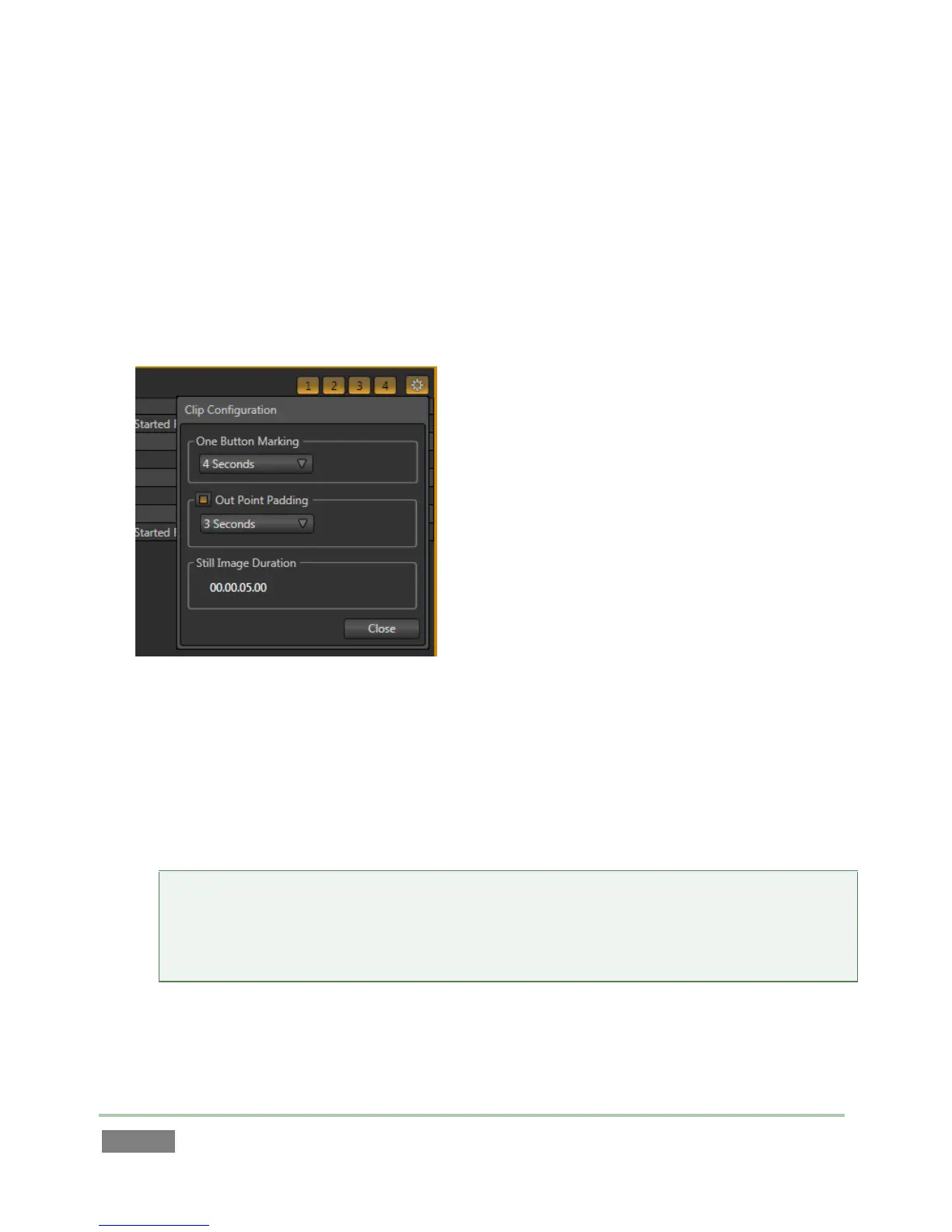
Figure 40
23. Click the small button at the extreme right end of the Clips List header. This opens the
Clip Configuration dialog.
24. Notice the One Button Marking menu, which lets you change the default duration value
for this handy feature.
Hint: Just below the One Button Marking menu, notice the Out Point Padding switch and
associated numeric control. Enter a duration in the numeric field and enable the switch
if you want playback to continue past the end point of clips you play, rather than stop
immediately when the Out Point is reached.
25. Click the Close button to dismiss the Clip Configuration dialog.


 To Next Page