PROPlus / PRO Series Automated Dispensing Systems
30 www.nordsonefd.com info@nordsonefd.com +1-401-431-7000 Sales and service of Nordson EFD dispensing systems are available worldwide.
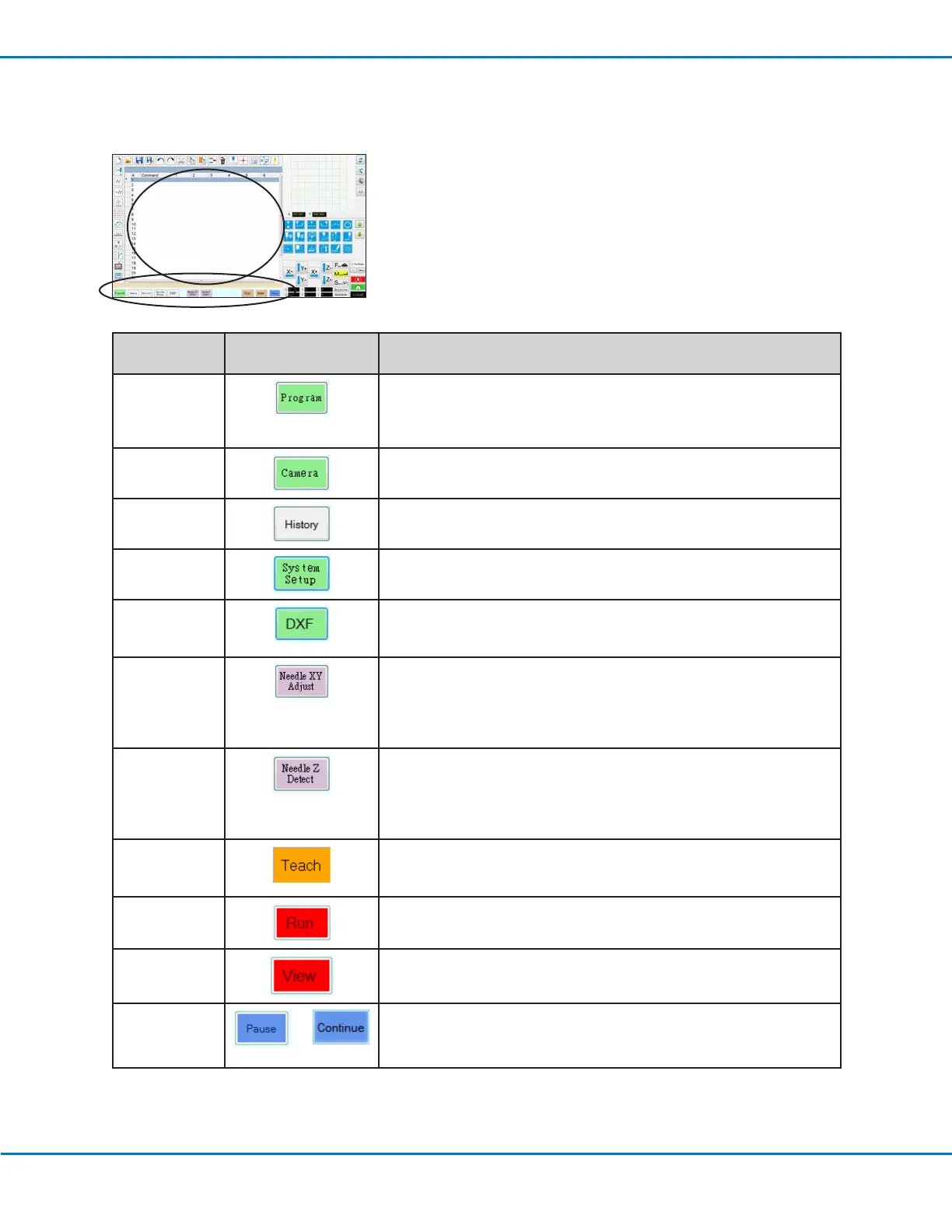
Primary View Screen and Tab Bar
The Primary View screen changes depending on the selected tab. All the tabs are visible at all times.
Tab Name
Tab Color When
Selected
Function
Program
Shows the command view; used to create programs. Right-clicking
on this screen provides quick access to commonly used programming
functions. Refer to “Primary View Screen Right-Click Functions” on
page31 for details.
Camera
Shows the actual camera view; used to perform all camera-related
functions.
History
Shows a time-line of different commands.
System Setup Shows the settings screen; used to view or change system-level
settings or parameters.
DXF
Allows you to load drawings in DXF format into the DispenseMotion
software. Refer to “AppendixC, DXF File Import” on page138 for
more information.
Needle XY
Adjust
Automatically checks and adjusts the XY offsets without touching the
tip to any surface. This button is present only when Needle XY Adjust
is enabled on the System Setup screen. The system must be properly
setup as described under “Setting Up and Calibrating the System
(Required)” on page47.
Needle Z
Detect
Automatically checks and adjusts the tip-to-workpiece offset (Z
clearance) then performs a Needle XY Adjust. This button is present
only when Tip Detect Device is enabled on the System Setup screen.
The system must be properly setup as described under “Setting Up
and Calibrating the System (Required)” on page47.
Teach
When the optional start / stop box is connected, this indicator appears
on the tab bar and flashes when the robot is in the safety bypass mode.
When the Teach indication is present, the Run button is disabled.
Run
Runs the selected program.
View Runs the selected program without dispensing and also centers the
camera on the dispense path.
Pause or
Continue
or
Pauses the program that is currently running. When you click on Pause,
the button changes to Continue.
Click Continue to stop the pause.


 To Next Page