PROPlus / PRO Series Automated Dispensing Systems
98 www.nordsonefd.com info@nordsonefd.com +1-401-431-7000 Sales and service of Nordson EFD dispensing systems are available worldwide.
Operation
After the system is installed and programmed, the only actions required
from the operator are to switch on the system, run the program for the
workpiece, and shut down the system at the end of the work period.
Starting the System and Running a Program
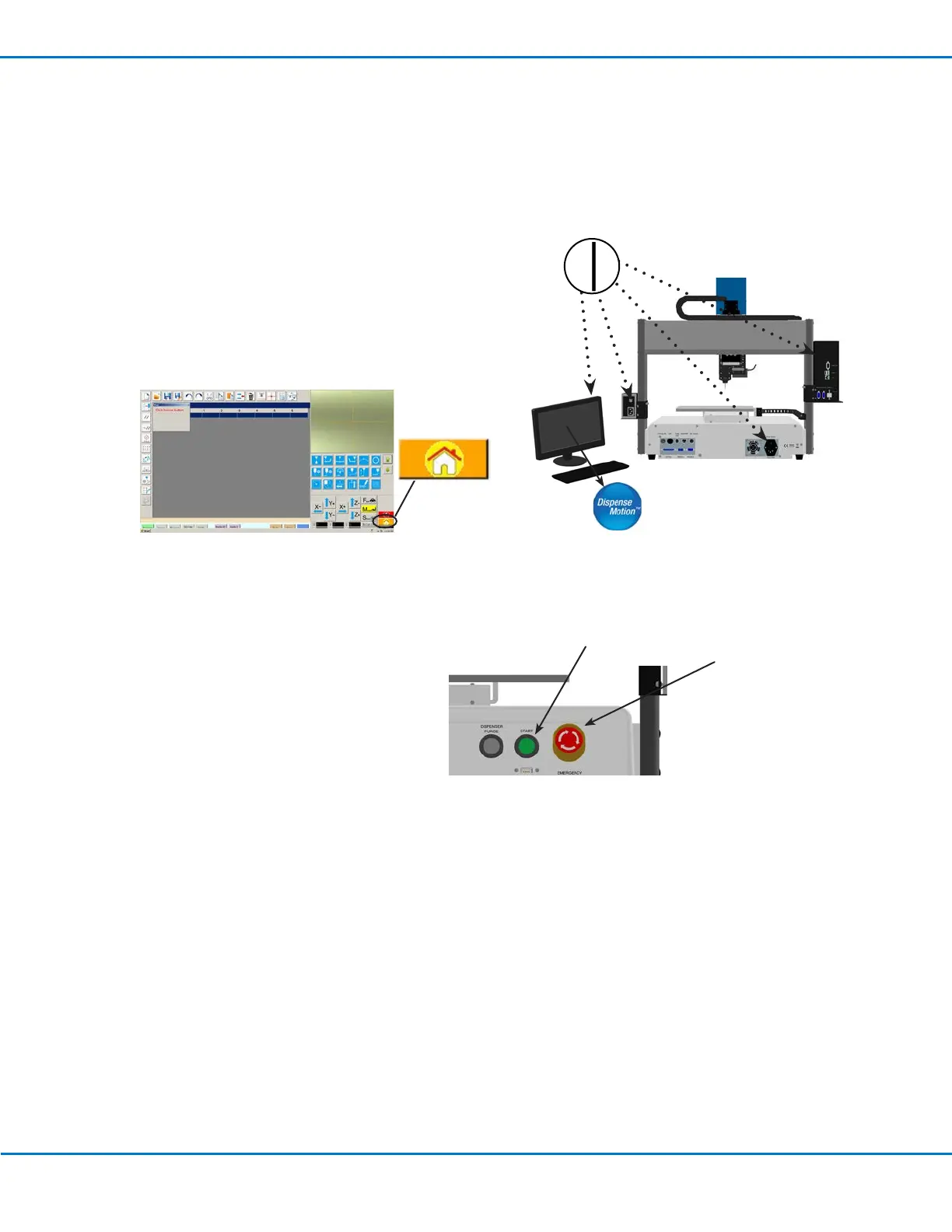
1. Switch on the DispenseMotion controller, monitor, robot,
and light controller.
2. Double-click the DispenseMotion icon to open the
dispensing software.
3. Click HOME.
The robot moves the camera to the home position (0, 0, 0)
and the system is ready.
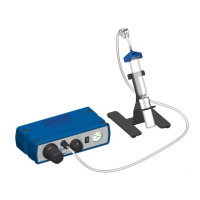
4. Enable the dispensing system, including the valve controller. Refer to
the dispensing equipment manuals as needed.
5. Open the program file for your application.
6. Place the workpiece in the correct location on
the fixture plate.
7. Press the START button on the front of the
robot, or click RUN on the monitor.
8. When necessary, refer to the dispensing
system manuals to refill the dispenser.
9. If an emergency occurs, press the
EMERGENCY STOP button.
EMERGENCY
STOP button
START button
Running a Program by Scanning a QR Code
PREREQUISITES
QR code scanning is enabled. Refer to “AppendixD, QR Code Scanning Setup” on page145 to enable QR
code scanning.
A QR code is present on the robot work surface and is associated with a program. Refer to “AppendixD, QR
Code Scanning Setup” on page145 to associate a QR code with a program.
1. Position the workpiece on the fixture plate.
2. Press the START button on the front of the robot, or click RUN on the monitor.
The system jogs to the predefined location where a QR code is located, scans the QR code, opens the
associated program, and executes the program.


 To Next Page