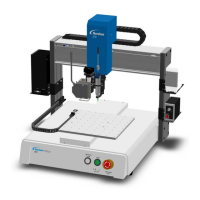
PROPlus / PRO Series Automated Dispensing Systems
95www.nordsonefd.com info@nordsonefd.com +1-401-431-7000 Sales and service of Nordson EFD dispensing systems are available worldwide.
How to Adjust PICO Parameters Using DispenseMotion
You can use the DispenseMotion software to remotely edit the parameters of a connected PICO Toµch Controller.
Edited parameters are stored as *.pico files on the DispenseMotion Controller. The PICOTouch Parameter Update
command is then added to a dispense program to implement the settings saved in a *.pico file.
PREREQUISITES
A PICO Pµlse valve and Toµch Controller system is properly installed and connected to the automated
dispensing system.
To Create a New PICO File
# Click Step Reference Image
1
>
• Click PROGRAM > PICO TOUCH to open the
Pico Touch Remote Control window.
2 • Click the tab for the settings you want to edit (Valve, Heaters, or Ramp).
3
>
• Click the button for the parameter you want to edit and enter the desired setting.
Refer to the PICO Toµch Controller Operating Manual for details on settings.
• Click SAVE.
NOTES:
- The first time you save, the system prompts for a file name. PICO files are saved
on the DispenseMotion controller as *.pico files under D:\Save\PICO. You can
use any allowable file name, but Nordson EFD recommends using a numeric
name to make it easier to enter the file name in a PicoTouch Parameter Update
command.
- After you click Save, the Toµch Controller screen updates in real time (after a
slight delay).
- Refer to “PICO Toµch Controller settings editable through the DispenseMotion
software” on page96 for screen captures that show the Toµch Controller
settings you can edit.
• Continue making selections and saving until all desired settings are entered.
4
X
• To exit, close the Pico Touch Remote Control window.
5
• To use the PICO Toµch settings in a program, continue to “To Use the PicoTouch
Parameter Update Command in a Program” on page97.


 To Next Page