PROPlus / PRO Series Automated Dispensing Systems
33www.nordsonefd.com info@nordsonefd.com +1-401-431-7000 Sales and service of Nordson EFD dispensing systems are available worldwide.
Secondary View Screen in Path View
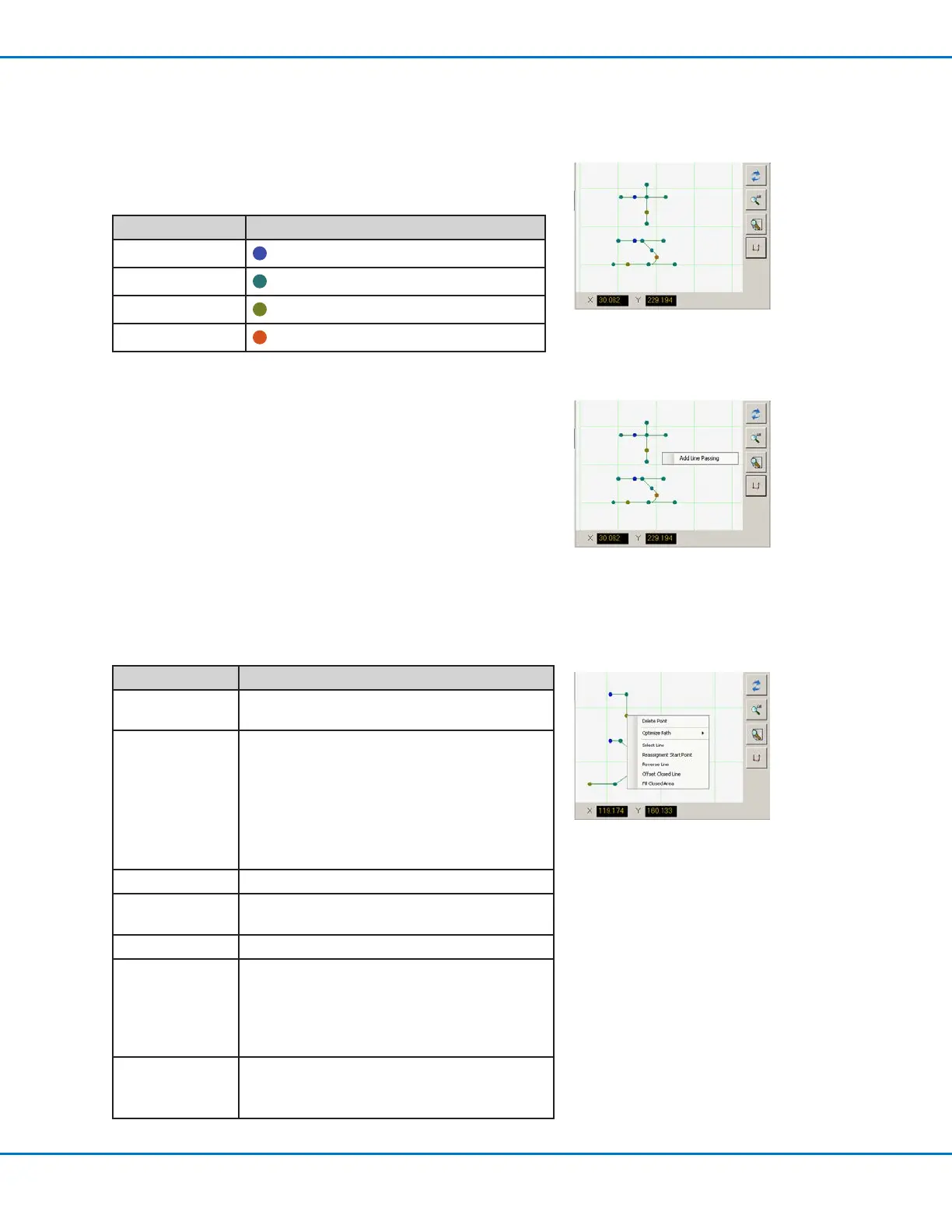
Path View Point Colors
When the Secondary View screen is in the Path view (Path icon
toggled ON), it shows a visual representation of the programmed
pattern. The point colors represent the programmed point commands.
Point Command Color on Path View Screen
Line Start
Blue
Line Passing
Green
Line End
Olive
Arc Point
Orange
Path View Right Click Functions
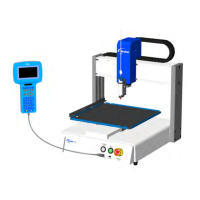
On the Path view screen, right-click on any point (command) to open
a right-click menu. The functions shown below are available for the
selected point.
Path view line and point colors
Right-click on any point to open
the right-click menu
Item Function
Delete Point Deletes the selected point and connects the
previous command with the next command.
Optimize Path Opens a path for editing:
• Select Line Path Start and Line Path End to
edit the Line Start and Line End points of the
pattern.
• Select Arc Path Start and Arc Path End to
edit the beginning and end points of an Arc
point.
Select Line Selects entire pattern.
Reassignment
Start Point
Reassigns the Line Start point to the selected
point (the path must be closed).
Reverse Line Reverses the pattern.
Offset Closed
Line
Closes the pattern by adding a line from Line
Start to Line End and then reassigning Line
Start and Line End to be the same location.
• Offset Length (mm) enlarges the pattern
relative to the original pattern.
Fill Closed Area Fills an area of the pattern.
• Brush Width (mm): The distance between
each fill area spiral.
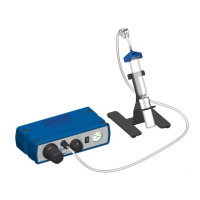
Add Line Passing
Right-click anywhere on the Path view grid (but not on a point) to
stitch a Line Passing point (command) to an existing point. Only
horizontal or vertical lines can be added.
Right-click to stitch a Line Passing
point onto an existing point


 To Next Page