PROPlus / PRO Series Automated Dispensing Systems
70 www.nordsonefd.com info@nordsonefd.com +1-401-431-7000 Sales and service of Nordson EFD dispensing systems are available worldwide.
How to Create a Mark
Refer to “About Marks” on page27 for an explanation of marks. If you want to use fiducial marks in a program to
check workpiece orientation, create at least two marks.
PREREQUISITES
The system is properly set up. Refer to “Setting Up and Calibrating the System (Required)” on page47.
If the tip or any element of the Zaxis head was changed, repeat system setup and calibration using the Robot
Initial Setup wizard. Refer to “Setting Up the System Using the Robot Initial Setup Wizard” on page48.
The system is in the CCD Mode.
# Click Step Reference Image
1
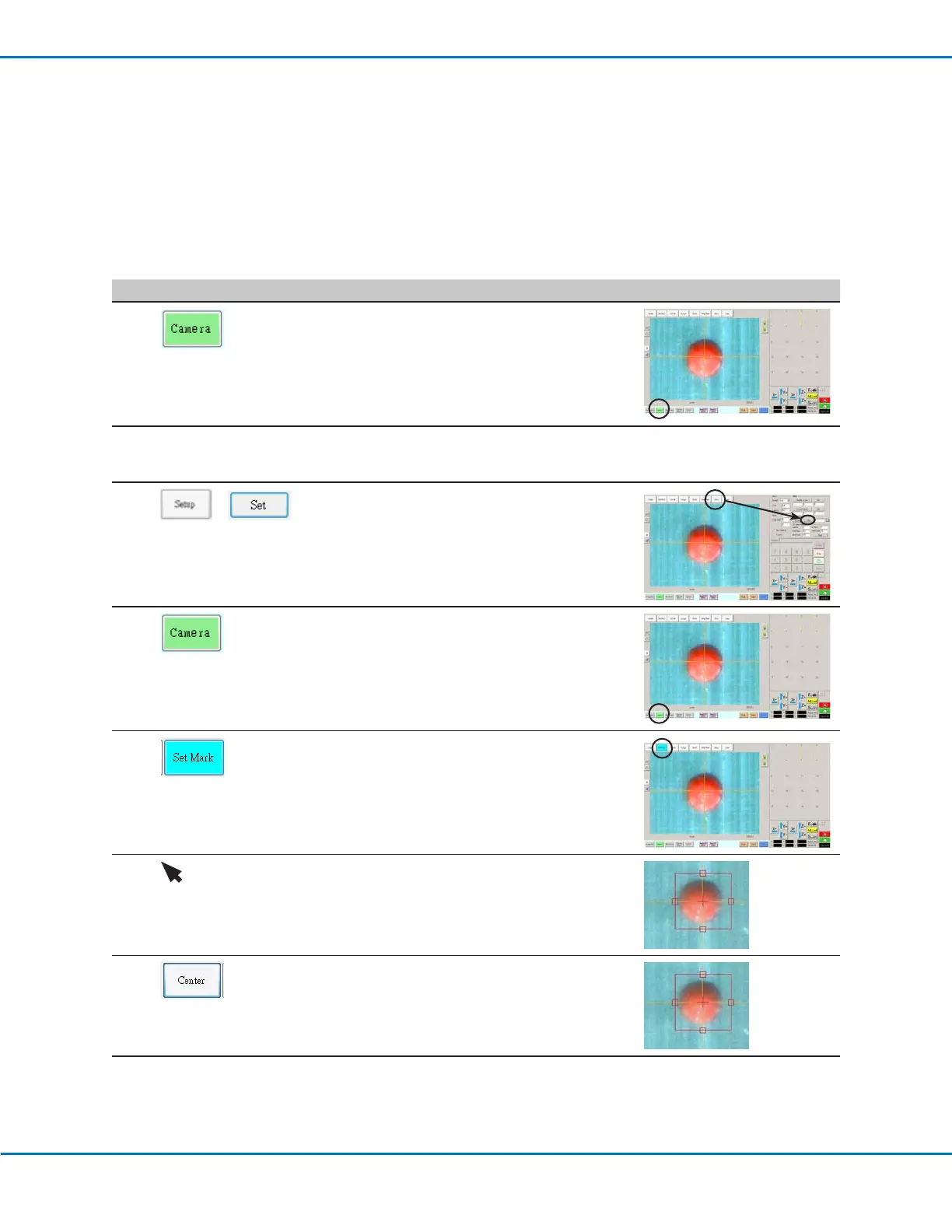
• Click CAMERA to go to the camera screen.
2
• Bring the image into focus. Refer to “Camera”
on page17 as needed for instructions on
focusing the camera.
3
>
• Click SETUP to go back to the Camera
window Offset fields.
• Click SET next to Focus in the Offset portion
of the Camera Setup screen.
4
• Click the CAMERA tab.
5 • Click SET MARK.
A red box appears.
6 • Click and hold the center of the red box,
drag it over the dispense dot, and then click
and drag the four box handles such that they
outline the dot.
7
• Click CENTER to center the red cross mark
on the target.
Continued on next page


 To Next Page