PROPlus / PRO Series Automated Dispensing Systems
37www.nordsonefd.com info@nordsonefd.com +1-401-431-7000 Sales and service of Nordson EFD dispensing systems are available worldwide.
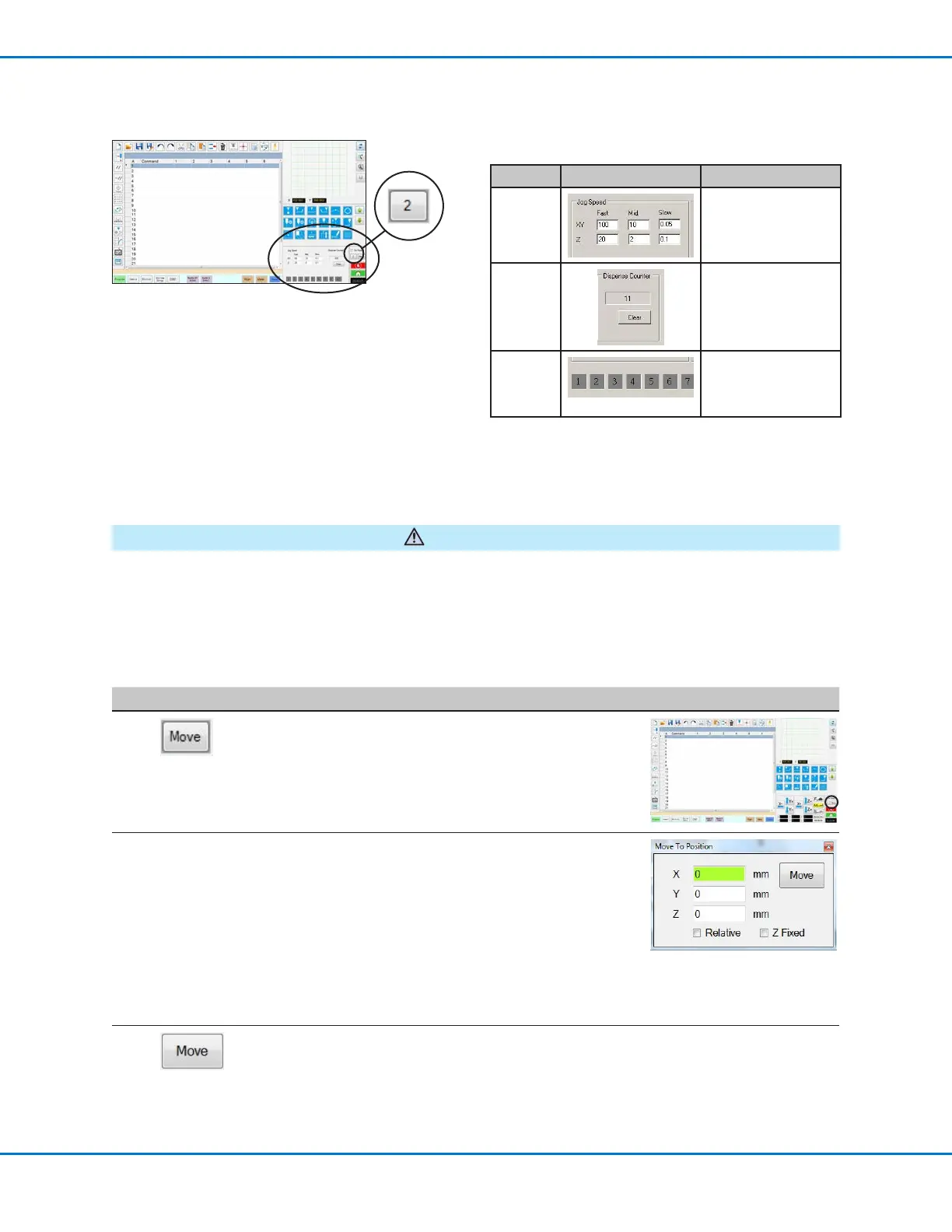
View 2
Field Screen Area Function
Jog
Speed
Allows you to change
the jog speed settings
by entering values
using the keyboard.
Dispense
Counter
Shows how many
dispense actuations
have occurred. Click
CLEAR to reset the
counter to zero (0).
Input /
output
triggers
Allows you to trigger
a connected input /
output by clicking the
input / output number.
CAUTION
Risk of equipment damage. When moving the tip to a specific location, do not exceed the axis limits (specified
under System Setup > Axis Limits), especially for the Z axis. Doing so can damage the robot or cause the tip to
collide with the substrate.
How to Move the Tip to a Specific Location
You can use the Move button in the jog window to move the tip to a specific set of coordinates.
#
Click Step Reference Image
1
• In the jog window, click MOVE.
The Move to Position window opens.
2 • Enter the desired coordinates. As applicable,
select or deselect the following checkboxes:
- Relative: If selected, the tip will move to the
entered coordinates relative to its current
location. If deselected, the tip will move
to the entered coordinates based on the
home position (0, 0, 0).
- Z Fixed: When selected, locks out the Z
axis so only X and Y coordinates can be
entered.
3 • Click MOVE.
The tip moves to the specified location.
• Close the window.
Navigation and Jogging Window (continued)
View 2 of the navigation and jogging window


 To Next Page