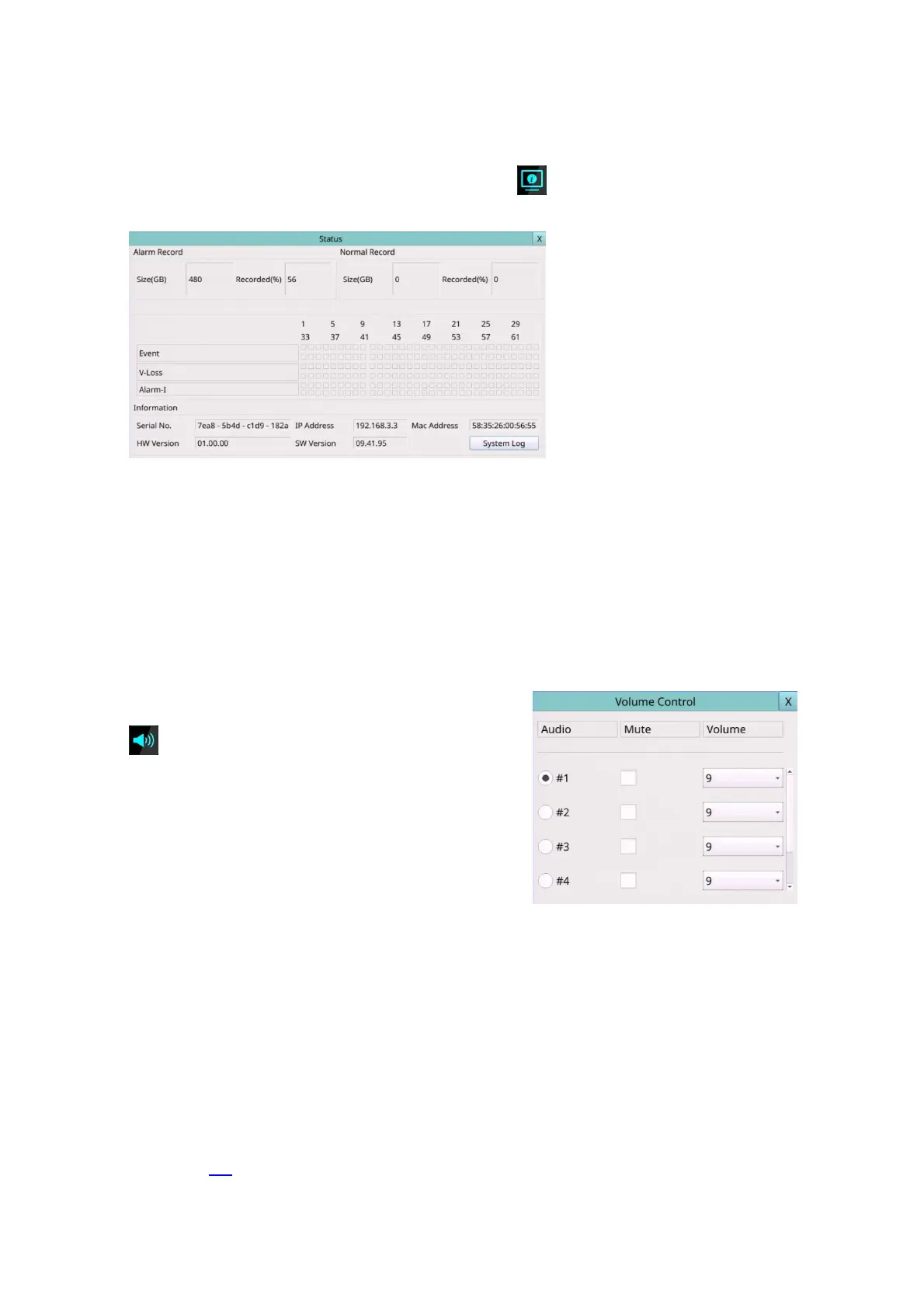
5.1 Status Display
Left-click the mouse to select the Status (Mouse: ) In Menu display, the system status
will be shown.
The status display includes Alarm Recording Status, Normal Recording Status, Camera
Status, Alarm Input Status, Product Serial Number, Product Version Number, and IP Address.
Press X (Mouse: Left Click X or Right Click to leave) to escape from the Status display, and
return to Menu display.
System Log – the system events are to be shown in the log list. It includes all
system-related events, such as power on/off, and will not trigger recording.
5.2 Volume Control
Left-click the mouse to select the Volume (Mouse:
) In Menu display, the Volume Control will be
shown.
The general operations are as below:
Mouse: Click in the respective item
Select the items to set.
X (Mouse: Left Click X or Right Click to leave)
Press this button to escape from this screen, and return to Menu display. If the
contents have been modified, a Save dialog will be shown to ask the user to save the
changes, press YES to exit and save, CANCER to exit without saving.
Following is a brief description for each item and its specific operations:
Mute – to mute the selected audio channel. The default setting is unchecked.
Volume – the volume of the selected audio channel.
Note: If want to adjust the audio volume of IP Camera, please change the setting in IP
Camera.
Note: The sound source of the volume control will be linked to the audio input setting
of the 6.1 camera setup. For example, if the CH1 audio input is set to N/A /1/Camera,
then #1 of the volume control will hear no sound/1/with the sound from the IP camera.
The volume control only adjusts the volume from the Audio Input of the device.



 To Next Page