- 91 -
Appendix B – MS-Windows HEM Utilities
The remote CMS software (HEM), and the MS-Windows utility programs (HEM Utilities)
include HEM, HEM Player, Media Converter, Keyboard Control Simulator, and DVR
Browser. Please contact your local dealer or contractor to get the HEM and HEM Utilities
applications. Unzip them and double click on HEM/Setup.exe to install HEM, and
Utilities/Setup.exe to install the utility programs. Please follow the instructions on the
screen to install the software in the default directory “Program Files\Hyper Electronics
Mappers” or the directory entered by the user. For HEM, please refer to the manual for
HEM. For the other utility programs, please refer to the following paragraphs.
HEM Player
Before running HEM Player in your PC, please make sure the followings:
1. DirectX
®
End-User Runtime 9.0 or above has been installed in your PC successfully. If
not, please logon to http://www.microsoft.com to get the free download of it.
2. Please go to Start → Setup → Control, select Display → Settings, and set the Screen
Resolution to at least 1920x1024 and Color to 32-bit.
To run the HEM Player under MicroSoft
®
Windows
®
, please select Start → Programs →
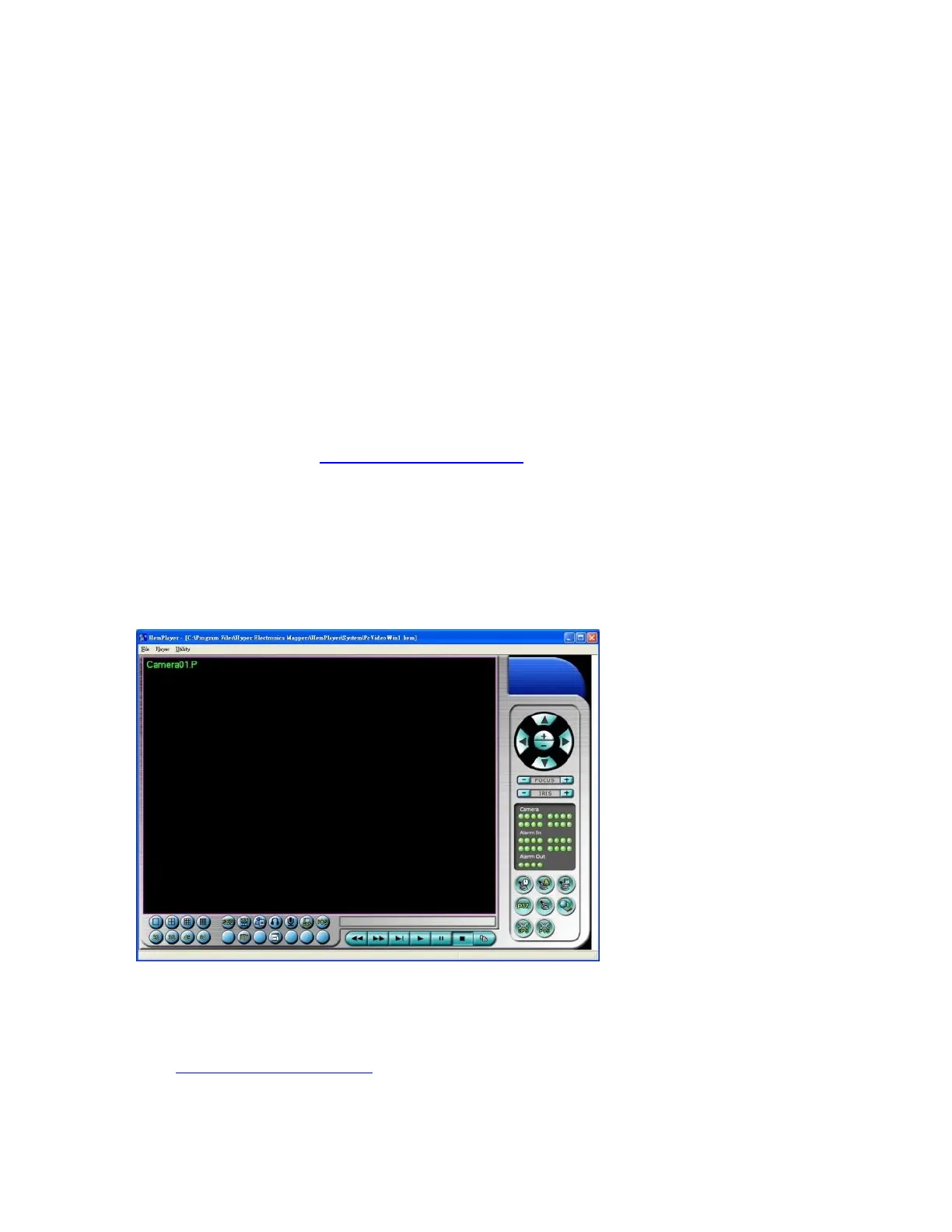
Hyper Electronics Mappers → HemPlayer, and the screen will be shown as below.
Since this utility is a free player utility for the archived files, from USB backup or remote
backup, some of the functions are disabled. The mouse cursor will change to “Hand” type
if it’s on those enabled function icons. The operations and their descriptions are the same
as in Chapter 8. Remote Access.
To select an archived file for playback, please click on File menu, and then select Open.
After an archived file is opened, the user may click on the player buttons to play the file.



 To Next Page