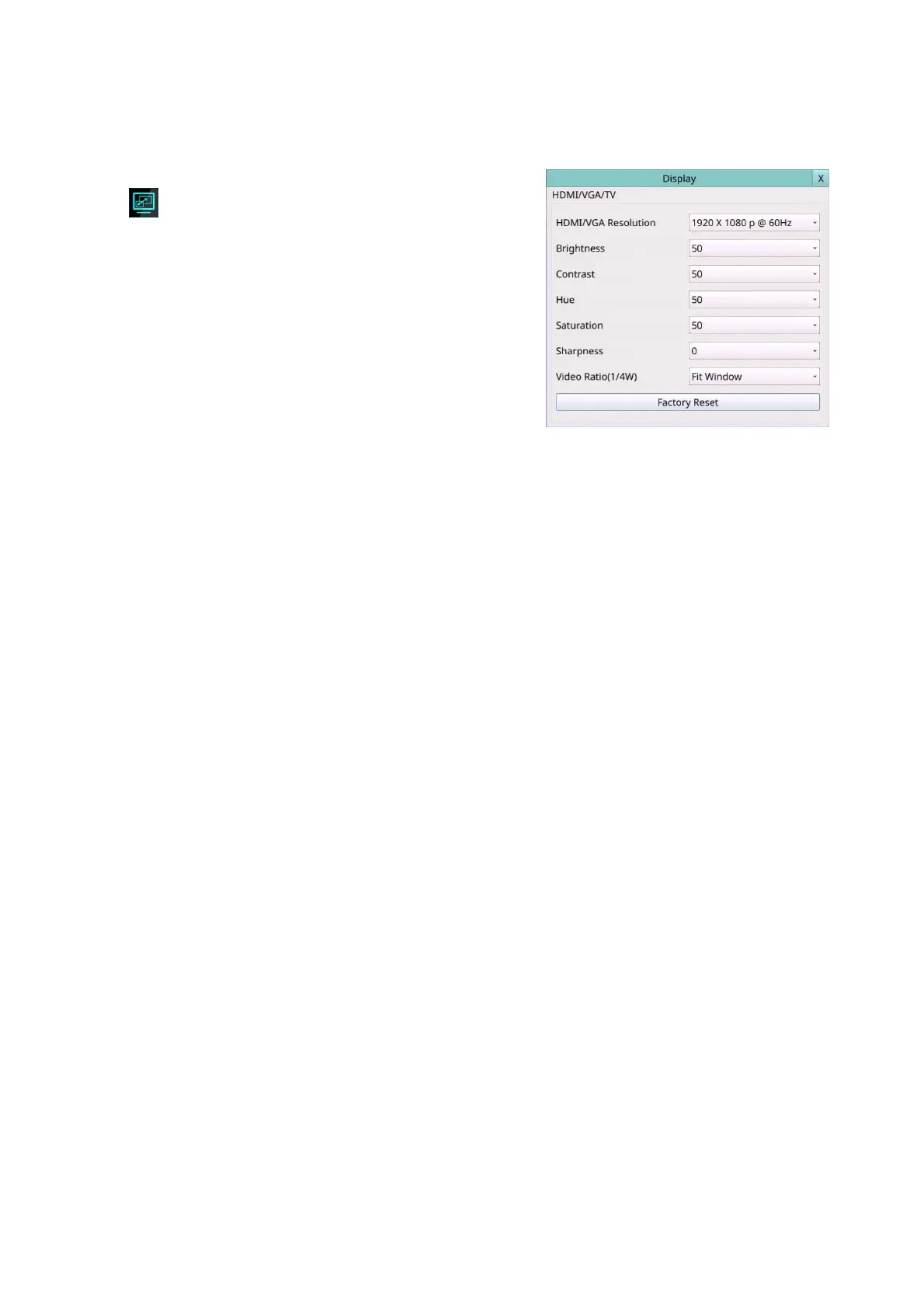
5.4 Display
Left-click the mouse to select the Display (Mouse:
) In Menu display, the Display Setup will be
shown.
There are several items which can be adjusted,
including Resolution, Brightness, Contrast, Hue, etc.
Besides, Touch panel models are also supported. The
operations are as below:
Numeric (Mouse: Click in the respective item)
Press these values to adjust the selected items.
Factory Reset (Mouse: Left-click the mouse to select this)
Press this button to restore the items above to factory default values.
X (Mouse: Left Click X or Right Click to leave)
Press this button to escape from this screen. If the contents have been modified, a Save
dialog will be shown, press YES to exit and save, CANCER to exit without saving. Please
note that the display may not be able to support the resolution newly selected, and
hence the display will show nothing. If so, please press CANCER or wait for 15 seconds
to restore the original resolution. If users press YES to accept the resolution change, the
system will reboot. If the display shows nothing after reboot, please change the display
setting via the remote side (Web side or HEM). After changed the display setting via the
remote side, please reboot the DVR manually. If you don't know the IP address of the
DVR, please use the "DVR Browser" to search the DVR information.



 To Next Page