7.1 Search By Time
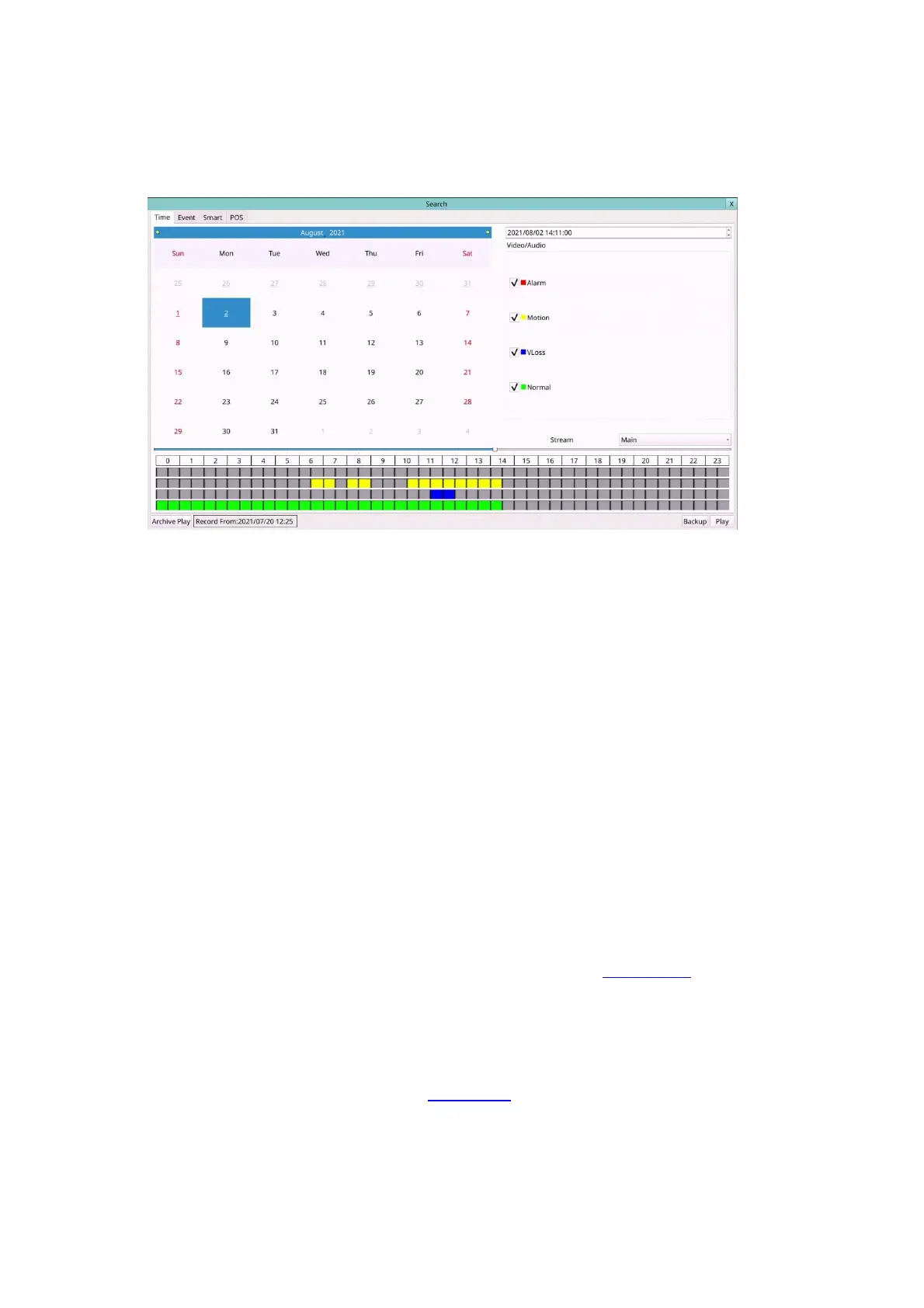
The screen for Search By Time is shown as below:
The Status field will show the ‘Recorded from’ time, it's based on the Video/Audio before
searching. Above the status, fields are the 24H time slider and alarm/motion/video
loss/normal recording status (from top to bottom).
The general operations are as below:
Mouse: Click in the respective item
Select the items to enter the corresponding Search display.
X (Mouse: Left Click X or Right Click to leave)
Press this button to escape from this screen, and return to split-window display.
Play Button (Mouse: Left click)
Press this button to start playing the recorded video/audio with the selected search
time and video/audio type. If there’s no camera in playback mode, all the cameras in
the current split window will be set to playback mode.
Backup Button (Mouse: Left click)
Press this button to backup (copy) the selected type of recorded video/audio starting
from the Search Time (described below) in the HDD to the connected backup device
without playback. The Backup display (described in Section 7.6) will be shown.
Please note that this kind of backup is performed in the background, and the user
can still do almost all the operations.
Archive Play Button (Mouse: Left click)
Press this button to search/playback archive files from the backup device. The
Archive Play screen (described in Section 7.4) will be shown.
Following is a brief description for each item and its specific operations:
Stream – (Main Stream, Sub Stream). Select the stream of the recorded video you
want to search for playback.



 To Next Page