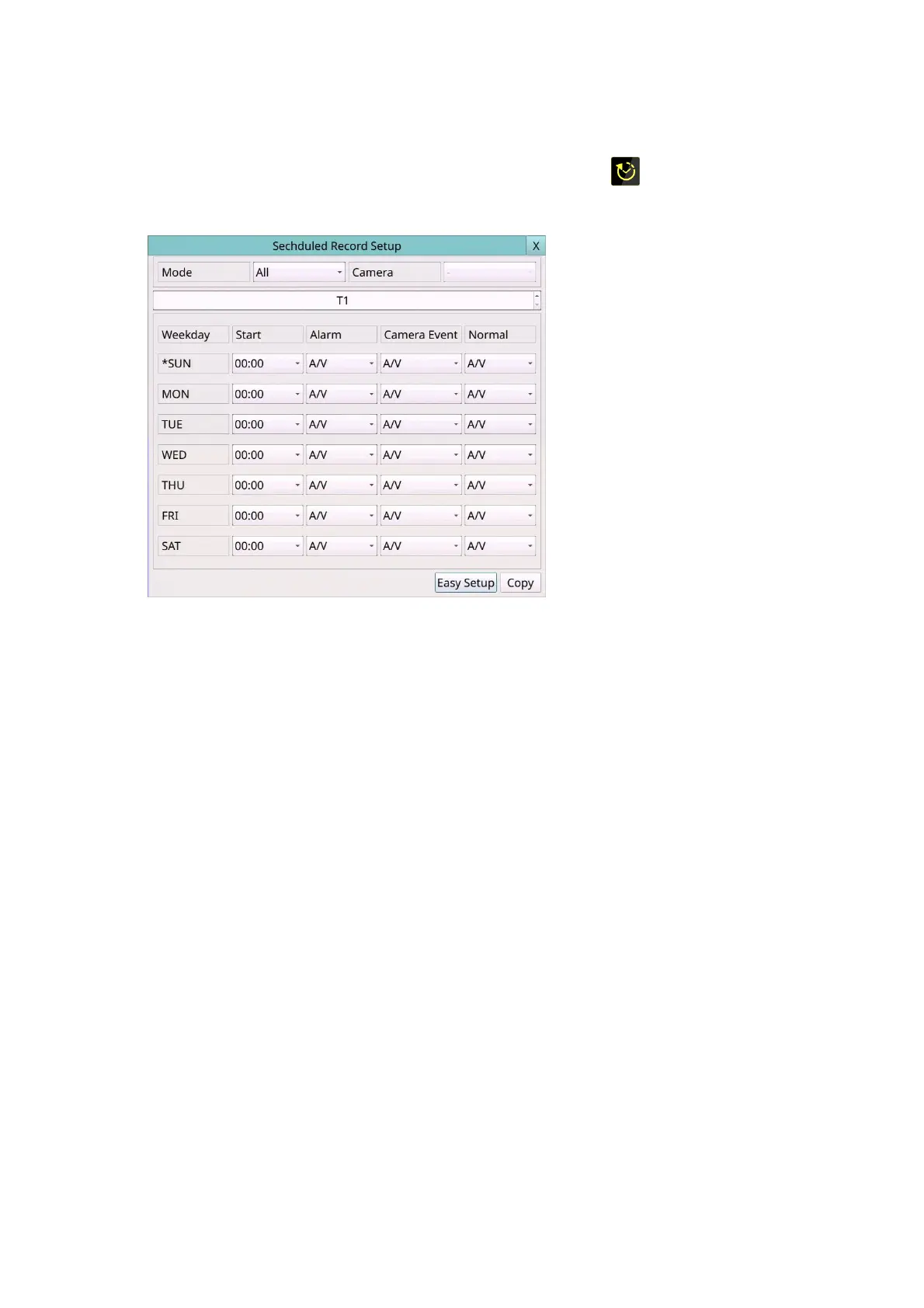
6.4 Scheduled Record Setup
Left-click the mouse to select the Schedule Record (Mouse: ) In Setup Menu display,
the Schedule Record Setup will be shown.
The Scheduled Record Setup allows the administrator to define when and how to record
for the system. There are up to 16 time segments (T1 – T16) for each weekday.
The general operations are as below:
Mouse: Click in the respective item
Select the items to set.
X (Mouse: Left Click X or Right Click to leave)
Press this button to escape from this screen, and return to Setup Menu display. If the
contents have been modified, a Save dialog will be shown to ask the user to save the
changes, press YES to exit and save, CANCER to exit without saving.
COPY
Press this button to copy the settings of (1) the focus camera to all the following
cameras, or (2) the focus weekday to all the following weekdays. (EX. focus weekday
is TUE, its settings will be copied to those of weekdays WED-SAT.)
To focus the weekday, click the week's text and there will be an asterisk (*) preceding
its text.
Easy Setup (Mouse: Left click)
Press this button to enter Easy Setup for Schedule Record as described in the
following paragraphs.
Following is a brief description for each item and its specific operations:
Mode – the schedule below applies to All cameras or Individual camera.
Camera – select the camera if Individual is selected.



 To Next Page